

Starlink for Business: The Complete Failover Setup Guide (2026)
How to set up Starlink as a business internet failover with UniFi — including CGNAT fixes, plan selection, dual-WAN configuration, and testing before you need it.


Last September, one of our clients — a 15-person accounting firm in Doral — lost internet for four days after a storm knocked out their Comcast Business line. No VoIP. No cloud access. No way to reach the QuickBooks file their tax team needed on deadline. They'd talked about adding a backup connection for two years.
We installed Starlink Business as a failover WAN behind their UniFi Cloud Gateway Max the following week. Total configuration time: about 90 minutes. The next storm brought a 6-hour outage on Comcast. Their staff never noticed.
This guide covers exactly what we did, what Starlink plan to buy, and the specific UniFi configuration that makes the switchover invisible to users — including the CGNAT workaround that most guides leave out.
Affiliate Disclosure: This article contains affiliate links. If you make a purchase through these links, we may earn a small commission at no extra cost to you. As an Amazon Associate, iFeelTech earns from qualifying purchases.
Who Should Use Starlink for Business Failover?
This guide is for IT managers deploying Starlink as a secondary connection. It provides specific UniFi configuration steps and plan selection criteria.
If you're still evaluating whether Starlink makes sense for your business at all — whether the latency is acceptable, how it compares to AT&T fiber, or whether it's worth the hardware cost — start with our Starlink vs. fiber comparison for businesses first. That article works through the decision. This one assumes the decision is made.
And if you haven't yet settled on dual-WAN architecture in general — carrier diversity vs. route diversity, or whether failover-only or load balancing is the right setup for your network — our dual-WAN guide for business networks covers that decision before you get to the Starlink-specific configuration below.
The setup we cover here applies to any UniFi gateway with dual-WAN support: the Cloud Gateway Max, Cloud Gateway Fiber, Dream Router 7, and the rack-mounted UDM Pro, UDM SE, and UDM Pro Max. All use the same UniFi Network interface and the same failover configuration path. (If you're running a UDM Pro or UDM SE, WAN2 is enabled by reassigning a LAN port in Settings → Internet, same as on the UCG Ultra.)
If you've encountered older references calling satellite internet unsuitable for business, those were written about geostationary (GEO) providers like HughesNet and Viasat, which operate at 600–800ms latency — too high for VoIP or VPN. Starlink's low-earth orbit constellation runs at 20–60ms and is a different category of technology.
Which Starlink Plan Is Right for Business Failover?
The Starlink Business Local Priority 50GB plan at $55 per month is the best starting point for most failover deployments because it includes a publicly routable IPv4 address.
As of May 2026, Starlink offers two distinct product tracks for fixed business locations — Residential tiers and Business Local Priority tiers — and the right choice for failover depends almost entirely on whether your backup connection needs to accept inbound traffic.
Starlink Residential tiers start at $50/mo (100 Mbps) and go up to $80/mo (200 Mbps) and $120/mo for Residential MAX. The Standard dish ($349) works with all residential plans. For a small office that only needs outbound failover — web browsing, cloud apps, outbound VoIP calls — Residential works. It uses the same satellite network as Business and will deliver 100–400 Mbps when your primary WAN fails.
Starlink Business Local Priority tiers are the right call if your failover connection needs to do anything more. Starlink offers four Local Priority tiers:
| Plan | Monthly Cost | Priority Data | Best For |
|---|---|---|---|
| Local Priority 50GB | $55/mo | 50 GB | Backup/failover for small offices |
| Local Priority 500GB | $155/mo | 500 GB | 2–4 user offices, light daily use |
| Local Priority 1TB | $280/mo | 1 TB | 5–10 user offices |
| Local Priority 2TB | $530/mo | 2 TB | 10–20 user offices |
The Local Priority 50GB at $55/mo is Starlink's own description: "best for backup connectivity and small businesses." It's the lowest-cost entry into Business tier and the right starting point for most failover installs. If your failover triggers rarely (as it should for a good primary connection), 50GB is more than enough — it's roughly 600 hours of cloud application use.
The meaningful difference between Residential and Business isn't speed — it's IP addressing. Residential plans use CGNAT (more on this in the next section). Business Local Priority plans provide a publicly routable IPv4 address that bypasses CGNAT entirely. That single difference determines whether your failover can handle inbound connections.
Can I Use Starlink Residential for Business Failover?
Yes, with one important caveat: CGNAT. Residential plans work well for outbound-only failover — cloud apps, web browsing, outbound VoIP. They don't work for anything that requires inbound connections: inbound VPN, remote desktop, or SIP trunk registration that requires port mapping. If your office's remote access is outbound-only (Tailscale, ZeroTier, RingCentral, etc.), Residential is fine. If you need inbound connections, go Business Local Priority from the start.
Hardware: Both Residential and Business Local Priority work with the Standard dish ($349). The Performance Kit ($1,999) is Starlink's high-end hardware designed for harsh environments and in-motion use — it's overkill for a fixed office failover deployment. The Standard dish handles typical South Florida weather, including tropical storms, when properly mounted.
How to Fix the Starlink CGNAT Problem
Carrier-Grade NAT prevents inbound connections on all Starlink Residential plans. Upgrade to Business Local Priority or use Tailscale to resolve it.
What CGNAT is: Carrier-Grade NAT (CGNAT) means your Starlink dish shares a single public IP address with dozens or hundreds of other subscribers. From your network's perspective, you have a private IP that gets NATed twice — once by your own router, and again by Starlink's infrastructure. The result: there is no way to receive inbound connections. Port forwarding does not work. Your VoIP provider can't reach your phones directly. Remote desktop sessions initiated from outside your network can't connect. Site-to-site VPN tunnels that require your side to be addressable will fail.
Starlink Residential plans use CGNAT by default, and there is no way to opt out or purchase a static IP on any Residential tier.
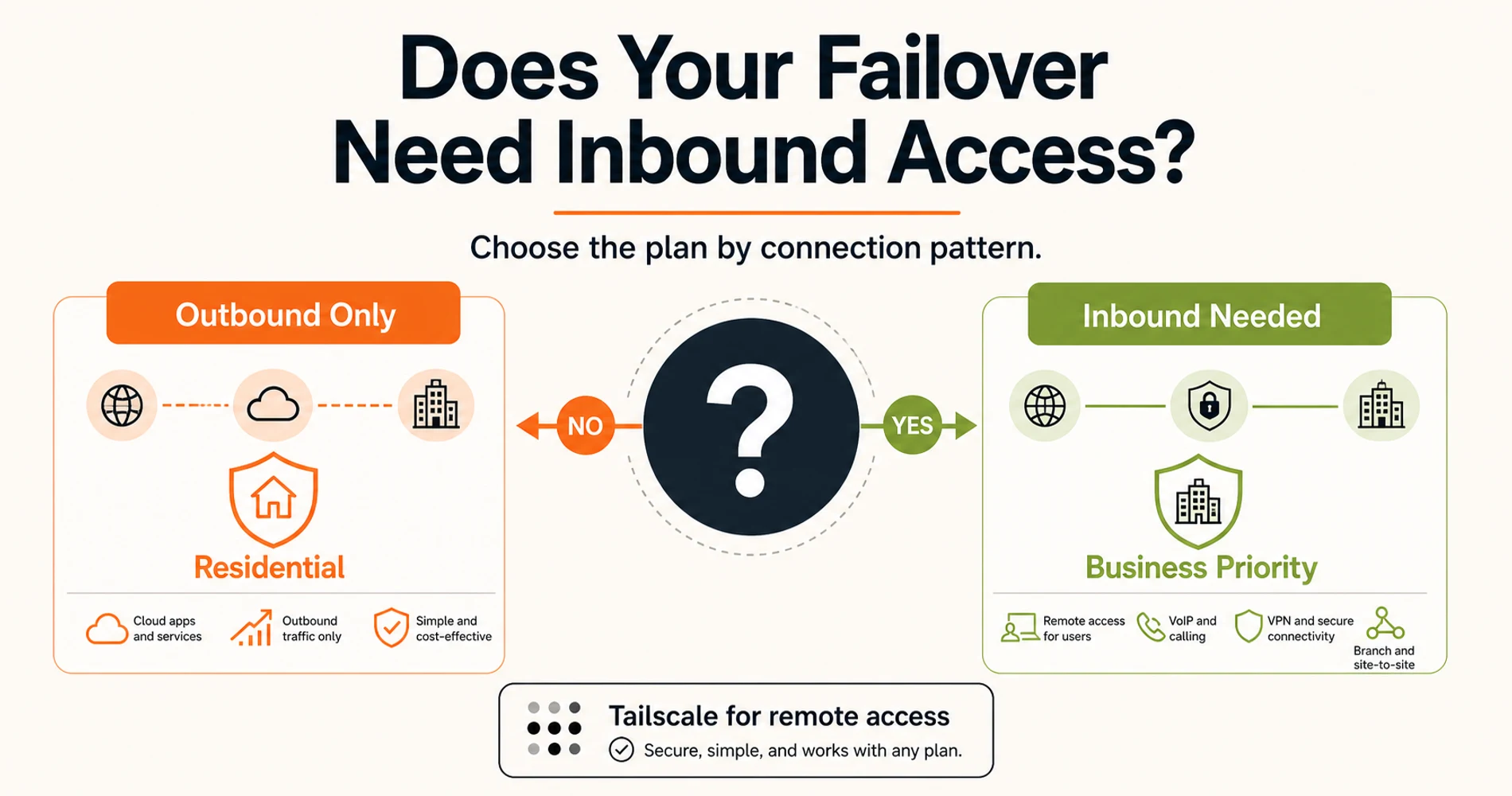
The three fixes, in order of cost:
1. Upgrade to Business Local Priority ($55/mo+) Business Local Priority plans include a publicly routable IPv4 address. It's dynamically assigned via DHCP (not truly static — the address can change on lease renewal), but it bypasses CGNAT completely. For most VoIP and VPN configurations, a public DHCP-assigned address works fine. For any service that requires a specific unchanging IP (some SIP providers whitelist by IP), you'll need to update your provider's settings when the address changes, or use a dynamic DNS service.
2. Use UniFi Teleport (free, UniFi-native) If your team is already fully on Ubiquiti hardware, Teleport is the easiest path. Teleport routes remote access connections through Ubiquiti's own relay servers — no inbound port forwarding required, no public IP needed on your Starlink connection. It's designed for remote workers connecting back to a UniFi site and handles Starlink CGNAT without any additional configuration. Enable it in UniFi Network under Settings → VPN → Teleport. The limitation: Teleport is for remote user access, not site-to-site tunnels between two office locations.
3. Use Tailscale (free for most SMBs)
If you're staying on Residential to save money, Tailscale bypasses CGNAT entirely. Each device with the Tailscale client gets a stable Tailscale IP (100.x.x.x) that works regardless of what NAT sits in front of it. For remote desktop and site-to-site access, Tailscale's free Personal tier (up to 6 users, unlimited user devices) covers most small offices. The tradeoff: Tailscale doesn't help your VoIP phones unless they're running a SoftPhone app that supports it.
4. Restructure inbound services to be outbound-only The most reliable long-term fix. Cloud-based VoIP systems (RingCentral, Nextiva, 8x8) initiate connections outbound to the provider's servers — no inbound connections required. Cloud-managed remote access tools (TeamViewer, ConnectWise Control, Splashtop) work the same way. If your office has already moved to cloud-hosted services, CGNAT may not be a problem at all on Residential.
CGNAT Blocks Inbound SIP Registration on Starlink Residential
If your VoIP phones use a local SIP server or a provider that requires inbound SIP registration from a specific public IP, Starlink Residential will block them during failover. Test this before your first real outage. The fix is either upgrading to Business Local Priority or switching to a cloud VoIP provider with outbound-only connection architecture.
Hub-and-Spoke VPN: How Branch Reconnection Works
If your office is the hub of a site-to-site VPN — with branch locations connecting back to HQ — Starlink failover on the hub creates one specific consideration: the IP change.
Starlink Business assigns a publicly routable IPv4 address via DHCP. That IP can change on lease renewal or after a restart. Any active site-to-site VPN tunnel built on IP-to-IP authentication will drop when the IP changes, and branches won't automatically reconnect until they have the updated address. The resolution depends on how the VPN is built:
- Dynamic DNS (DDNS): Configure the hub's VPN endpoint as a hostname rather than a raw IP address. UniFi's built-in DDNS client updates the hostname within seconds of an IP change. Branch endpoints configured to connect to the hostname re-establish tunnels automatically.
- Cloud relay VPN (Tailscale, ZeroTier, NordLayer): DDNS isn't needed. Branches connect to a shared relay that's IP-agnostic. Tunnels re-establish regardless of what IP Starlink assigns at the hub, and the switchover is transparent to branch users.
- IPsec with a fixed peer IP: If branches have a static HQ IP configured, an IP change requires a DDNS update or manual reconfiguration at each branch location. This is the highest-friction option when Starlink failover is on the hub WAN.
For multi-site deployments, a cloud relay VPN is the right architecture when any WAN on the hub is DHCP-assigned. Tailscale's free tier covers most small business setups. UniFi's own Teleport VPN also handles IP changes gracefully within an all-UniFi network.
UniFi Dual-WAN Failover Configuration Steps
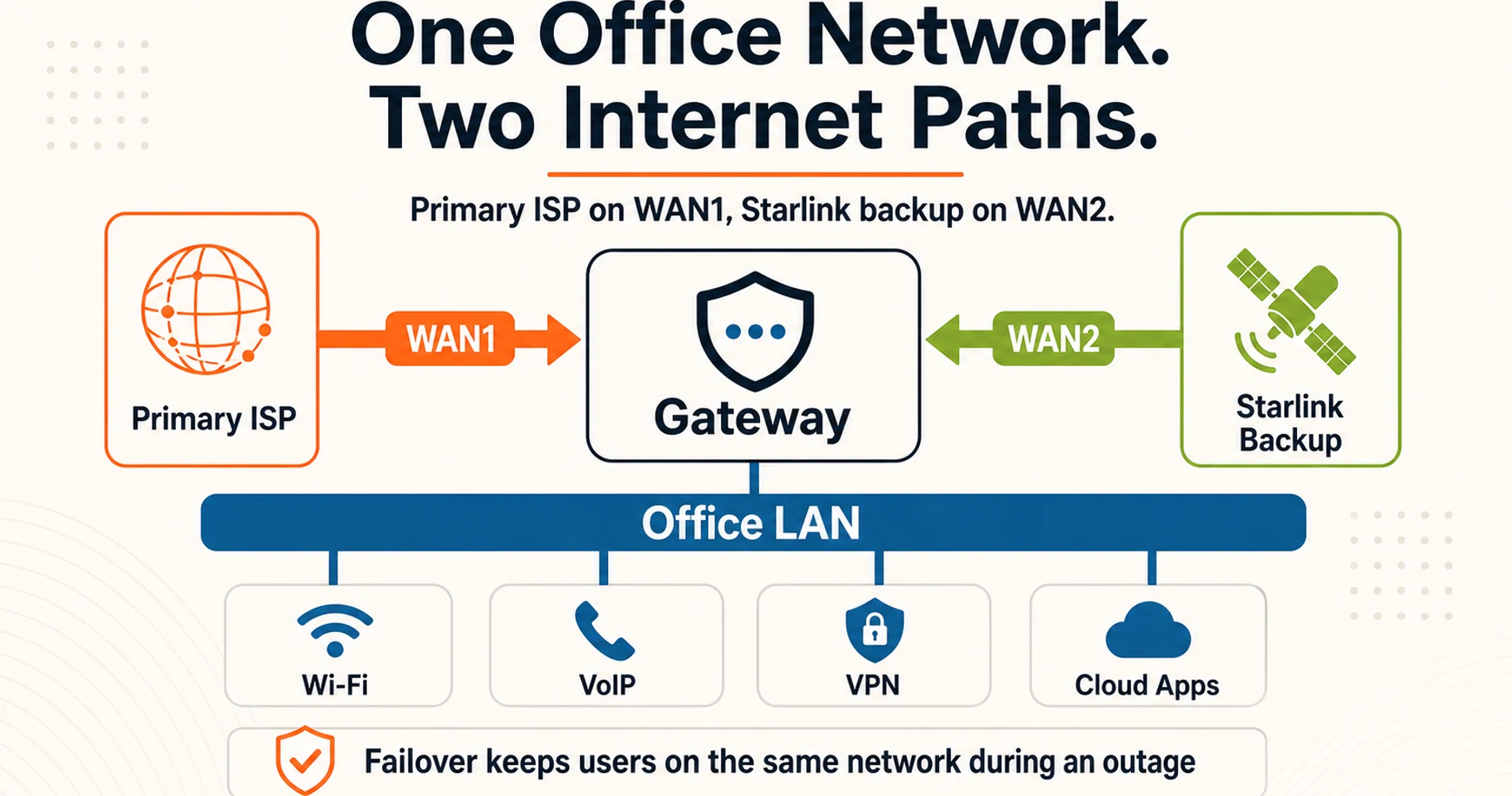
Enable Starlink bypass mode, connect to UniFi WAN2, and set WAN2 to failover mode. These steps apply to the UCG Max, UCG Fiber, and Dream Router 7.
(Note: The UniFi Express 7 does not support dual-WAN as of this writing. The UCG Ultra supports it by reassigning LAN Port 4 as a secondary WAN.)
Before you start: Put the Starlink router in bypass mode. In the Starlink app, go to Settings → Advanced → Bypass Mode and enable it. This passes the connection through to your UniFi gateway and lets UniFi handle all routing. Without this step, you get double-NAT, which causes routing problems and confuses the failover health checks.
Step 1: Physical Connection
Power the Dish from a UPS
Connect both the Starlink dish and your UniFi gateway to the same UPS. A backup WAN that loses power when your primary ISP goes down — typically during the same storm — provides no protection. The dish requires roughly 50–75W continuous; most small office UPS units (600VA+) handle the dish, gateway, and a small switch without issue. Our battery backup guide for a modem and router shows how to total the load and check each model's runtime.
Connect the Starlink dish's Ethernet output to the WAN2 port on your UniFi gateway. On the UCG Max and UCG Fiber, WAN2 is a dedicated port. On the Dream Router 7, WAN2 is the secondary WAN port — check the hardware label. If your UniFi gateway is connected via a switch, you can pass Starlink through a VLAN on the switch and assign that VLAN to WAN2 in UniFi, but a direct connection is simpler.
Step 2: Configure WAN2 in UniFi Network
- Go to Settings → Internet.
- You'll see WAN1 (your primary connection) already configured. Select or create the WAN2 interface.
- Set connection type to DHCP (Starlink in bypass mode uses standard DHCP).
- Leave the DNS settings on auto — UniFi will use the connection's DNS when it's active.
- Save.
At this point, UniFi will detect the Starlink connection and show WAN2 as active in the dashboard.
Step 3: Set Failover Mode
- In Settings → Internet, find the WAN priority configuration.
- Set WAN1 as the primary connection.
- Set WAN2 (Starlink) to Failover mode — not load balancing.
- Assign WAN1 a higher priority (lower priority number) than WAN2.
Why not load balancing? Load balancing distributes new connections across both WANs based on a configured split. This sounds appealing — you'd be using your paid Starlink connection instead of letting it sit idle. The problem: it creates asymmetric routing for stateful connections. VoIP calls, video conferencing sessions, and VPN tunnels all start on one WAN and stay there for the session's duration. With load balancing, some sessions start on Starlink (with its slightly higher latency) and some on your primary ISP, making call quality inconsistent. Failover-only mode is almost always the right choice for small offices.
Step 4: Tune the Failover Detection Threshold
UniFi monitors WAN health using three probes by default:
- Ping to
ping.ui.com - DNS resolution via Cloudflare (1.1.1.1)
- DNS resolution via Google (8.8.8.8)
A WAN is marked down when two of three probes fail. This is the Auto SLA and is appropriate for most networks.
To customize this: go to Settings → Internet → Create New SLA. From here you can set:
- Ping interval: How often to probe (default is appropriate for most networks)
- Time period: The window over which probes are averaged
- Packet loss / latency / jitter thresholds: What constitutes a failed probe
Don't Over-Tighten Failover Detection
Setting very short ping intervals or aggressive latency thresholds causes false failovers during momentary congestion spikes. A 200ms latency spike on your primary ISP is not an outage — it's normal traffic congestion. If you need a custom SLA profile, navigate to Settings → Internet → Create New SLA and use these as starting values: 150ms latency and 10% packet loss as failure thresholds, averaged over a 30-second window. Do not set thresholds tighter than this — they will trigger false failovers during normal ISP congestion. A 15–30 second detection window is the right target for most small offices.
Step 5: Verify DNS Failover
By default, UniFi switches DNS resolution to the active WAN connection during failover. This works correctly for most setups. If you're running a local DNS resolver (Pi-hole, AdGuard Home, Unbound), verify that your resolver has fallback DNS configured — otherwise DNS queries may fail briefly during the switchover even though the connection itself is up.
How to Test UniFi WAN Failover Functionality
Disconnect your primary WAN cable to verify that internet access, outbound VoIP calling, and remote VPN access resume within 45 seconds.
Run this test before signing off on any Starlink failover installation:
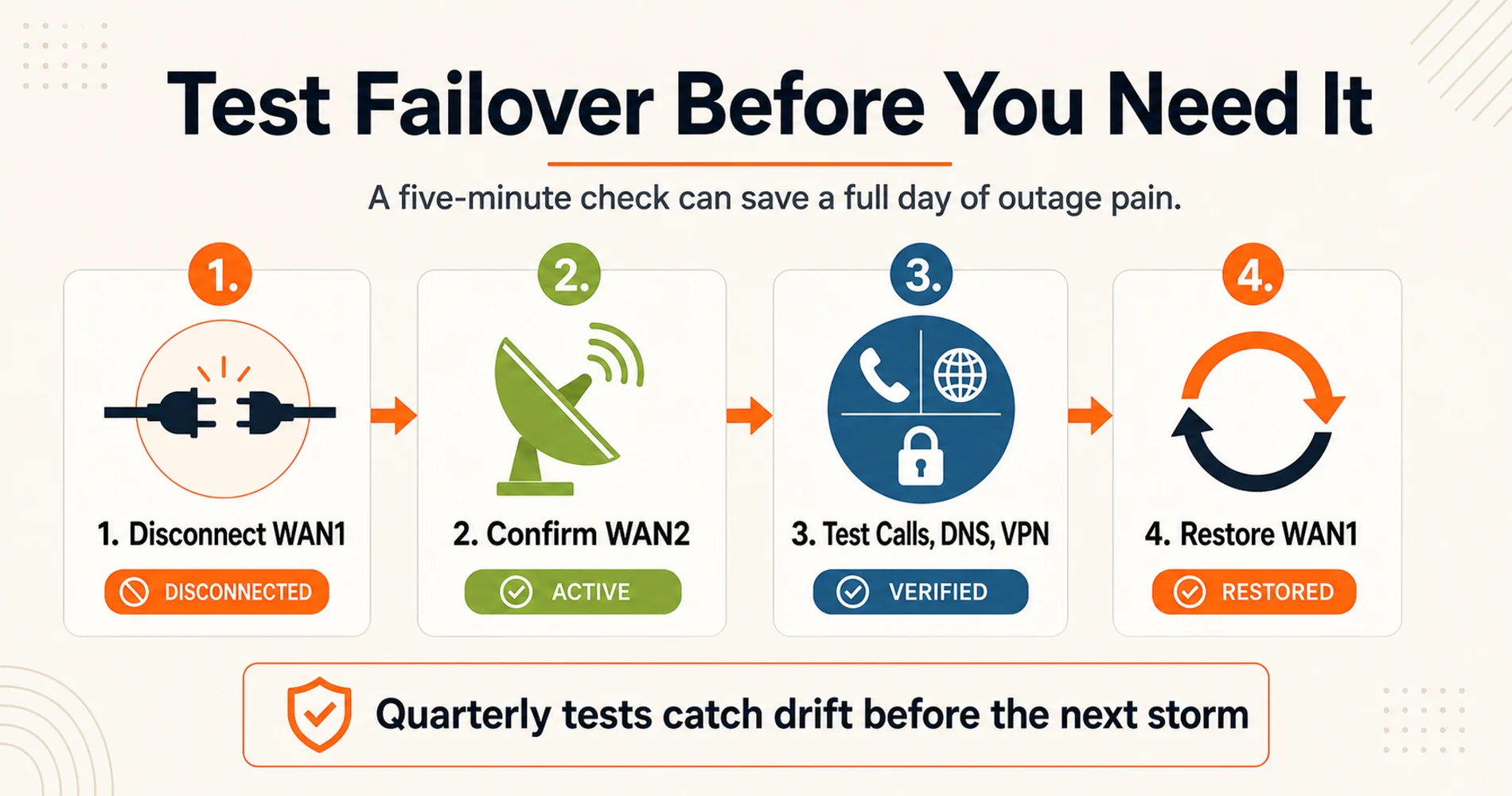
1. Verify basic connectivity failover Pull the WAN1 cable from your UniFi gateway (or temporarily disable the primary WAN interface in Settings → Internet). Time how long it takes for internet access to resume. It should be 15–45 seconds with default settings. Open a browser tab and try a few sites. Check that the UniFi dashboard shows WAN2 as the active connection.
2. Make a VoIP call With WAN1 disconnected, place an outbound VoIP call and verify it connects and sounds normal. If your VoIP runs through a cloud provider (RingCentral, Nextiva, etc.), it should reconnect within seconds of failover completing. If it doesn't connect, this is your CGNAT problem in action — see the previous section.
Expected behavior for real-time applications at the moment of WAN switchover:
| Application | Behavior During Failover | Recovery Time |
|---|---|---|
| Active SIP/VoIP call | Drops at IP change | New call needed; ~5–30 sec |
| RingCentral / Nextiva / 8x8 | Reconnects automatically | 5–15 sec |
| Microsoft Teams / Zoom | Session drops, auto-reconnects | 10–30 sec |
| Browser / cloud apps | Resume on new connection | 5–15 sec |
| Site-to-site VPN | Drops, reconnects per VPN protocol | 15–60 sec |
VoIP jitter on Starlink averages 5–15ms during normal operation — well below the 30ms threshold for acceptable call quality. The disruption at failover is the IP change itself, not Starlink's ongoing latency. Active calls don't survive the IP transition regardless of configuration; new calls after failover completes work normally.
3. Check DNS
Run nslookup google.com from a workstation or check in the UniFi DNS resolution statistics. Verify queries are resolving correctly on the failover connection. DNS failures during failover are a common cause of "the internet is working but nothing loads" complaints.
4. Verify remote access If your office uses VPN or remote desktop tools, test inbound access from a phone on cellular while the office is running on Starlink failover. This is the most common failure point for CGNAT issues.
5. Restore primary WAN Reconnect WAN1. Verify that UniFi fails back to the primary connection within a minute and that traffic returns to normal.
Schedule a Quarterly Failover Test
Starlink dish alignment can drift slightly over months, particularly after a major storm. A Starlink connection that tested fine at installation may have degraded throughput six months later due to an obstruction that wasn't present at install time. A 5-minute quarterly test — pull WAN1, verify connectivity, restore WAN1 — catches this before your clients find out during an actual outage.
Starlink Failover vs. 5G Failover
Choose 5G failover for urban locations with strong cell coverage. Choose Starlink for suburban fringe areas or where complete infrastructure independence is required.
If you're in Miami, Fort Lauderdale, or most of Broward County, you have a real choice between Starlink and 5G cellular as your backup WAN. Here's how to decide.
| 5G Failover (T-Mobile) | Starlink Failover | |
|---|---|---|
| Monthly cost | ~$20/mo (backup plan) | $55–$120/mo |
| Hardware cost | $99–$399 (UniFi 5G Backup or 5G Max) | $349 (Standard dish) |
| Latency on failover | 20–40ms (similar to fiber) | 25–60ms (slightly higher) |
| Coverage requirement | Strong 5G signal at your location | Clear sky view |
| Rain / storm performance | Minimal signal impact from rain | 20–30% throughput reduction in heavy tropical rain |
| Hurricane resilience | Towers can lose power or backhaul | Satellite unaffected by local infrastructure damage |
| Infrastructure independence | Shares tower infrastructure with local ISPs | Completely independent path |
5G failover wins when: You're in strong T-Mobile or Verizon 5G coverage, your budget for failover service is tight, or you need the lowest possible latency on the backup connection. For most Miami and Fort Lauderdale locations within the dense urban build-out zone, 5G is cheaper and performs well. The lowest-cost entry point is the UniFi 5G Backup ($99) — a RedCap 5G device that connects via a single PoE port on any UniFi switch and handles email, VoIP, and POS traffic during outages. Our 5G failover setup guide covers hardware options and UniFi configuration in detail.
Starlink wins in three specific scenarios:
First, if you're outside reliable 5G coverage. This is still a real problem in parts of Miami-Dade and Broward that are in the suburban fringe — Homestead, Kendall West, parts of western Doral — where 5G mid-band coverage has gaps. Starlink's signal comes from orbit, not a local tower. If you can see the sky, you have signal.
Second, if you're in a hurricane-prone coastal area where you need tower-independent resilience. During major storms, cellular tower infrastructure can fail from power loss, physical damage, or backhaul cuts — the same storms that take out the fiber also take out the towers in the same neighborhood. Starlink's ground segment is geographically distributed, so local storm damage doesn't cascade to satellite connectivity.
Third, if you need a completely independent path with no shared infrastructure. Some businesses — medical, financial, legal — want a backup that doesn't share any physical layer with the primary. Starlink is on a different network than your cable or fiber ISP by definition.
For our South Florida clients specifically: we lean toward Starlink for businesses west of I-95 in Miami-Dade and most of Broward County outside the downtown cores, where 5G coverage is spottier and the fiber alternatives are often Comcast Business (which uses the same physical plant as residential). For businesses in downtown Miami, Brickell, or the Fort Lauderdale CBD, 5G failover is typically the right call.
Starlink Failover 24-Month Cost Breakdown
A Starlink Business 50GB failover setup costs $1,669 over 24 months: $349 one-time hardware and $55 per month in service.
24-month total cost of ownership:
| Component | Residential ($120/mo) | Business 50GB ($55/mo) |
|---|---|---|
| Hardware (one-time) | $349 | $349 |
| 24 months of service | $2,880 | $1,320 |
| Total | $3,229 | $1,669 |
For a pure failover use case where the connection rarely activates, the Business Local Priority 50GB at $55/mo is actually cheaper over 24 months than Residential MAX — and gives you the publicly routable IP that avoids CGNAT.
Purchase Starlink Business hardware or shop the UniFi Cloud Gateway Max to get the exact hardware used in this guide.
The ROI question: At $150/hour average productivity loss (typical for professional services), one avoided 2-hour outage during tax season covers a full year of Business 50GB service. Most of our clients see their first real activation within 18 months. Two outages cover the hardware.
Related Resources
- Starlink vs. Fiber for Business: Which Is Right for Your Office? — The decision guide that precedes this one: if you're still weighing whether Starlink makes sense for your business, start here.
- 5G Failover Setup Guide — Covers UniFi LTE and 5G device configuration for cellular backup WAN — the alternative to Starlink for businesses in strong 5G coverage areas.
- UniFi 5G Backup Review — Full review of the $99 RedCap 5G failover device: real-world speeds, setup, and TCO for small business deployments.
- AT&T Fiber's Built-In 5G Failover: What It Does (and Doesn't) Cover — If you're on AT&T fiber, understand what the built-in failover actually protects before adding Starlink on top.
- UniFi Cloud Gateway Ultra Review — Deep dive on UniFi's most popular small business gateway, covering dual-WAN configuration and the upgrade path from older USG setups.
Frequently Asked Questions
Related Articles
More from Network Infrastructure
Dual WAN for Business: Why One Internet Connection Isn't Enough
Why a single ISP is a single point of failure, how to verify real route diversity, and which dual-WAN gateway and backup connection fit a rack network or a simple branch office.
19 min read

Best Business Internet Providers in 2026: Fiber, Cable, and 5G Compared
A practical comparison of the best business internet providers in 2026 — AT&T Fiber, Comcast Business, Verizon Fios, T-Mobile 5G, and Starlink. What the specs don't tell you.
24 min read
Homelab Network Cables: Cat6A, Cat8, DAC, or Fiber for Each Link
Which cable links your switch, NAS and APs? DAC, fiber, Cat6A and RJ45 SFP+ modules mapped to UniFi, Omada, Synology and UGREEN ports, with cost and power.
20 min read