

SharePoint Permissions and Microsoft 365 Copilot: What to Clean Up Before Rollout (2026)
Before you enable Microsoft 365 Copilot, audit your SharePoint permissions. A practitioner's 30-minute pre-Copilot cleanup checklist for small business IT.

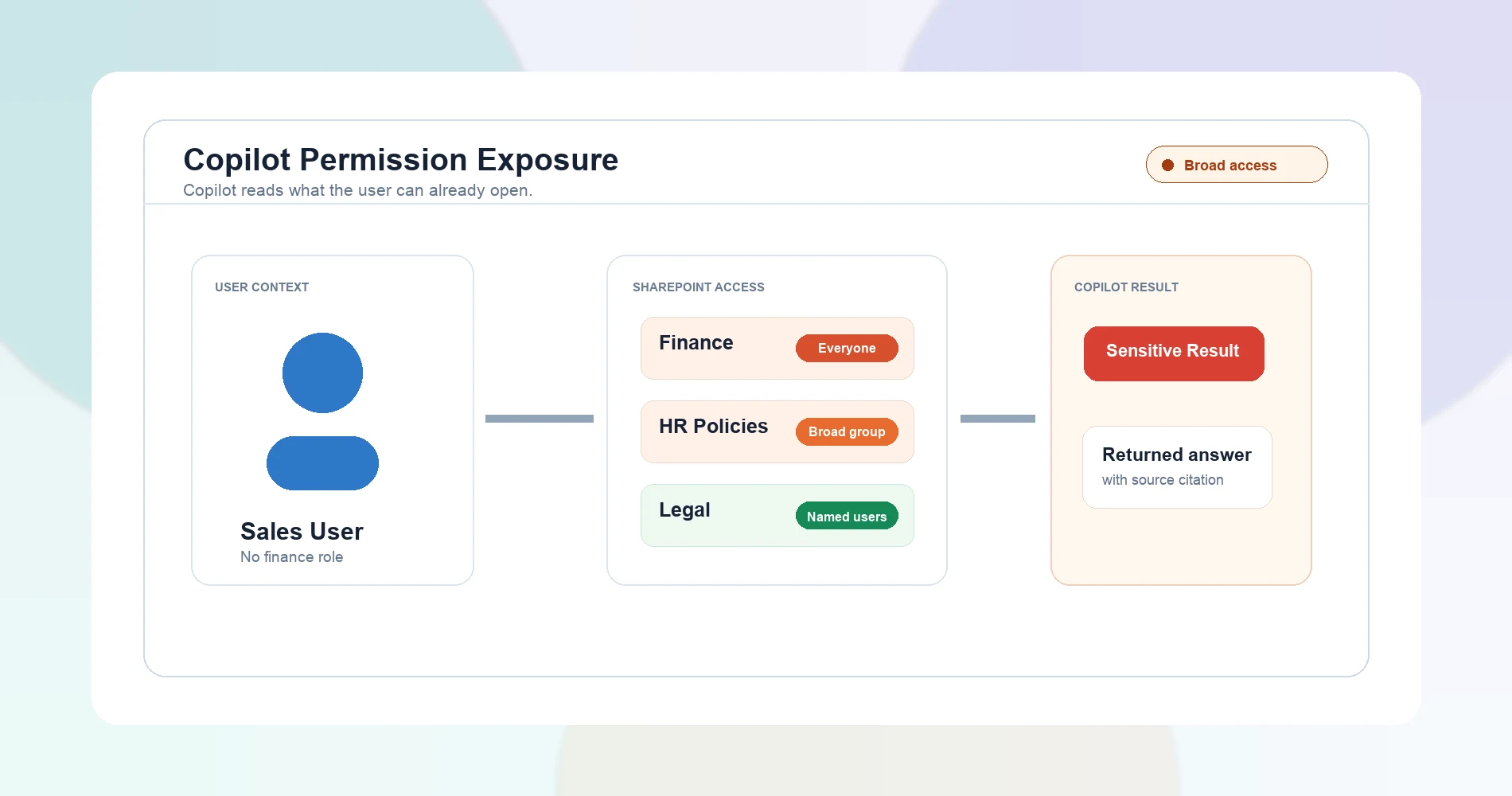
When we ran a SharePoint access review for a 25-person South Florida client right before they turned on Microsoft 365 Copilot, we found 14 sites and folders shared with "Everyone except external users" — including the folder where finance kept payroll summaries. Then we ran the practical test: we logged in as a regular sales employee and asked Copilot to "summarize our most recent compensation documents." It did — in plain English, with a citation link back to the source file.
Copilot didn't break anything or bypass a single permission. It simply read what that user already technically had access to — access nobody had reviewed in three years. That's the part Microsoft's "Copilot respects your existing permissions" line doesn't make obvious: in most small-business tenants, far more people can reach far more content than anyone assumes. Copilot just turns that quiet permission debt into a natural-language search box.
The good news is this is fixable, and you don't need Purview or an enterprise compliance team to do the important parts. Here's what to audit and clean up before you enable Copilot — and why June 2026 is the right time to do it.
Quick Answer: What to Do First
Before enabling Microsoft 365 Copilot, run a SharePoint permissions audit focused on: broad sharing groups ("Everyone except external users"), anonymous sharing links, stale guest accounts, and broken folder inheritance. Copilot does not bypass permissions, but it makes overshared content much easier for licensed users to find through natural-language queries. The audit takes 30 minutes and requires only SharePoint admin center access — no additional licensing.
Affiliate Disclosure: This article contains affiliate links. If you make a purchase through these links, we may earn a small commission at no extra cost to you. As an Amazon Associate, iFeelTech earns from qualifying purchases.
What "Copilot Respects Permissions" Actually Means in Practice
Microsoft's statement is true. Copilot does not bypass access controls, escalate privileges, or see content a user cannot already open. When Microsoft says "Copilot respects your existing permissions," they are being technically accurate.
The problem is what "existing permissions" actually look like in a small business tenant that has never run a formal access review.
Here's what we found in a single 25-person tenant before Copilot enablement:
| Finding | Count |
|---|---|
| Sites/folders shared with "Everyone except external users" | 14 |
| Of those, containing HR, finance, or legal content | 4 |
| Stale guest/external accounts with active access | 7 |
| Sensitive content reachable by a non-privileged user via Copilot prompt | Payroll summaries, compensation data, legal correspondence |
Before Copilot, those permissions existed but rarely mattered in practice. A sales associate technically could navigate to the finance folder — but they'd have to know it existed, know the URL, and go looking. Nobody did. The data was overshared on paper but effectively hidden by friction.
Copilot eliminates that friction entirely. A user can now ask "what do we pay our employees?" and get a sourced answer from content they technically have access to. The permission structure didn't change. The discoverability of everything inside it changed completely.
The Core Issue
Copilot doesn't expand access — it removes the friction that used to keep overshared files effectively hidden. If your SharePoint has broad-scope permissions you haven't reviewed in years, Copilot makes that technical debt immediately visible to every user with a license.
This matters in a way it didn't before because the question your business faces isn't whether Copilot is safe for your business data in theory — it's whether your permission structure is clean enough for Copilot to rely on safely.
What Changed in June 2026 (and Why the Timing Matters Now)
Two things are rolling out this month that make this audit urgent rather than aspirational:
Copilot in SharePoint is moving from opt-in to opt-out. Starting mid-June 2026, Copilot capabilities appear automatically on all SharePoint sites for users with a Microsoft 365 Copilot license — unless the tenant or site has been explicitly opted out. Previously, admins had to opt in. Now they have to opt out if they don't want it. Microsoft still uses the existing KnowledgeAgentScope PowerShell parameters during preview, so admins should verify their tenant and site-level settings rather than assuming the previous opt-in state still applies.
Restricted Content Discovery and Copilot data-leakage prevention are rolling out to SharePoint worldwide in the same window. Microsoft is adding controls — but those controls assume you've already reviewed what needs restricting.
The practical implication: any SMB that enables Copilot this quarter (or has it enabled by default via the opt-out change) inherits whatever permission state their tenant is currently in. If the last permissions review was "never," Copilot goes live against years of accumulated broad-scope sharing.
If you're evaluating whether to add Copilot to your M365 plan, this permissions audit should happen before that decision, not after.
The 30-Minute Pre-Copilot Permissions Audit (Do This First)
This audit requires only SharePoint admin center access — no additional licensing. It won't catch everything (the full Data Access Governance reports require SharePoint Advanced Management), but it covers the high-value 80% a one-person IT team can complete in a single session.
The Four Things You're Looking For
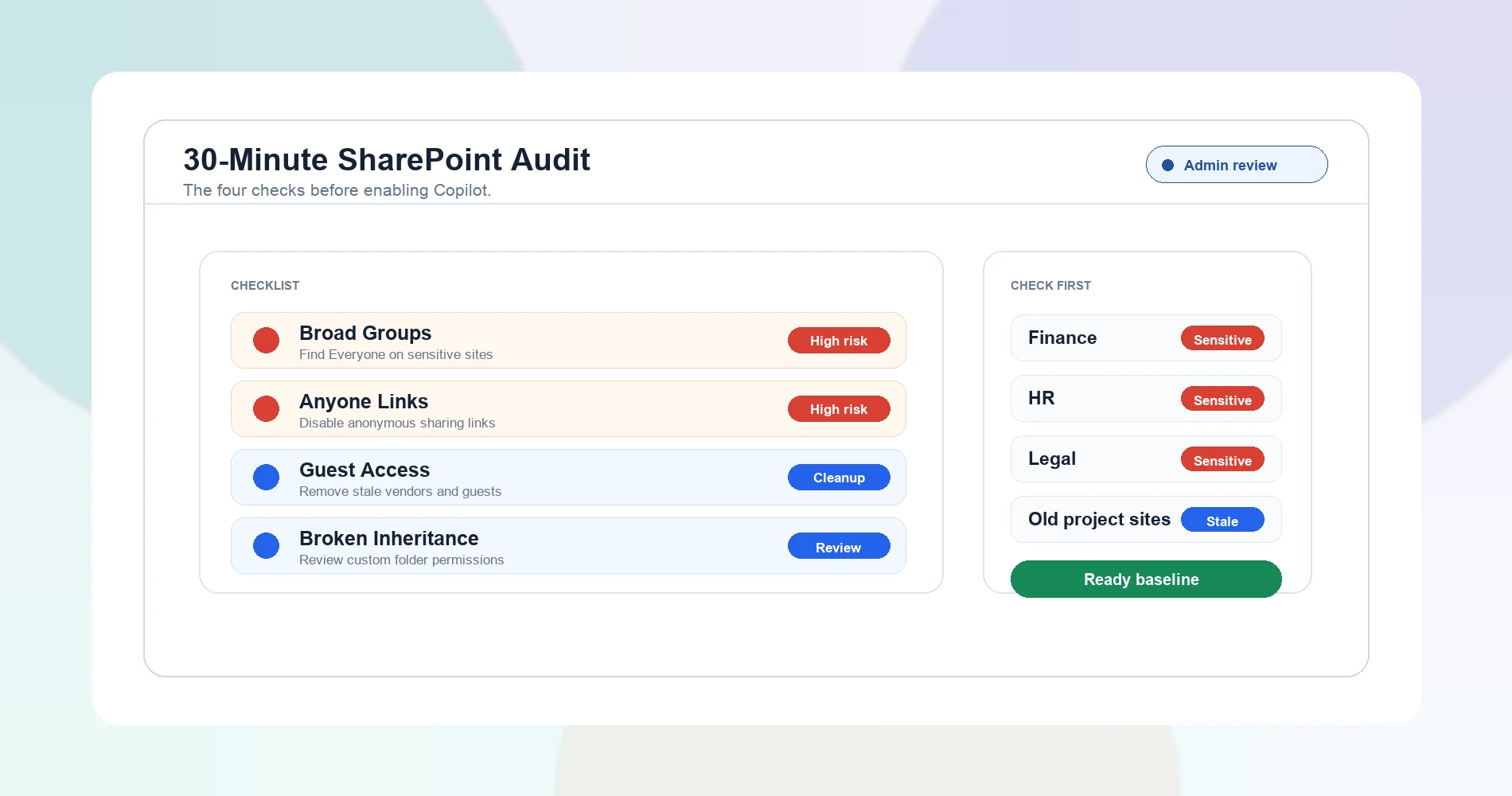
- Broad-scope groups — sites or folders shared with "Everyone" or "Everyone except external users"
- Anonymous/"Anyone" sharing links — links that grant access without requiring sign-in
- Stale guest accounts — external users who still have access after the project that created them ended
- Inheritance-broken folders — subfolders where someone manually changed permissions years ago and nobody remembers why
Step 1: Check org-wide sharing defaults
In the SharePoint admin center, go to Policies > Sharing. Check your organization-level defaults:
- Is external sharing set to "Anyone" (most permissive) or "New and existing guests" (tighter)?
- Are "Anyone" links set to expire? If not, every anonymous link ever created is still live.
- Is the default link type "Anyone" or "Specific people"?
For most SMBs, the secure baseline is: external sharing set to "New and existing guests," default link type "Specific people," and "Anyone" links disabled or set to expire in 7–14 days.
Step 2: Audit active sites for sharing exposure
Go to Sites > Active sites. Sort by "External sharing" column. Look for sites set to "Anyone" or "New and existing external users" that contain sensitive content. The sites to investigate first:
- Anything with "HR," "Finance," "Legal," "Payroll," or "Compensation" in the name
- Sites that haven't been modified in 6+ months (stale sites with forgotten permissions)
- Sites created for a specific project or client engagement that has since ended
For each flagged site, click through to Site permissions to see which groups and users have access.
Step 3: Review guest access
In the Microsoft 365 admin center, go to Users > Guest users. Look for:
- Guest accounts last signed in more than 90 days ago
- Guest accounts associated with projects or client engagements that have ended
- Guest accounts with access to internal team sites (not just the external-facing site they were invited to)
Every stale guest account is a potential access path that Copilot can surface. The former employee access problem extends to external guests — when they leave the project, their access rarely follows.
Step 4: Spot-check sensitive sites
For the 3–5 most sensitive sites in your tenant (HR, finance, leadership), manually check:
- Who has site-level access (Members, Owners, Visitors groups)
- Whether "Everyone except external users" appears in any group
- Whether any folders inside have broken inheritance (custom permissions set at the folder level)
What We Found (Before/After)
Here's the results table from our client audit — before remediation versus after a 45-minute cleanup:
| Metric | Before | After |
|---|---|---|
| Sites shared with "Everyone except external users" | 14 | 2 (intentionally org-wide) |
| Sensitive folders reachable by all employees | 4 | 0 |
| Stale guest accounts with active access | 7 | 0 (removed) |
| Copilot prompt test: "summarize compensation documents" (as sales employee) | Returned payroll summary with citation | "I couldn't find information about that" |
The entire remediation took under an hour. The permissions had accumulated over three years. Nobody had looked.
Fix the Findings: From Broad Groups to Least Privilege
Once you've identified the problems, here's the fix for each type:
| Finding | Fix | Time |
|---|---|---|
| "Everyone except external users" on a sensitive site | Remove the group; add a specific M365 security group with named members | 5 min per site |
| Anonymous/"Anyone" sharing links still active | Expire or delete them in the site's Sharing page | 2 min per link |
| Stale guest accounts | Remove from Microsoft 365 admin center > Guest users | 1 min per account |
| Broken inheritance on folders | Review the folder's permissions; either restore inheritance or confirm the custom permissions are still appropriate | 5–10 min per folder |
Order of operations (for a one-person IT team with limited time):
- Remove "Everyone except external users" from any site containing HR, finance, or legal content
- Delete or expire anonymous sharing links on sensitive sites
- Remove stale guest accounts
- Review broken inheritance folders
If you can only do the first two steps, you've addressed the highest-risk exposures. The rest can happen in a follow-up session. This isn't an all-or-nothing exercise.
Restrict What Copilot Can Reach (Without Burning Hours)
If you can't complete the full permissions cleanup before Copilot goes live — or if you need Copilot running for some teams while you clean up for others — Microsoft provides containment tools:
Restricted SharePoint Search limits Copilot and organization-wide search to an allow-list of up to 100 curated sites. Managed via PowerShell:
Set-SPOTenantRestrictedSearchMode -Mode Enabled
Add-SPOTenantRestrictedSearchAllowedList -SitesList @("https://contoso.sharepoint.com/sites/Marketing", "https://contoso.sharepoint.com/sites/PublicDocs")
This limits Copilot's discovery scope to sites you've explicitly approved. However, it is not a security boundary — users may still see results from content they own, recently accessed, or were directly shared, even if those sites aren't on the allowed list. It's designed as a short-term bridge while you complete a broader permissions cleanup, not a permanent solution or a replacement for fixing permissions.
Restricted Content Discovery is a site-level setting that prevents a specific SharePoint site's content from appearing in Copilot, AI agents, or organization-wide search. Use it for sites you know are sensitive but haven't finished cleaning:
In the SharePoint admin center, select the site > Settings > enable "Restrict this site's content from appearing in Microsoft 365 Copilot, AI agents, and organization-wide search results."
Important limitations: Restricted Content Discovery does not change underlying permissions, does not apply to OneDrive sites, may take time to propagate, and can still allow discovery of files a user owns or recently interacted with. It is a discoverability control, not a permissions fix.
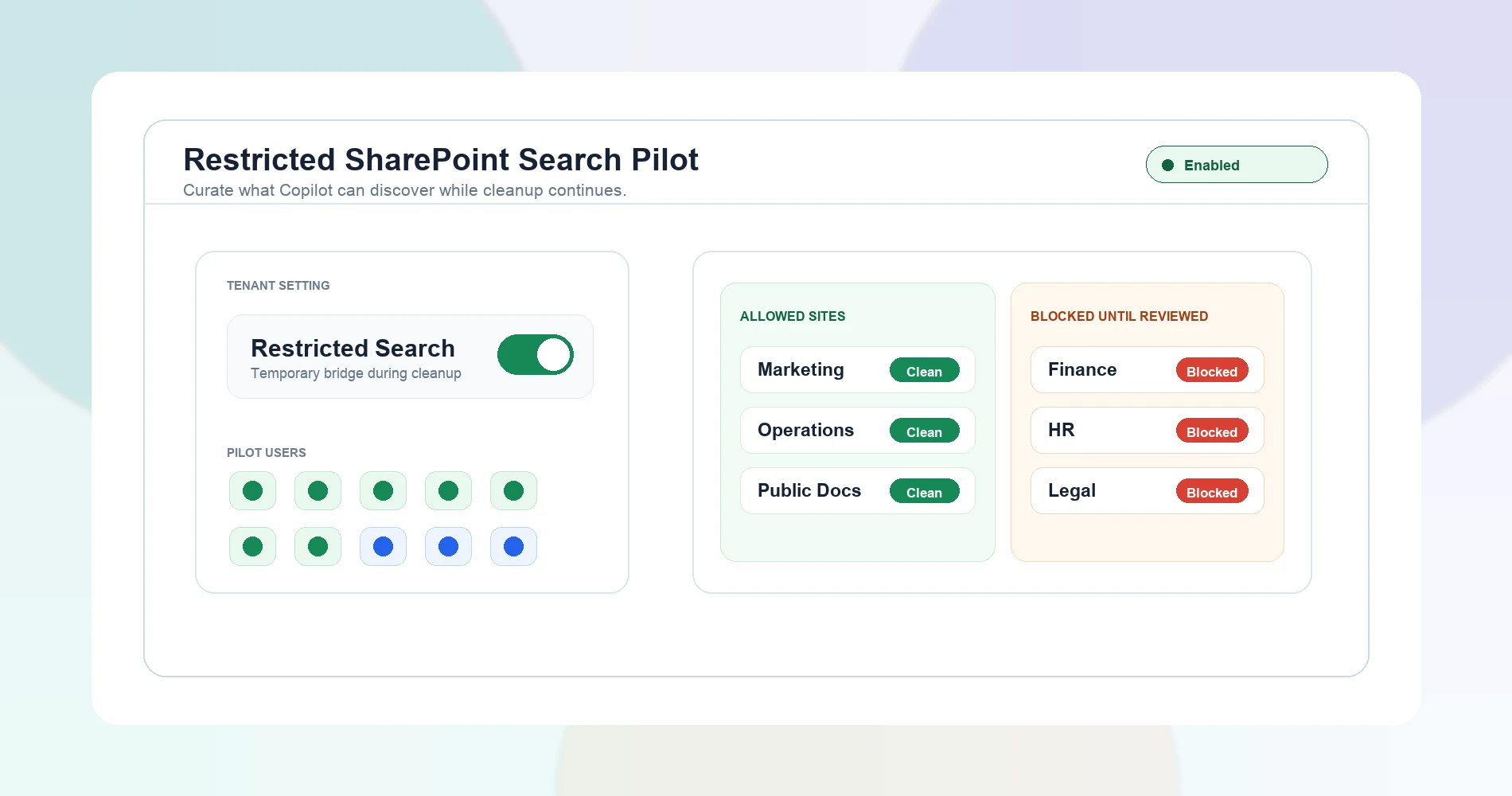
Staged Copilot pilot group — rather than enabling Copilot for all users simultaneously, assign licenses to a pilot group of 5–10 users whose roles don't interact with sensitive content. Monitor for 30 days. Run the Copilot prompt test from different user contexts. Expand once the permissions cleanup is confirmed.
Comparing Your Options
| Approach | What It Does | Scope | Is It Permanent? |
|---|---|---|---|
| Permissions cleanup (this audit) | Removes oversharing at the source | Per-site/folder | Yes — fixes the root cause |
| Restricted SharePoint Search | Limits Copilot discovery to allowed sites | Tenant-wide (up to 100 sites) | Temporary bridge only |
| Restricted Content Discovery | Hides specific sites from Copilot/search | Per-site | Ongoing control, but not a permissions fix |
| Purview DLP + Sensitivity Labels | Classifies and protects sensitive content | Per-document/tenant | Yes — ongoing governance layer |
Recommended Phased Approach for a Sub-50-Seat Tenant
- Enable Restricted SharePoint Search with your 5–10 cleanest sites
- Assign Copilot licenses to a pilot group (5–10 users)
- Run the permissions audit on remaining sites over 2–4 weeks
- Add cleaned sites to the Restricted SharePoint Search allowed list as you verify them
- Once all sites pass review, disable Restricted SharePoint Search and let Copilot operate on standard permissions
Where Purview and SharePoint Advanced Management Actually Fit (and the Licensing Reality)
You may have read that Microsoft Purview and SharePoint Advanced Management (SAM) solve this problem. They do — partially. The licensing picture has improved significantly in 2026, but it's still worth understanding what's included and what requires additional spend.
SharePoint Advanced Management adds:
- Full Data Access Governance (DAG) reports — the automated EEEU report, sharing links activity report, and site permissions snapshot that surface oversharing at scale
- Site access reviews — delegating remediation to site owners
- Restricted access control policies — limiting who can access specific sites
- Restricted Content Discovery (site-level Copilot exclusion)
Microsoft Purview DLP adds:
- Sensitivity labels on documents (auto-classification and manual labeling)
- Data loss prevention policies for SharePoint and Copilot content
- Content explorer for discovering sensitive data across the tenant
The Licensing Reality (Updated for 2026)
Microsoft now includes many SAM capabilities that support Copilot deployment when at least one Microsoft 365 Copilot license is assigned in the tenant. This means if you're deploying Copilot (even to a single pilot user), your SharePoint admins get access to Restricted Content Discovery, sharing link insights, EEEU reports, permission state reports, and site access reviews — without a separate SAM add-on. Some advanced SAM features (like restricted site creation and certain governance policies) still require the standalone SharePoint Advanced Management Plan 1 add-on. Check which features are available in your tenant before assuming you need additional licensing.
Microsoft 365 Business Premium also includes baseline Purview DLP and Information Protection capabilities — sensitivity labels and basic DLP policies are available. Advanced Purview compliance (AI governance, insider risk management, auto-labeling at scale, and Copilot-specific DLP controls for prompts and responses) may require Microsoft 365 E5, E5 Compliance, or the Purview Suite add-on depending on the feature.
The 30-minute manual audit described above still gets an SMB the high-value 80% of protection. SAM and Purview add ongoing automated governance — but they are the next step, not the starting point.
For context on where these licensing tiers fit relative to Business plans, our M365 plan comparison covers when different tiers make sense.
A Simple Pre-Copilot Governance Baseline for Small Teams
The audit above is a one-time cleanup. What follows is the standing practice that prevents the same drift from accumulating again:
Quarterly access review — schedule 30 minutes every quarter to repeat steps 1–4 of the audit above. Add it to the same cadence as your mid-year security audit and network security audit.
Default-deny on new site sharing — set your org-wide default to "Specific people" link type and "New and existing guests" for external sharing. Anyone who needs broader access can request it explicitly.
Guest expiration policy — configure guest access to expire after 90 days by default. Guests can be re-invited if the engagement continues, but stale access doesn't accumulate silently.
"What should never live in SharePoint" rule — establish a clear internal guideline. Payroll data, tax returns, passwords, API keys, legal settlement documents, and board minutes should not live in SharePoint sites accessible to broad groups. Consider a dedicated site with restrictive permissions for this content — or a non-SharePoint solution entirely. Passwords and API keys specifically belong in a dedicated encrypted business password manager like 1Password Business or NordPass Business, not in a document that Copilot can index.
Site ownership requirement — every SharePoint site should have an assigned owner responsible for permissions. Sites without an owner are the ones that drift into "Everyone except external users" because nobody is accountable for the change. Our guide to organizing business files sets out the same ownership question — who maintains an area, who approves access, and who takes it over when they leave — for the folder structure underneath.
These practices fit naturally into the broader IT policy templates a small business should maintain. They add 30 minutes per quarter — not a new burden, an extension of an existing habit.
Want This Audit Done For You?
If you're running Microsoft 365 for a South Florida business and want a practitioner to run this audit before you enable Copilot — including the prompt test, the remediation, and the governance baseline — we do this work regularly. The full assessment typically takes 2–3 hours for a tenant under 50 seats.
Related Resources
- Fix the Setup or Switch? — Permissions cleanup is one of the setup fixes that often settles a privacy concern without a migration.
- Does Microsoft 365 Back Up Your Data? — Copilot permissions are one governance layer; backup is another. Neither Standard nor Premium includes true backup. Solutions like Acronis Cyber Protect cover both endpoint security and backup in one agent.
- AI Acceptable Use Policy for Small Business — the employee-facing rules to publish once Copilot is safe to enable.
- Former Employee Access Security — The offboarding gap is a primary source of the stale permissions Copilot surfaces.
- AI Agent Security: SMB Playbook — Broader guidance on AI agents reading organizational content and permission scoping principles.
- Microsoft 365 Business Plans 2026: Standard vs Premium vs Copilot — If you're deciding which M365 plan to be on, start here.
- Mid-Year Security Audit Checklist — The broader audit cadence this SharePoint review should join.
- Is ChatGPT Safe for Business Data? — The broader "is AI safe with our business data?" question for small businesses.
Frequently Asked Questions
Related Articles
More from Cybersecurity

Vendor Risk Assessment for Small Businesses: A Practical 2026 Framework
Inventory, classify, and review your SaaS vendors with a two-axis risk matrix, worked example, and copyable 12-question questionnaire.
19 min read

Are Free VPN Extensions Safe for Small Businesses? A July 2026 Check
Recent VPN incidents showed how extensions can expose passwords, AI conversations, and browser traffic. Learn how to audit extensions, build an allowlist, and protect your company.
11 min read

Protecting Company Files: Why Policy Comes Before Software
Small businesses cannot make company files impossible to copy, but they can reduce risk with policy, permissions, managed devices, DLP, logging, and disciplined offboarding.
18 min read