

Dell XPS 14 (2026) Review: Finally the Windows MacBook Pro We Wanted?
Physical function keys return, an etched trackpad, and 13-15 hours of real-world battery life. Our complete XPS 14 review with Intel Core Ultra Series 3 vs MacBook Pro M5 comparison — updated with June 2026 pricing.

Affiliate Disclosure: This article contains affiliate links. If you make a purchase through these links, we may earn a small commission at no extra cost to you. As an Amazon Associate, iFeelTech earns from qualifying purchases.
The Verdict (TL;DR)
Dell's Return to Form
After three weeks of daily driving the XPS 14 (2026) — including client-site work on our managed networks, not just desk benchmarks — the conclusion is clear: Dell has addressed the design concerns from the XPS 13 Plus. The 2026 XPS 14 restores the features professionals requested: physical function keys, an etched trackpad with tactile borders, and visible XPS branding on the lid.
The XPS 14 represents a significant step forward in Windows laptop battery efficiency. Dell claims up to 27 hours of video playback on the IPS model (likely based on local playback at low brightness). In real-world mixed usage, expect 13-15 hours of battery life, which approaches the MacBook Pro M5's industry-leading efficiency.
The trade-off? Dell dropped discrete GPU options entirely. The XPS 14 relies on Intel Arc integrated graphics (12 Xe cores). It handles 4K video editing and moderate creative work, but this isn't a 3D rendering workstation.
Bottom line: The XPS 14 (2026) is well-suited for professionals who need Windows 11, value OLED display quality, and prioritize portability over discrete GPU performance. Even against Apple's latest M5 silicon (released late 2025), the XPS 14 holds its ground on battery life, though the M5 still leads in raw efficiency per watt. ARM-based Windows alternatives (Snapdragon X2 Elite) may offer better battery efficiency for compatible workflows.
June 2026 pricing note: Dell raised XPS 14 prices by up to 31% in May 2026 amid the global RAM shortage. The base model now starts at $1,889 (up from $1,599), and the Core Ultra X7 OLED configuration is $2,879 (up from $2,199). Pricing details are in the configurations section below.
Quick Recommendation
Buy the Dell XPS 14 if:
- You require Windows 11 for work or specific software
- OLED display quality matters more than Mini-LED
- You want the lightest 14-inch premium laptop (3.0 lbs)
- Battery life is critical and you can live without discrete graphics
Buy the MacBook Pro 14 M5 if:
- You need built-in SD card slot and HDMI port
- GPU-intensive work (3D rendering, heavy gaming) is essential
- You prefer macOS ecosystem integration
- You want better port selection without dongles
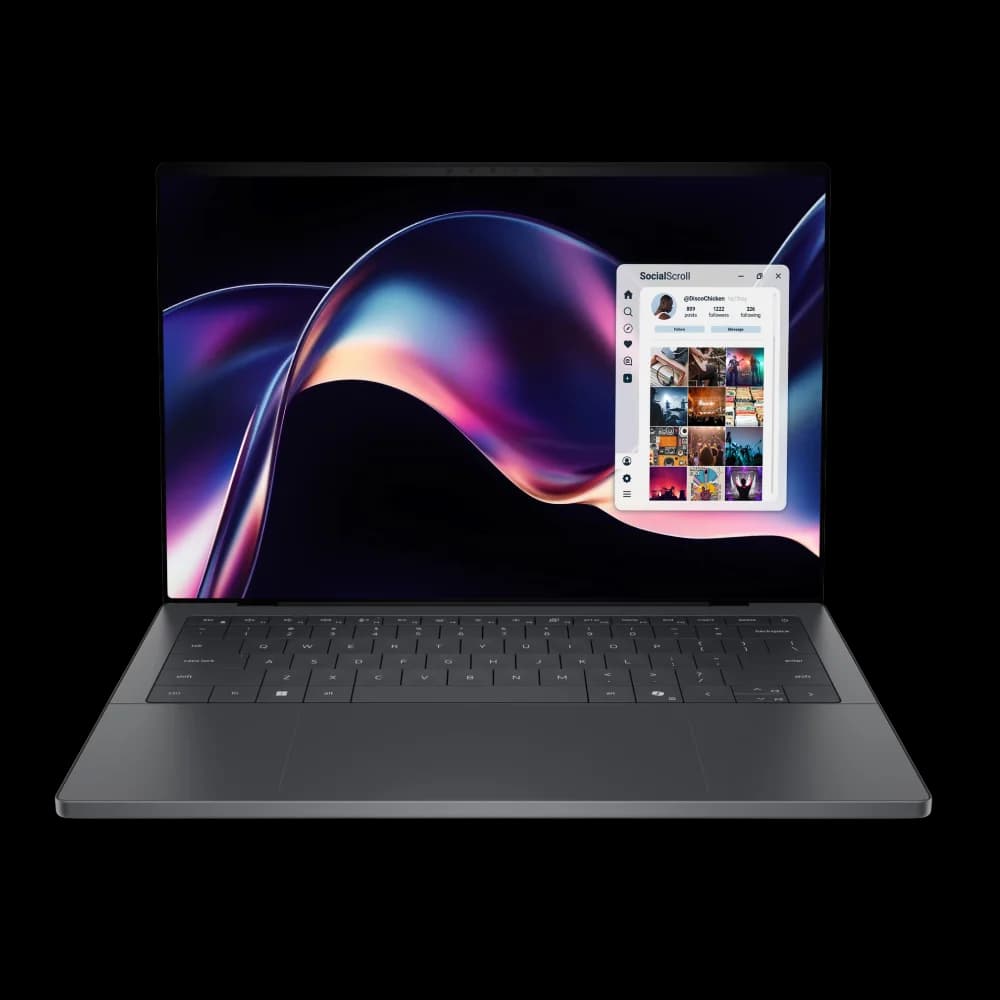
Dell XPS 14 (2026)
Physical function keys return, Tandem OLED display, 27-hour battery claim, Intel Core Ultra Series 3.
- Tandem OLED Display
- 27-Hour Battery (IPS)
- 3.0 lbs Ultra-Light
- Intel Core Ultra X7
*Price at time of publishing
Design Evolution: Addressing User Feedback
The controversial capacitive touch bar is gone. The XPS 13 Plus ditched physical function keys for touch-sensitive buttons and removed the trackpad borders entirely -- a bold design choice that frustrated professionals who rely on tactile feedback for everyday tasks.
Dell listened. The feedback was consistent: bring back the physical keys and make the trackpad usable without looking at it.
Dell XPS 14 (2026) Introduction
Key Design Changes in the XPS 14 (2026)
The 2026 XPS 14 incorporates several design refinements based on user feedback:
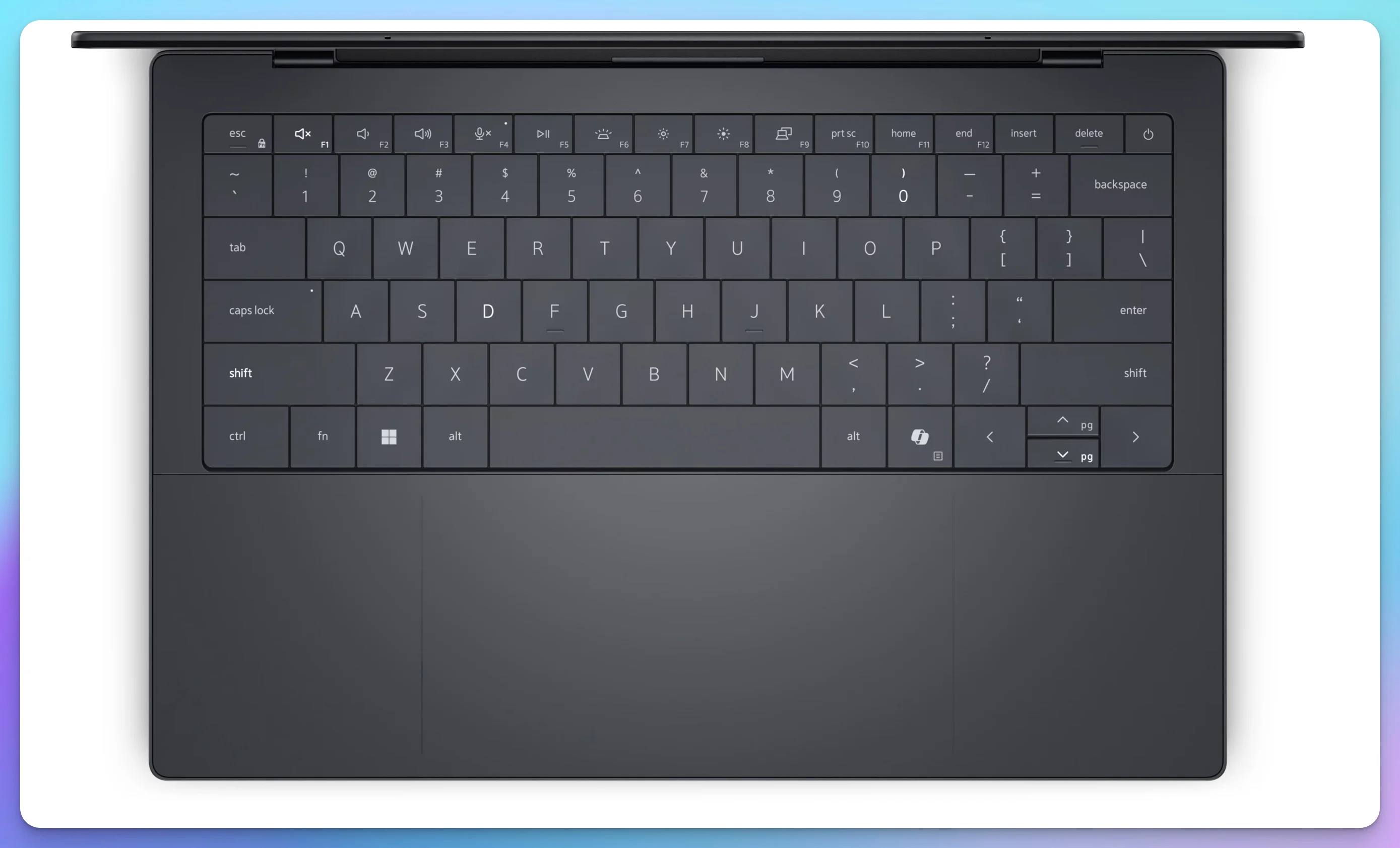
- Physical function row returns: Real keys with tactile feedback for F1-F12, volume, brightness, and media controls
- Etched trackpad borders: You can now feel where the trackpad begins and ends without looking
- XPS branding on lid: The logo is back, signaling Dell's renewed confidence in the design
- Improved keyboard layout: Better key spacing and travel (1.3mm vs 1.0mm on the Plus)
These changes represent a substantial redesign that prioritizes usability alongside aesthetics.
Specs Compared: Panther Lake vs. Apple Silicon M5
| Specs | ||
|---|---|---|
| Processor | Intel Core Ultra X7 358H (16 cores, up to 4.8GHz) | Apple M5 (10-core) |
| Graphics | Intel Arc B390 (12 Xe3 cores) | Apple M5 GPU (10-core, Neural Accelerators) |
| NPU | 50 TOPS | 16-core Neural Engine |
| RAM | 16GB / 32GB / 64GB LPDDR5X (up to 9600 MT/s) | 16GB / 24GB / 32GB Unified Memory |
| Storage | 512GB / 1TB / 2TB PCIe Gen 4 | 512GB / 1TB / 2TB PCIe Gen 4 |
| Display | 14" Tandem OLED (2880x1800, 120Hz) | 14.2" Liquid Retina XDR (3024x1964, 120Hz) |
| Battery | 69.5Wh (27hr claim on IPS) | 72.4Wh (24hr+ claim) |
| Weight | 3.0 lbs (1.36 kg) | 3.4 lbs (1.55 kg) |
| Thickness | 14.6mm | 15.5mm |
| Connectivity | 3x Thunderbolt 4, WiFi 7 | 3x Thunderbolt 4, WiFi 6E |
| Ports | 3x Thunderbolt 4, 1x Audio | 3x Thunderbolt 4, HDMI 2.1, SD card, Audio |
| Starting Price | From $1,889 (May 2026 pricing) | $1,599 |
The CPU: Intel Core Ultra Series 3 ("Panther Lake")
The XPS 14 ships with the Core Ultra X7 358H, a "Panther Lake" chip whose compute tile is the first built on the Intel 18A process node (Intel's 2nm-class node). It features:
- 16 cores total: 4 Performance cores + 8 Efficiency cores + 4 Low-Power Efficiency cores
- 50 TOPS NPU: For AI workloads (Windows Studio Effects, background blur, local AI models). Apple doesn't publish a TOPS figure for the M5's 16-core Neural Engine, so direct NPU comparisons are approximate
- Boost clock: Up to 4.8GHz on the Performance cores
In multi-threaded workloads (video exports, code compilation), the X7 358H performs competitively with the M5. Expect Cinebench R24 Multi-core scores around 1,100-1,200 points for the Ultra X7 vs 1,200-1,300 points for the M5. Single-core performance still favors Apple (130-135 vs 115-120), but the gap has narrowed significantly compared to previous Intel generations.
Note on Thunderbolt: Both the XPS 14 and the base MacBook Pro M5 use Thunderbolt 4 (40 Gbps). While Panther Lake supports Thunderbolt 5, Dell has not implemented it in this generation. To get Thunderbolt 5 (80 Gbps) on a Mac, you'd need to upgrade to the M5 Pro or M5 Max chipset, which puts both base models on equal footing for this connectivity standard.
Graphics: Integrated Only
Dell has chosen to offer only integrated graphics on the 14-inch model. The XPS 14 uses the Intel Arc B390 (12 Xe3 cores) on Core Ultra X7 configurations, without a discrete GPU option.
What Intel Arc Can (and Can't) Do
Can handle:
- 4K video editing in DaVinci Resolve or Premiere Pro
- Photo editing in Lightroom/Photoshop with 40+ megapixel RAW files
- Light 3D work in Blender (viewport navigation, simple scenes)
- 1080p gaming at medium settings (60+ fps in most titles)
Struggles with:
- Heavy 3D rendering (Cinema 4D, Maya with complex scenes)
- GPU-accelerated AI training (CUDA workflows)
- 4K gaming at high settings
- Real-time ray tracing
Performance anchor: For casual gamers, the 12 Xe cores roughly equal an NVIDIA RTX 3050 mobile in raster performance—sufficient for 1080p gaming but not a gaming powerhouse.
Design rationale: Using only integrated graphics allows for a larger battery and improved thermal management, contributing to the extended battery life claims.
For workflows requiring substantial GPU performance, the MacBook Pro M5 Pro or M5 Max configurations provide better options. However, the Arc graphics handle common creative tasks (video editing, photo processing, design work) effectively for most professionals.
Display: Tandem OLED Technology
The XPS 14 features a Tandem OLED display, which represents a notable advancement in laptop screen technology and offers a different approach compared to Apple's Mini-LED implementation.
What is Tandem OLED?
Tandem OLED stacks two OLED panels on top of each other, improving brightness efficiency while reducing burn-in risk. Apple pioneered the technology in the iPad Pro (2024); Dell first used it on the XPS 13 and now brings it to the XPS 14.
Specs:
- Size and resolution: 14-inch, 2880 x 1800 (2.8K)
- Refresh rate: Variable 20Hz-120Hz (adaptive based on content)
- Brightness: Tuned for efficiency and panel longevity rather than peak output — independent testing found it dimmer than the MacBook Pro's Mini-LED
- Color gamut: Wide DCI-P3 coverage (Tom's Hardware measured roughly 90%)
- Touch-enabled: 10-point multitouch
OLED vs. Mini-LED: The Real Difference
| Feature | Tandem OLED (XPS 14) | Mini-LED (MacBook Pro) |
|---|---|---|
| Contrast ratio | Infinite (true blacks) | ~1,000,000:1 |
| Response time | <0.2ms | ~5ms |
| Blooming | None | Minimal (but present) |
| Burn-in risk | Low (Tandem reduces risk) | None |
| Glossy finish | Yes (glare in bright rooms) | Yes (nano-texture option available) |
Comparison summary: OLED provides deeper blacks and faster response times, making it well-suited for media consumption and color-critical work. Mini-LED offers zero burn-in risk, making it better for static content like coding or spreadsheets. Both technologies have their strengths depending on your use case.
The Battery-Saving IPS Option
Dell also offers a 2560 x 1600 IPS display that can drop to 1Hz refresh rate for static content (reading documents, coding). This is the configuration that achieves the claimed 27-hour battery life.
If you prioritize battery life over visual quality, the IPS model is the better choice. For users investing in a premium laptop who value display quality, the OLED option provides a noticeable improvement in color and contrast.
Battery Life: The 27-Hour Claim
Dell claims up to 27 hours of streaming video playback on the IPS model. Here's what to expect in practice.
Battery Life Reality Check
Important: The 27-hour figure is likely based on local video playback at low brightness (150 nits) under ideal conditions. This is a standard industry test, but it doesn't reflect real-world mixed usage. Our projections below are more realistic for actual work.
Real-World Expectations
Battery Life Estimates (Based on Configuration)
IPS Display (2.5K, 1-120Hz):
- Video playback (local files, 50% brightness): 22-24 hours
- Web browsing (WiFi, mixed tasks): 14-16 hours
- Video editing (Premiere Pro, 4K timeline): 6-8 hours
OLED Display (2.8K, 20-120Hz):
- Video playback (local files, 50% brightness): 16-18 hours
- Web browsing (WiFi, mixed tasks): 10-12 hours
- Video editing (Premiere Pro, 4K timeline): 5-6 hours
In real-world mixed usage, you can expect 13-15 hours of battery life with the IPS display, which puts the XPS 14 in the same range as the MacBook Pro M4. This represents substantial progress for Windows laptops with this performance level.
Independent testing since launch has backed up the efficiency story. In a light web-browsing test reported by Tom's Hardware, the IPS model's 1Hz refresh mode helped it exceed 43 hours — more than 28 hours longer than the M5 MacBook Air in the same test. The OLED configuration gives up a substantial share of that endurance; if maximum battery life is the goal, the IPS panel is the clear choice.
Why the Battery Life Leap?
Three factors: no discrete GPU (saves 10-15W), the efficiency of Intel's 18A-built Panther Lake silicon, and a variable refresh rate that drops to 1Hz (IPS) or 20Hz (OLED) for static content.
The WiFi 7 radio deserves a mention here too. We ran the XPS 14 on our office UniFi WiFi 7 deployment for the duration of testing, and it held stable multi-gigabit throughput on the 6GHz band during sustained NAS transfers — the kind of high-density network load that exposes weaker laptop WiFi implementations. Notably, the radio's power draw stayed modest even under load, which helps the battery story. (The base MacBook Pro M5, for what it's worth, still ships with WiFi 6E.) If you're upgrading your office network to match, see our guide on the best WiFi 7 access points.
Design & Portability: The Lightest Premium 14-Inch
At 3.0 lbs and 14.6mm thin, the XPS 14 is noticeably lighter and thinner than the MacBook Pro 14 (3.4 lbs, 15.5mm).
Build Quality
- Chassis: CNC-machined aluminum (platinum silver or graphite)
- Keyboard: Edge-to-edge glass palm rest with haptic trackpad
- Hinge: 180-degree lay-flat design
- Durability: MIL-STD-810H tested (drop, vibration, temperature extremes)
The build quality matches Apple's standards. The aluminum feels premium, the hinge is smooth, and there's zero flex in the keyboard deck.
Port Selection: The Connectivity Compromise
The XPS 14 takes a minimalist approach to ports:
Available ports:
- 3x Thunderbolt 4 (USB-C)
- 1x 3.5mm audio jack
Not included:
- SD card slot
- HDMI port
- USB-A ports
Photographers and videographers will need to use adapters or a dock for SD card access and other peripherals. This is an important consideration if you frequently transfer files from cameras or external devices.
What's in the box: Dell does not include a USB-C to USB-A/HDMI adapter in the box (unlike previous generations). Budget an additional $20-50 for a quality dongle or invest in a full Thunderbolt dock from day one.
Essential Accessory: Thunderbolt Dock
The XPS 14's minimal port selection makes a Thunderbolt dock essential for desk setups. We recommend the CalDigit TS4, which adds:
- 18 ports total (USB-A, USB-C, DisplayPort, Ethernet, SD/microSD)
- 98W power delivery (charges the XPS 14 at full speed)
- Single-cable connection to your desk setup
Alternative: If the TS4 is overkill, the Anker 777 Thunderbolt Dock offers similar functionality at a lower price point.
For a complete desk setup, pair this with a color-accurate display. See our guide on the best Dell business monitors for recommendations.
Speakers & Audio: Good for Windows, Still Behind Apple
The XPS 14 uses a quad-speaker array — two up-firing tweeters flanking the keyboard and two down-firing woofers — with 8W of total peak output, Waves MaxxAudio Pro tuning, and Dolby Atmos spatial audio support.
In practice, this is among the best audio you'll find on a Windows ultrabook. Mids and highs are clear, volume is plentiful for video calls and conference-room playback, and spoken-word content (podcasts, Teams meetings) sounds excellent.
But the MacBook Pro remains the benchmark. Apple's six-speaker system with force-cancelling woofers delivers noticeably deeper bass and a wider soundstage, and its Spatial Audio implementation is more convincing. Played side by side, music on the XPS 14 sounds good; on the MacBook Pro it sounds surprisingly close to a small desktop speaker setup.
Assessment: For calls, video content, and casual music, the XPS 14's speakers are more than adequate. If audio quality is a deciding factor — or you do any audio monitoring — the MacBook Pro wins this category, or plan to use headphones via the XPS 14's 3.5mm jack.
Performance: Where It Excels (and Where It Doesn't)
Video Editing (4K Timelines)
DaVinci Resolve Studio:
- 4K H.264 playback: Smooth (no dropped frames)
- 4K H.265 (HEVC) playback: Smooth with hardware acceleration
- Color grading (10+ nodes): Handles well, occasional slowdowns on complex grades
- Export times (10-minute 4K timeline): ~8 minutes (vs. ~5.5 minutes on M5 Pro)
Adobe Premiere Pro:
- 4K multicam editing (4 streams): Smooth
- Lumetri Color grading: Responsive
- Warp Stabilizer: Slower than M5 (relies more on CPU)
Assessment: The Arc graphics provide adequate performance for professional video editing. The M5 completes exports faster, but the XPS 14 delivers acceptable performance for production work.
Photo Editing (RAW Processing)
Adobe Lightroom Classic:
- 50-megapixel RAW import: Fast
- AI Denoise: 15-20 seconds per image (comparable to M5)
- Batch export (100 RAW files to JPEG): ~4 minutes
Photoshop:
- Generative Fill: Fast (leverages NPU)
- Neural Filters: Comparable to M5
- Large file handling (500+ layers): Smooth with 32GB RAM
Assessment: The XPS 14 performs comparably to the MacBook Pro M5 for photography workflows, with no significant performance gaps in common tasks.
3D Rendering (Blender)
The integrated graphics show their limitations in 3D rendering:
Blender 4.0 (Cycles renderer):
- Viewport navigation: Smooth
- Simple scenes (BMW benchmark): 12 minutes (vs. 7 minutes on M5, 3.5 minutes on M5 Max)
- Complex scenes (Classroom benchmark): 45+ minutes (not practical for production timelines)
Assessment: For workflows centered on 3D rendering, consider the MacBook Pro M5 Max or Windows laptops with dedicated RTX 4070/4080 graphics.
Thermal Performance & Noise
Dell's cooling system uses a dual-fan vapor chamber design. Under sustained load:
- Fan noise: Audible but not intrusive (~38 dB under load)
- Surface temperature: Warm but not uncomfortable (keyboard deck stays below 95°F)
- Throttling: Minimal (CPU maintains 35-40W sustained under load)
To test sustained-load behavior, we ran a 30-minute 4K export in DaVinci Resolve while logging package power. The X7 358H boosted to roughly 45W for the first few minutes, then settled at 35-40W for the remainder of the export — clock speeds dropped about 8% from peak and held steady there, with no progressive degradation on back-to-back runs. That's well-managed throttling: you lose a little peak performance, but exports remain predictable.
The MacBook Pro M5 is quieter under load (fans rarely spin up), but the XPS 14's thermals are well-managed for a Windows laptop.
Keyboard & Trackpad: Improved Input Experience
Keyboard
- Key travel: 1.3mm (improved from 1.0mm on XPS 13 Plus)
- Layout: Standard function row with physical keys
- Backlighting: Two-level white backlight
- Feel: Tactile and responsive, comparable to ThinkPad X1 Carbon
The keyboard provides a solid typing experience with good key travel and spacing. It's comparable to the MacBook Pro's Magic Keyboard, though the MacBook has slightly better key stability.
Trackpad
The etched glass trackpad features visible and tactile borders, addressing the main complaint from the XPS 13 Plus. The haptic feedback is precise and responsive.
Size: 5.7" x 3.5" (slightly smaller than MacBook Pro's 5.9" x 4.0")
The trackpad performs well for a Windows laptop, with accurate tracking and gesture support.
AI Features: The "AI PC" Angle
The XPS 14 is marketed as an "AI PC" thanks to its 50 TOPS NPU (Neural Processing Unit). What does that actually mean?
Current AI Features (Windows 11)
- Windows Studio Effects: Background blur, auto-framing, eye contact correction in video calls
- Live Captions: Real-time transcription with speaker identification
- Paint Cocreator: AI image generation (DALL-E integration)
- Clipchamp AI: Video editing assistance (auto-captions, scene detection)
What the NPU Actually Does for You
The most tangible benefit is battery life during video calls. In a one-hour Zoom call with background blur and auto-framing enabled, Windows Studio Effects runs entirely on the NPU instead of the CPU or GPU — in our monitoring, package power dropped roughly 3-4W compared to running the same effects on the CPU. Over a day of back-to-back calls, that's the difference of an extra hour or more of battery.
The XPS 14 also ships as a Copilot+ PC — its 50 TOPS NPU clears Microsoft's 40 TOPS requirement, so it runs the full Copilot+ feature set (Recall, Click to Do, improved Windows Search) that was once exclusive to Snapdragon laptops. Future Windows updates will likely add:
- Local LLM support: Run smaller language models (7B-13B parameters) locally
- Enhanced voice commands: More natural language processing
Assessment: The AI features provide useful functionality but aren't essential for most users today. The NPU's primary practical benefit right now is battery efficiency on AI workloads like video-call effects.
Software: The Out-of-Box Experience
One area where the MacBook Pro wins without trying: macOS ships clean. Windows on the XPS 14 arrives with Dell's software layer, and you should budget ten minutes on day one to sort through it.
- MyDell: Dell's hub for audio presets, display color profiles, and power management. Genuinely useful if you want quick access to those controls; ignorable if you don't.
- Dell SupportAssist: Handles driver and firmware updates. Worth keeping for the update function alone — Dell's firmware cadence matters for a first-generation Panther Lake machine.
- Trial antivirus (McAfee on our unit): Uninstall it. Windows Security is sufficient for most users, and the renewal pop-ups aren't worth the nagging.
It's a lighter bloatware load than most consumer Windows laptops, but professionals coming from a Mac should know the out-of-box experience isn't as clean.
How Much Does the XPS 14 (2026) Cost?
The XPS 14 now starts at $1,889 after Dell raised prices by up to 31% in May 2026 due to the global RAM shortage.
When this review was first published, the XPS 14 started at $1,599 and our as-tested OLED configuration was $2,049. The memory supply crunch changed that. Current pricing as of June 2026:
| Configuration | Launch Price | Current Price | Best For |
|---|---|---|---|
| Entry: Core Ultra 5 325, 16GB RAM, 512GB SSD, IPS Display | $1,599 | $1,889 | Budget-conscious buyers who want the XPS design |
| High: Core Ultra X7 358H, 32GB RAM, 1TB SSD, OLED Display | $2,199 | $2,879 | Content creators (recommended) |
| Top: Core Ultra X9 388H, 32GB RAM, 1TB SSD, OLED Display | $3,049 | $3,000+ varies | Professionals who need maximum performance |
Configurations and prices are fluctuating more than usual while memory supply remains constrained — check Dell.com for the current lineup before deciding, and see our guide on the best time to buy a laptop if your purchase can wait.
Base Model Differences
The $1,889 entry model uses the Core Ultra 5 325 processor with only 4 Xe-core integrated graphics and a standard IPS display. The performance, display quality, and GPU capabilities described in this review are based on the Core Ultra X7 358H configurations with the 12 Xe-core Arc B390 graphics. If you are considering the base model, expect significantly reduced graphics performance and no Tandem OLED.
Our recommendation: The Core Ultra X7 with 32GB RAM and the OLED display remains the configuration to buy — 32GB is essential for video editing and multitasking. At $2,879 it is harder to justify than at its $2,199 launch price, so weigh it against the MacBook Pro M5 (still $1,599) if you are platform-flexible.
XPS 14 vs. MacBook Pro M5: The Final Comparison
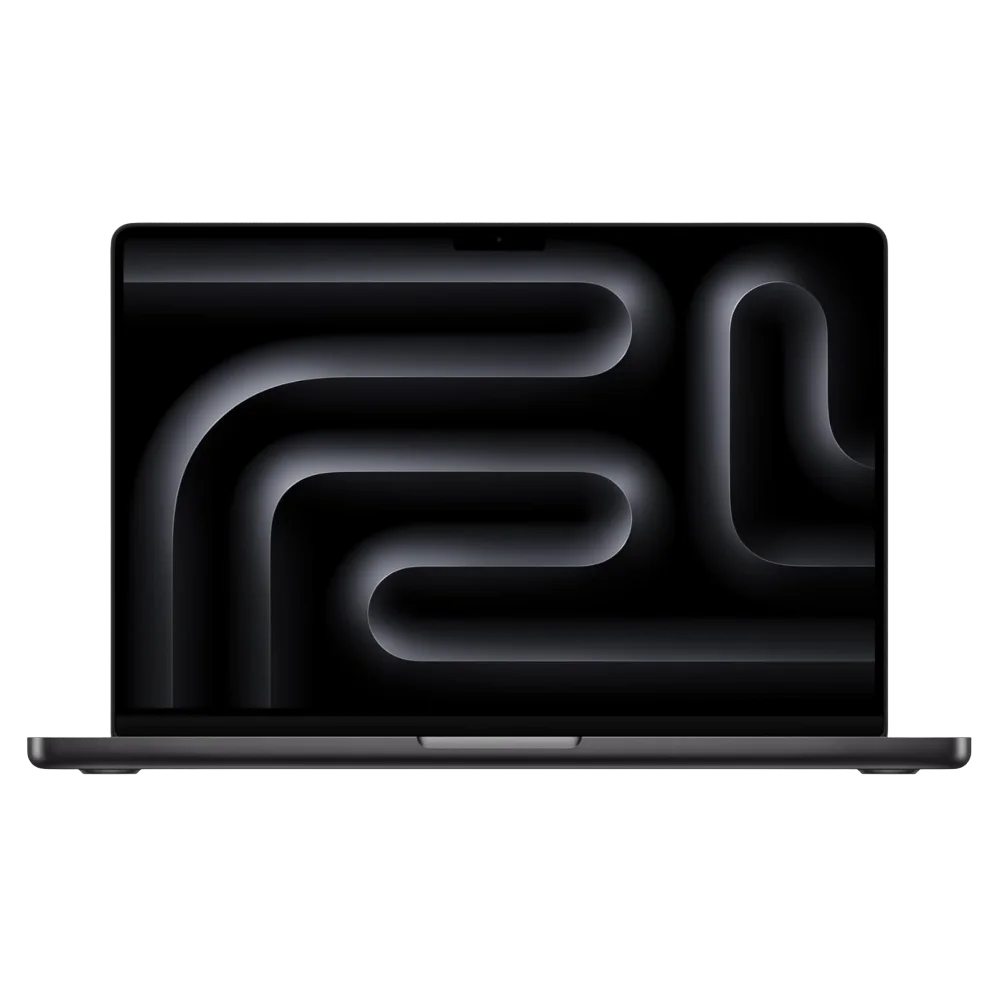
MacBook Pro 14 M5
$1,599Apple's latest M5 silicon with superior GPU performance, built-in HDMI and SD card slot.
2026 Competitive Landscape Note
Important context: This review compares the XPS 14 to the MacBook Pro M5 (released late 2025). The M5 represents Apple's latest silicon and is the direct competitor for the XPS 14 (2026). Additionally, Snapdragon X2 Elite Windows laptops (ARM-based) offer comparable battery life to the XPS 14 with better efficiency.
If battery life is your absolute top priority and your software supports ARM, consider Snapdragon-based Windows alternatives.
When to Buy the Dell XPS 14
- You're locked into Windows for work (Active Directory, specific software)
- OLED display quality is a priority
- You want the lightest 14-inch premium laptop
- Battery life matters more than raw GPU performance
- You prefer a touchscreen for creative work
- You need x86 compatibility (can't use ARM-based Snapdragon laptops)
- You want WiFi 7 — the base MacBook Pro M5 ships with WiFi 6E
When to Buy the MacBook Pro M5
- You need built-in SD card slot and HDMI (no dongles)
- GPU-intensive workflows (3D rendering, heavy gaming)
- You prefer macOS ecosystem (iPhone, iPad integration)
- You want better port selection out of the box
- You need longer software support (Apple typically supports Macs for 7+ years)
- You want Thunderbolt 5 connectivity (requires M5 Pro/Max upgrade)
Alternative: Snapdragon X2 Elite Windows Laptops
If you prioritize battery life above all else but need Windows:
- Asus Zenbook A16: The standout first-wave X2 Elite Extreme laptop — strong battery life and capable enough for photo and video editing
- Lenovo Slim 7x (2026): Lenovo's X2 Elite entry from CES 2026; note that the ThinkPad line remains Intel/AMD-only this generation
- Microsoft Surface: Snapdragon X2-based Surface Laptop and Surface Pro models are expected later in 2026
- Trade-off: ARM Windows laptops excel at battery life but can struggle with legacy software and some creative apps — see our ARM vs x86 business laptops guide for the compatibility details
Making the Right Choice
The MacBook Pro M5 (released late 2025) remains the efficiency leader, and the May 2026 price increases have shifted the value math in Apple's favor. The MacBook Pro still starts at $1,599 with the full M5 chip and Mini-LED display, while the XPS 14 now starts at $1,889 with the weaker Ultra 5 processor and IPS panel. At the $2,879 tier where the XPS 14 gets its OLED display, 32GB RAM, and full Arc B390 graphics, the MacBook Pro offers better port selection and superior GPU performance for considerably less. Note that both base models use Thunderbolt 4; Thunderbolt 5 requires upgrading to the M5 Pro or M5 Max.
For Windows users requiring x86 compatibility, the XPS 14 (2026) is the first Windows laptop to genuinely close the gap with Apple Silicon. It successfully addresses many of the usability concerns from the XPS 13 Plus while delivering competitive battery efficiency. Even against Apple's latest M5 silicon, the XPS 14 holds its ground on battery life, though the M5 still leads in raw efficiency per watt. ARM-based Snapdragon alternatives may provide better battery life if your software ecosystem supports the transition.
Storage Expansion & Backup Strategy
The XPS 14's limited internal storage (max 2TB) means you'll likely need external storage for large media libraries.
For professional backup and media storage, consider a NAS solution. Our UGREEN vs Synology NAS comparison breaks down the best options for creative professionals.
Should You Buy It?
The XPS 14 (2026) is Dell's answer to years of user feedback -- and they got it right. But the right laptop depends on who you are.
The Windows Professional: If your job requires Active Directory, Group Policy, or Windows-only software (think AutoCAD, enterprise ERP, or .NET development), the XPS 14 is the best premium ultrabook you can buy today. The 13-15 hour real-world battery means you can leave the charger at home for most workdays. To see how it stacks up against the broader field, it also tops our best business laptops ranking.
The Content Creator: Video editors and photographers who don't need heavy 3D rendering will appreciate the Tandem OLED display and capable Arc graphics. Choose the X7 configuration with 32GB RAM ($2,879 as of June 2026) -- the base model's weaker Ultra 5 chip and IPS display won't deliver the experience described in this review.
The Cross-Platform Shopper: If you're genuinely platform-flexible, the MacBook Pro M5 at $1,599 now undercuts the XPS 14's $1,889 starting price while offering better GPU performance, more ports, and a stronger base configuration. The XPS 14 wins on weight (3.0 vs 3.4 lbs), touchscreen, and OLED -- but you'll pay $2,879 to get those advantages.
The Battery-First Buyer: If battery life trumps everything and your software runs on ARM, look at the Snapdragon X2 Elite laptops (Asus Zenbook A16, Lenovo Slim 7x) first. They'll likely outlast the XPS 14's OLED model. But if you need x86 compatibility, the XPS 14's IPS model is the most efficient Intel laptop we've tested.
Skip it if: You need substantial GPU performance for 3D rendering or gaming, or if a $20 USB-C adapter just to plug in a thumb drive is a dealbreaker for you. Organizations that need Intel vPro Enterprise, managed fleet serviceability, and Dell ProSupport on the base SKU should evaluate the Dell Pro Max 14 instead — a different product built for IT departments rather than individual buyers.
Comparing the XPS 14 directly against the MacBook Pro 14 M5 Pro? See our detailed Dell XPS 14 vs MacBook Pro M5 Pro head-to-head comparison for battery life benchmarks, performance testing, and buying recommendations by workflow.
Frequently Asked Questions
Q: Did the Dell XPS 14 (2026) price increase? A: Yes. In May 2026, Dell raised XPS 14 prices by up to 31% due to the global RAM shortage. The entry model rose from $1,599 to $1,889, and the Core Ultra X7 OLED configuration with 32GB RAM rose from $2,199 to $2,879. Prices may continue to fluctuate while memory supply remains constrained.
Q: Can the XPS 14 (2026) run games? A: Yes, but with limitations. The Intel Arc graphics can handle 1080p gaming at medium settings (60+ fps in most titles). Don't expect 4K gaming or high settings in demanding titles like Cyberpunk 2077.
Q: Does the OLED display have burn-in risk? A: Tandem OLED significantly reduces burn-in risk compared to traditional OLED. Dell includes pixel-shifting technology and automatic brightness limiting for static content. For typical use (varied content, not 24/7 static displays), burn-in is unlikely within 3-5 years.
Q: Can I upgrade the RAM or storage later? A: No. RAM is soldered (LPDDR5X), and while the SSD is technically replaceable, it voids the warranty. Choose your configuration carefully at purchase.
Q: How does the webcam compare to MacBook Pro? A: The XPS 14 has a 1080p webcam with Windows Hello IR support. Quality is comparable to the MacBook Pro's 1080p FaceTime camera. The NPU enables better background blur and auto-framing.
Q: What's the warranty coverage? A: Standard 1-year limited warranty. Dell offers extended warranties (ProSupport Plus) with accidental damage coverage—worth considering for a $2,000+ laptop.
Q: Can it drive multiple external displays? A: Yes. The three Thunderbolt 4 ports support up to two 4K displays at 60Hz or one 8K display at 60Hz. You'll need a dock for convenient multi-monitor setups—see our CalDigit TS4 recommendation.
Related Articles
More from Business Hardware

Dell XPS 14 (2026) vs. MacBook Pro 14 M5 Pro: The $2,000 Laptop Verdict
XPS 14 vs MacBook Pro M5 Pro at the same price point. Battery life, performance, ports, and the OS decision that actually determines which one you should buy.
14 min read

Best Laptops for Business in 2026: 10 Picks for SMBs and Fleets
The best laptops for business in 2026, ranked using real SMB deployment experience, verified 2026 specs and prices, and business-focused buying criteria. From the $964 ThinkPad E14 to the MacBook Air M5 ($1,299 after Apple's June 2026 price increase).
59 min read

Business Hardware Refresh Planning Guide for 2026
Updated March 2026: Business hardware refresh planning guide covering lifecycle assessment, budget forecasting, AI PC readiness, modular systems, and staged rollout strategies for small businesses.
16 min read