

What You Actually Get on a New Windows 11 Laptop: A 30-Workday Test
A 30-workday test of a new Windows 11 Pro laptop, plus what to install, what to skip, and the setup changes that matter for business use.

A new Windows 11 laptop already has a capable browser, antivirus protection, a PDF reader, cloud-storage integration, and access to free online productivity apps. You may not need to replace those tools during the first hour. You do need to update the machine, secure the account, decide where business data belongs, and test the applications your work depends on.
We deploy business laptops for clients, so we tested one of our own habits: installing a familiar software stack before the user has tried what Windows already provides. I used one Windows 11 Pro laptop for 30 workdays without installing third-party applications or changing the visible defaults. Edge stayed. Bing stayed. Defender stayed. Windows, Microsoft Store apps, and security definitions continued to update normally.
The result was not “install nothing.” Most routine work was possible as shipped, but two older client portals required Chrome. The most important additions were a team password manager, an independent backup plan, and whatever line-of-business software the company actually requires.
If You Just Opened the Box
Do these five things before client work:
- Run Windows Update and the manufacturer’s firmware and driver updates.
- Confirm encryption is active and the recovery key is under company control.
- Verify Defender, firewall, SmartScreen, Windows Hello, and MFA.
- Decide where business files live and how they are backed up independently.
- Test accounting, banking, POS, ERP, VPN, printers, scanners, and conferencing.
Then install only the applications those tests show you need.
What to Install, Skip, or Decide Later
| Tool | Our recommendation | Why |
|---|---|---|
| Chrome | Decide after testing | Edge handled almost everything, but two older portals required Chrome. Google Workspace teams may prefer Chrome. |
| Third-party antivirus | Do not add automatically | Built-in Defender is capable; see our Defender comparison. Businesses may still need centralized endpoint management, detection, and response. |
| PDF reader | Usually skip | Edge handled reading, form filling, annotation, and simple signatures. Use a proper e-signature service when an audit trail matters. |
| Desktop Office | Decide using your files | The web apps handled ordinary documents and spreadsheets; complex formatting and heavier workbooks still favored desktop apps. |
| Password manager | Add for a team | Edge can manage an individual’s passwords, but a business needs controlled sharing, policy, recovery, and offboarding. |
| VPN client | Install only if required | Windows supports standard VPN configurations. A particular gateway, security agent, or device-posture requirement may need its vendor’s client. |
| OEM utilities | Keep until evaluated | Firmware and driver tools can be useful. Remove trials or duplicate utilities only after confirming their purpose. |
What Windows and a Microsoft Account Provide
Windows itself, an OEM image, and Microsoft’s online services are three different layers. The exact preload varies by manufacturer, hardware, region, edition, and whether the machine is in S mode.
| Job | Available option | Where it comes from | Cost |
|---|---|---|---|
| Browsing and PDFs | Microsoft Edge | Windows | Free |
| Search | Bing, including Copilot Search where available | Online; Edge default | Free |
| Documents | Word, Excel, and PowerPoint for the web | Free Microsoft account | Free |
| Email and notes | Outlook.com and OneNote web services | Online services | Free |
| Cloud storage | 5 GB OneDrive storage | Free Microsoft account | Free |
| Security | Defender Antivirus, Firewall, SmartScreen | Windows | Free |
| Remote support | Quick Assist | Microsoft Store; may already be present | Free |
| Meetings | Teams Free or a licensed business service | App or web; availability varies | Free or licensed |
| Encryption | Device Encryption on eligible hardware; BitLocker management on Pro | Windows | Included |
| Utilities | Snipping Tool, Notepad, Calculator, Clock, Terminal | Windows | Included |
The free browser apps are useful, but they are not the desktop Office suite. Microsoft’s Word feature comparison confirms that the web app supports ordinary editing, collaboration, headers and footers, and tables of contents, while mail merge and VBA remain desktop features. Excel for the web supports Power Query for eligible Microsoft 365 subscribers, with more limited data-source support than desktop Excel.
Under Microsoft’s July 2026 pricing update, US list prices are $7 per user/month for Business Basic, $14 for Business Standard, and $22 for Business Premium, based on an annual commitment. Existing customers receive the new price at renewal, and regional pricing and tax vary. Basic includes a company-domain mailbox, 1 TB OneDrive storage, and business collaboration services. Standard adds desktop Office apps. Premium adds Intune Plan 1, Defender for Business, and Microsoft Entra ID P1.
How We Ran the Test
Test machine: Lenovo ThinkPad T14s Gen 6 with an Intel Core Ultra 7 268V, 32 GB RAM, and a 512 GB SSD, a configuration covered by Lenovo’s model specifications. It is a mainstream business configuration rather than a special build; our business laptop buying guide covers comparable models. It ran Windows 11 Pro 25H2 in the build 26200 family. The exact cumulative-update revision was not retained in the published log, so these results should not be treated as a reproduction test for one specific patch.
Account and management: I used an iFeelTech Microsoft 365 Business Basic work account with a company mailbox, 1 TB OneDrive allocation, and business Teams access. The device was Microsoft Entra joined and registered through Basic Mobility and Security. That service is not equivalent to Intune and does not create a full Windows configuration baseline. The test therefore evaluated the visible Microsoft-first experience on this device, not a clean consumer installation and not a fully Intune-managed deployment.
Rules: No Chrome, Firefox, Slack, Zoom desktop app, third-party antivirus, password manager, PDF editor, or vendor VPN client was installed. Nothing was deliberately uninstalled. Edge, Bing, and OneDrive remained the user-facing defaults. Automatic Windows, Store-app, and security updates did not count as third-party installations.
Work performed: Client email, proposals and SOWs, financial tracking, presentations, remote support, video calls, product and troubleshooting research, quoting, client portals, banking sites, SaaS dashboards, file sharing, screenshots, and annotations.
Excluded: Development work, heavy media editing, gaming, personal social media, and tasks known in advance to require a client’s installed VPN or desktop application.
This was one laptop, one person, and one working pattern. The log used numbered workdays; it was not designed as a controlled benchmark. The wider compatibility notes below came from roughly 40 business web applications encountered in our support work. That is a convenience sample, not a market-wide failure rate.
The 30-Workday Log
Week One: The Defaults Were Mostly Enough
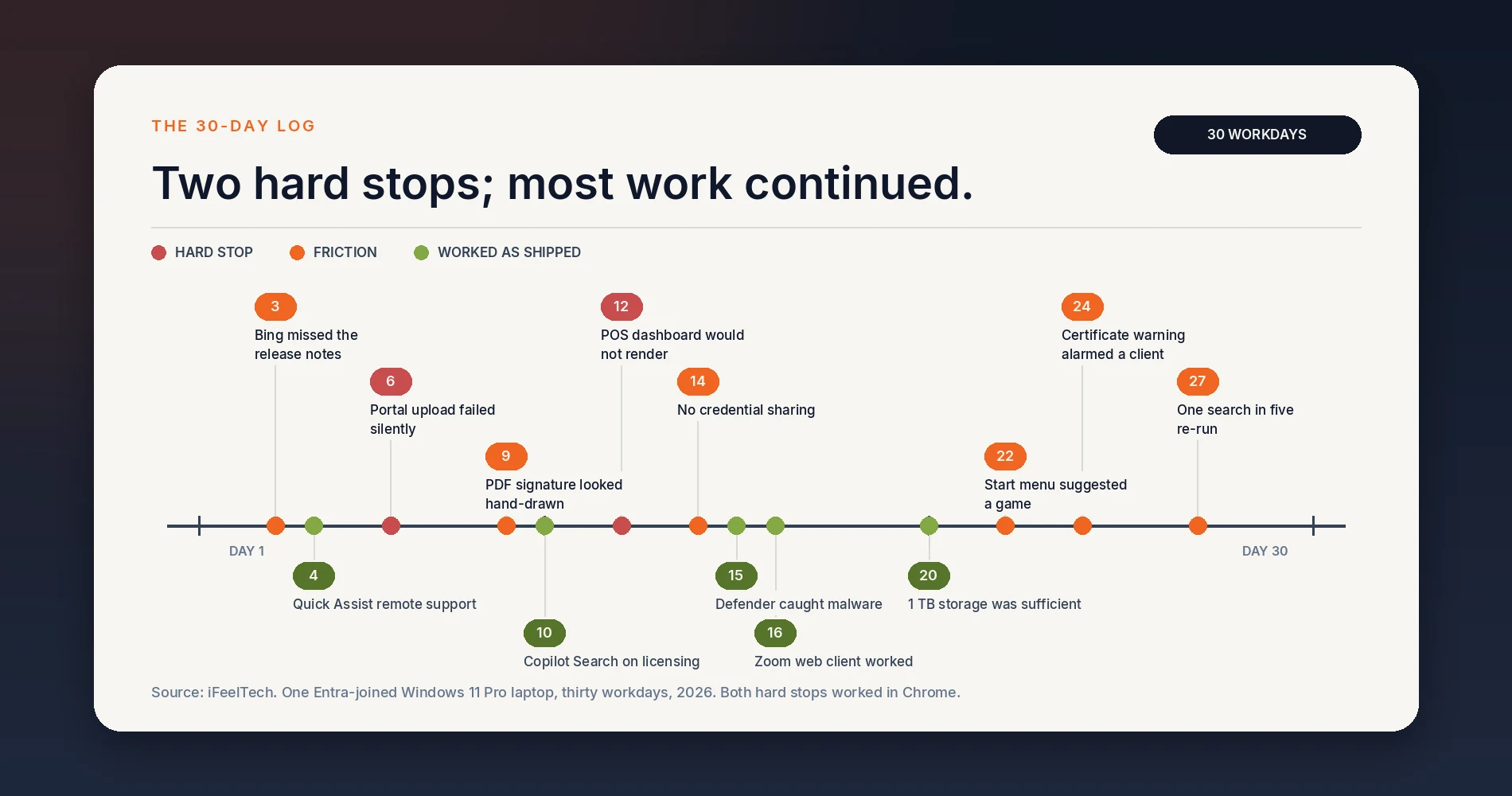
Day 1: I completed the first-boot prompts, signed in to Outlook on the web, and sent client email without trouble. The machine also presented Widgets and other optional content that I later wanted to quiet down.
Day 2: Word for the web preserved a client SOW’s formatting, inserted a table of contents, saved to OneDrive, and downloaded a usable .docx. Its layout controls were more limited than desktop Word, but the document was completed.
Day 3: Bing put an older forum post above the official Ubiquiti firmware notes. Google surfaced the release notes first when I repeated the query. I began recording searches I had to run again.
Day 4: Quick Assist was already available on this machine and handled a remote-support session. On another OEM image it may need to be installed or updated through Microsoft Store, and managed environments may need to deploy it explicitly.
Day 5: A vendor call worked in Teams with audio, video, and screen sharing. The Business Basic account was not subject to the 60-minute group-meeting limit of Teams Free.
Week Two: Two Browser Compatibility Failures
Day 6: A legacy accounting portal loaded in Edge, but its file-upload dialog failed silently. Clearing cache and changing tracking prevention did not help. The upload worked in Chrome. That was the first blocker.
Day 8: Excel for the web handled a 400-row inventory workbook, pivot tables, conditional formatting, formulas, and cross-sheet XLOOKUP. Recalculation was slower than desktop Excel, reminding me that formula and connection complexity matters more than row count alone.
Day 9: Edge’s PDF reader handled viewing, form filling, text, highlighting, and a drawn signature. That was enough for an internal form. A client contract still belongs in an e-signature workflow with authentication and an audit trail.
Day 10: Bing Copilot Search produced a useful, cited summary for a Microsoft licensing question. That was one of its strongest query types during the test.
Day 12: An older POS dashboard rendered with an overlapping navigation panel in Edge and was unusable. Its vendor documentation recommended Chrome. That was the second blocker.
Weeks Three to Six: The Gaps Became Clearer
Day 14: Edge’s password manager worked for my individual credentials, but it did not provide the team administration we need: controlled sharing, organization-wide policy, recovery, and offboarding.
Day 15: Defender quarantined a ZIP attachment containing an obfuscated script after download. In AV-TEST’s June 2026 Windows 11 business evaluation, Microsoft Defender Antivirus Enterprise scored 6/6 for protection, 5/6 for performance, and 6/6 for usability. One incident and one lab result do not prove every endpoint configuration is sufficient; fleet visibility and response remain separate requirements.
Day 16: I joined a Zoom call through the web app in Edge. Audio, video, and basic screen sharing worked. It was adequate for joining a meeting, while the desktop client remained the safer choice for hosts who depend on advanced controls. Zoom’s feature matrix changes, so check its current web-versus-desktop comparison for a required feature rather than relying on an old limitation list.
Day 20: Storage was not a constraint because Business Basic included 1 TB of OneDrive. This does not predict the free-account experience: its 5 GB allocation would have filled much sooner with the same files.
Day 22: Optional recommendations, Widgets content, Rewards prompts, and promotional notifications were a larger daily distraction than any missing application. They did not stop work, but they made the environment less focused.
Day 24: A banking portal produced a certificate warning. That is not a reason to bypass the warning or declare one browser “broken.” Certificate behavior can depend on trust stores, policies, and the server’s chain. The correct response is to investigate the certificate and contact the vendor when necessary.
Day 27: I had repeated about one search in five on Google, mostly technical troubleshooting and local lookups. This was an observation from my work log, not a controlled search-quality study.
Day 30: The machine had supported a full month of knowledge work. The two blockers were specific browser compatibility failures. The more general gaps were team credential management, independent backup, and complex desktop workflows.
Was Microsoft Edge Enough, or Did I Need Chrome?
Mostly. Edge and Chrome both use Chromium, but they are separate products with different Microsoft and Google integrations, management policies, privacy choices, and release schedules. Edge incorporates Chromium security fixes; Microsoft publishes its own Edge release schedule, which is not identical to Chrome’s.
Edge handled email, documents, research, SaaS dashboards, meetings, and ordinary PDF work. Sleeping Tabs reduced resource use on inactive tabs, while vertical tabs helped when several business apps were open. Most Chrome Web Store extensions can be installed in Edge, although native integrations and company policy can create exceptions.
Our support notes contained five Edge-specific or suspected issues among roughly 40 business web applications encountered in client work. Two were reproduced during this experiment; the others were historical or configuration-dependent cases. Treat the table as a testing list, not a current incompatibility verdict against each vendor.
| Application or case type | Observed behavior | Appropriate next step | Evidence status |
|---|---|---|---|
| Legacy accounting portal | File upload failed in Edge | Test current portal in Chrome; report to vendor | Reproduced in this test |
| Older POS dashboard | Layout rendered incorrectly | Test supported browser; request vendor update | Reproduced in this test |
| Banking certificate warning | Trust warning appeared | Investigate chain and policy; do not suppress | Configuration-dependent |
| ERP web session | Session handling differed | Re-test current release and server timeout | Historical support case |
| Embedded signing with SSO | Redirect loop in one configuration | Test a direct link and current SSO flow | Historical support case |
The practical policy is simple: use Edge if it suits your Microsoft 365 workflow, but test every critical portal before standardizing. Install Chrome when a supported application requires it. If the company is centered on Google Workspace, Chrome’s account integration may make it the more coherent default.
Bing Was Usable, but It Was Not My Final Choice
Bing Copilot Search was useful for structured questions, especially Microsoft documentation and licensing. General lookups were usually fine. Technical error searches, niche product research, and local lookups produced most of the repeated queries in my log.
I therefore kept Edge and changed only its address-bar search. Microsoft’s current instructions use the path Settings → Privacy, search, and services → Search and connected services → Address bar and search. Labels can move between releases, so use Settings search if that happens.
That result is personal rather than universal. Readers concerned primarily with privacy should also evaluate privacy-focused search engines instead of assuming Google is the only alternative.
Quieting the Consumer Features
The exact options vary by Windows build, edition, region, OEM image, and management policy. Avoid copying a registry or Group Policy recipe from an older Windows release without testing it on the deployed build.
For a single machine:
- Open Settings → Personalization → Start and turn off the recommendation and recent-item options you do not want.
- Open Settings → Personalization → Taskbar and disable Widgets if your build exposes that option.
- Open Settings → System → Notifications, review additional settings, and turn off setup suggestions and tips you do not need.
- Unpin optional apps, including Copilot, from the taskbar if they are not part of the workflow. Current Copilot experiences are app-based; older “Windows Copilot” policy instructions may be deprecated.
- On an Edge new tab, open page settings and choose a quieter layout or turn off the content feed where available.
For a fleet, use current Microsoft management policy rather than repeating these clicks. Some broad consumer-experience and Spotlight controls remain edition-dependent, and Windows 11 Pro does not expose every Enterprise or Education control. Our longer-term experience with these settings is covered in Windows 11 Pro for business.
What I Actually Missed
The Genuine Gaps
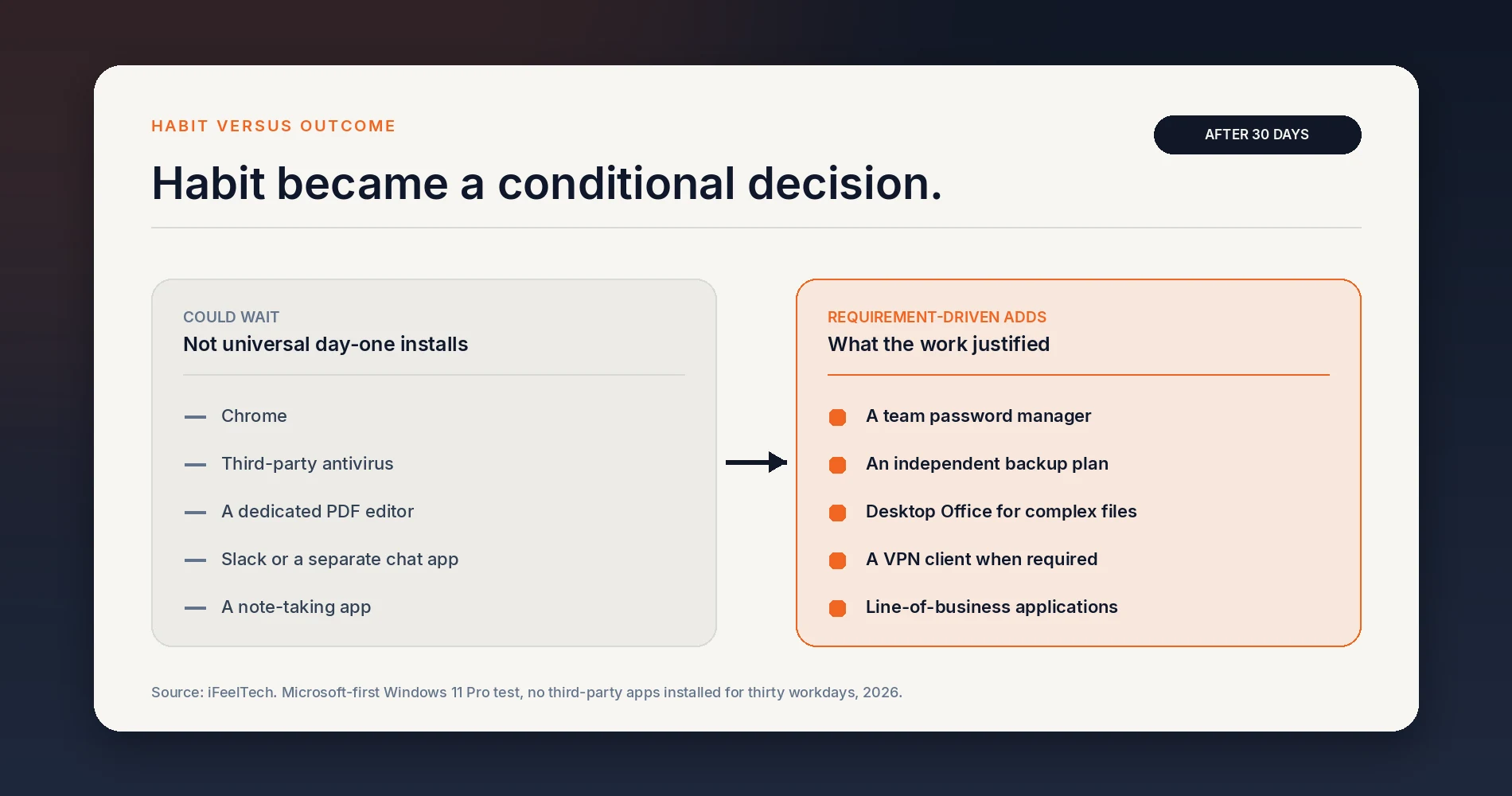
Team password management. Edge was adequate for one person in one browser. It was not a replacement for controlled credential sharing, company policy, recovery, and offboarding. A business password manager remained a justified addition.
Desktop Office for complex deliverables. The web apps completed routine work. Desktop Word, Excel, or PowerPoint was still preferable when print layout, advanced automation, heavier calculations, or precise presentation control mattered.
An independent backup plan. OneDrive provides sync, version history, a recycle bin, and whole-OneDrive restore for eligible Microsoft 365 subscribers. Those are valuable recovery features, but OneDrive remains in the same tenant and administrative control plane as the production data. It is not an independent backup. Define retention and recovery requirements, then choose an appropriate Microsoft 365 backup.
Required business software. A desktop accounting package, ERP client, CAD tool, endpoint agent, peripheral driver, or vendor-specific VPN client still has to be installed when the workflow requires it. Windows itself supports standard VPN types, Always On VPN, and split tunneling in supported configurations; a vendor client is needed when the chosen gateway or security integration requires one.
Chrome did not belong on a universal “install immediately” list, but it was required for two tested portals. Defender did not need replacing merely from habit, though a company may require centrally managed endpoint security. Edge covered routine PDF work, but not a formal signing process. Those are conditional decisions, not blanket endorsements of the defaults.
New Windows 11 Business Laptop Setup Checklist
The Ten Changes Worth Making
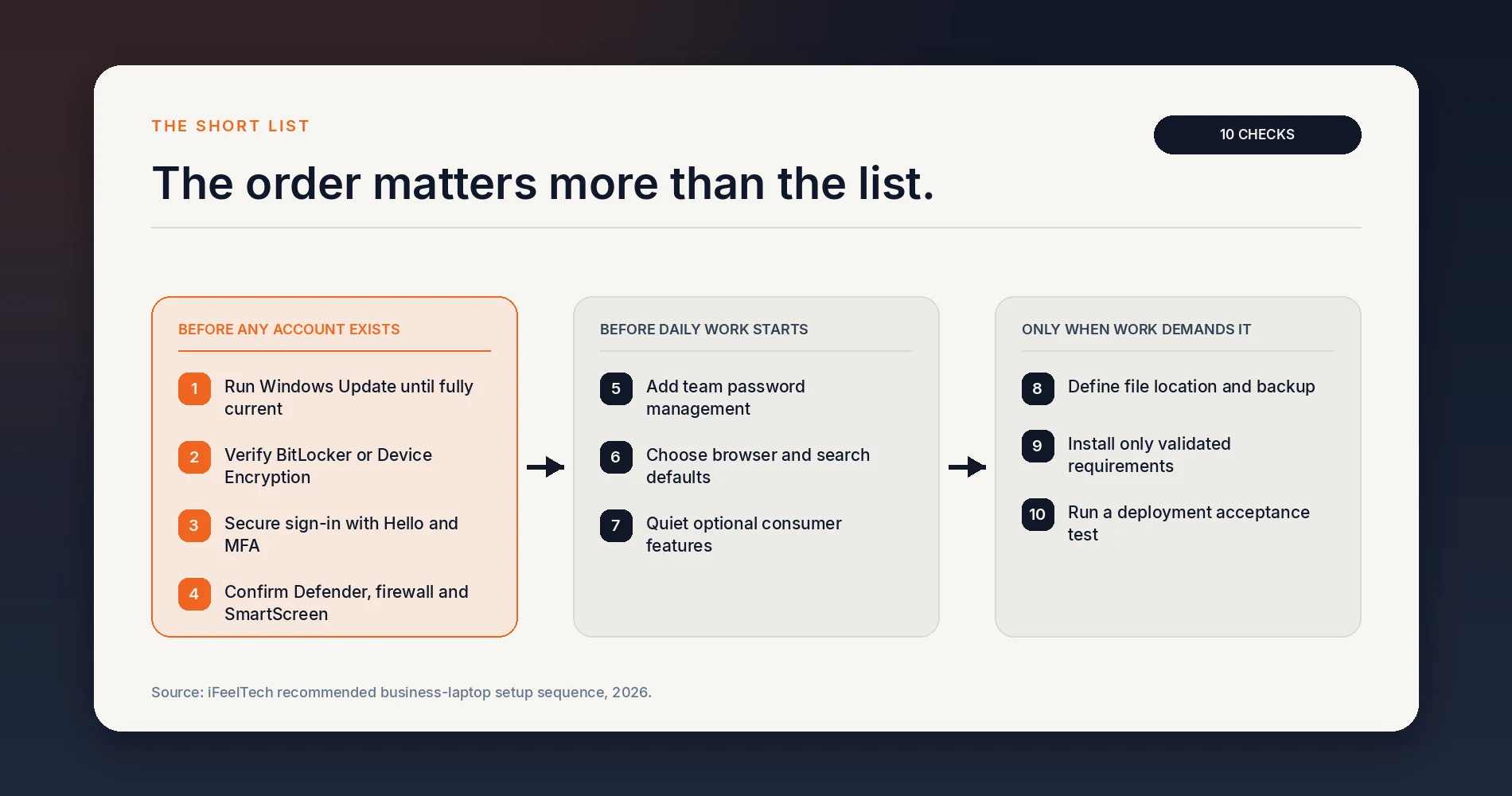
- Run Windows and OEM updates. Install operating-system, BIOS, firmware, and driver updates; restart and check again.
- Verify encryption and recovery. Confirm Device Encryption or BitLocker is active and store the recovery key under organizational control.
- Secure sign-in. Configure Windows Hello and MFA, and avoid daily work from an unmanaged local administrator account.
- Check built-in protection. Verify Defender real-time protection, firewall, SmartScreen, and tamper protection. Remove a conflicting antivirus trial if it has disabled Defender.
- Add team password management. Do this before creating or importing business credentials.
- Choose browser and search defaults deliberately. Edge may be sufficient; test critical sites before deciding whether Chrome is required.
- Quiet optional consumer features. Review Start, Widgets, notifications, taskbar apps, and the Edge new-tab feed on the exact deployed build.
- Define file location and independent backup. Decide between individual OneDrive, shared SharePoint libraries, or another approved system, then document retention and recovery.
- Install only validated requirements. Add desktop Office, VPN, accounting, ERP, communication, and peripheral software when the workflow calls for it.
- Run a deployment acceptance test. Check portals, printing, scanning, conferencing, VPN, recovery-key custody, and access to shared files before handoff.
For one laptop, this usually means 45–90 minutes of hands-on setup depending on migration and required applications. For a fleet, Windows Autopilot and Microsoft 365 Business Premium can automate enrollment, policies, and application deployment. Our internal benchmark is under 10 minutes of administrator hands-on time per device; total provisioning still takes longer while the automated process runs.
When This Conclusion Does Not Apply
- Regulated or high-risk environments: Default settings are not a documented compliance program. Encryption enforcement, auditing, data-loss prevention, endpoint response, and recovery need deliberate design.
- Installed line-of-business software: QuickBooks Desktop, Sage, CAD, ERP clients, and similar tools define their own requirements.
- Google Workspace organizations: Chrome and Google Drive may provide the more coherent account and storage experience. See our Google Workspace versus Microsoft 365 comparison.
- Windows Home, S mode, or Copilot+ variations: Edition, hardware, region, and OEM image change what is present and what can be managed. Compare Windows 11 Home and Pro before buying for business.
- A required Chrome-only portal: If a critical vendor supports only Chrome, install Chrome and test the whole workflow before deployment.
Final Verdict
Windows 11 Pro supplied more of a workable business environment than I had expected. Edge, Defender, the PDF reader, Quick Assist, and Microsoft’s web apps covered most routine work. The defaults were not enough to declare the laptop business-ready: account security, encryption-key custody, file ownership, independent backup, and application compatibility still required deliberate setup.
The useful lesson is not “never install anything.” It is do not install from habit. Secure the machine first, test the work, and let documented requirements determine the software list.
Related Reading
Frequently Asked Questions
Related Articles
More from Business Software
Microsoft 365 or Google Workspace: Fix the Setup or Switch?
Before leaving Microsoft 365 or Google Workspace, find out whether you have a setup problem or a platform problem, what to fix first, and when to switch.
21 min read
Microsoft 365 to Proton Workspace Migration: A Small-Office Walkthrough (2026)
How to move a small office from Microsoft 365 to Proton Workspace: Easy Switch for Business, OneDrive files, DNS cutover and Microsoft 365 cleanup.
18 min read
Microsoft 365 Alternative: Proton Workspace vs Microsoft 365 for Small Business
Microsoft 365 vs Proton Workspace compared from real migrations: 5/10/25-seat costs, privacy architecture, collaboration gaps, and which businesses should switch.
19 min read