

UniFi Express 7 as a Travel Router: When the UX7 Beats the UTR
The UX7 is not a hotel WiFi router. See when its 10GbE WAN, IDS/IPS and Site Magic justify $199—and when the $79 UTR or GL.iNet is better.

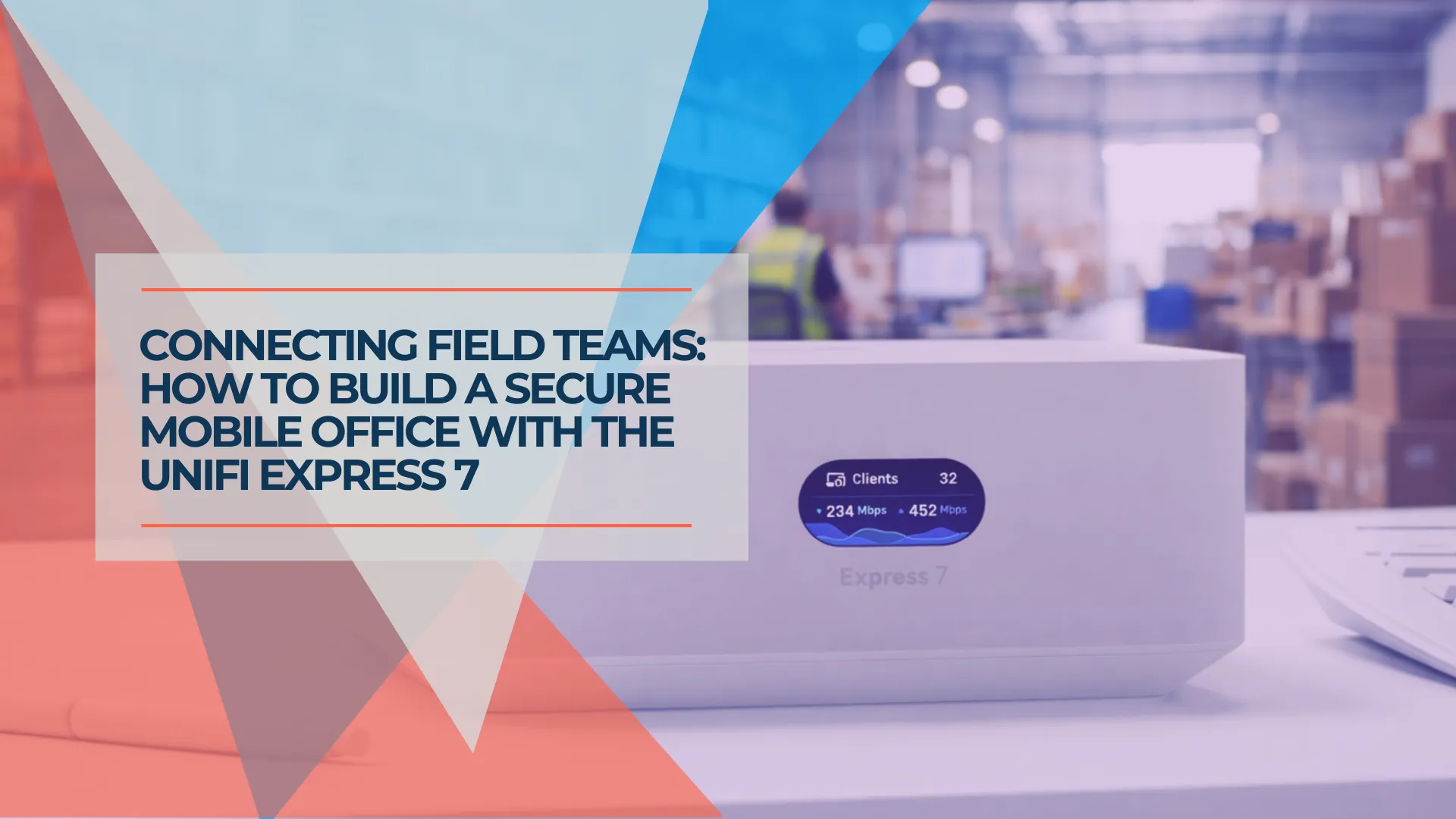
The $199 vs $79 Question
The UX7 is not a hotel WiFi router. It has no WISP mode and no USB tethering — it requires a wired ethernet uplink. The $79 UTR handles hotel WiFi and captive portals. The UX7 is a $199 Cloud Gateway with a 10 GbE WAN port, IDS/IPS, Site Magic SD-WAN and tri-band WiFi 7 — worth the extra $120 when you have a wired ethernet jack and need gateway-level security with site-to-site VPN. Choose the UTR for personal travel; choose the UX7 for an authorized field office with wired ethernet.
Most travel router guides recommend consumer devices like the GL.iNet Slate 7, Beryl 7, or the UniFi Travel Router. These work well for hotel WiFi and WISP scenarios — GL.iNet routers in particular offer fast WireGuard VPN, GoodCloud management, and site-to-site connectivity. Where they differ from the UX7 is in integrated IDS/IPS, the UniFi management ecosystem, and the 10 GbE WAN port for high-bandwidth wired uplinks.
Affiliate Disclosure: This article contains affiliate links. If you make a purchase through these links, we may earn a small commission at no extra cost to you. As an Amazon Associate, iFeelTech earns from qualifying purchases.
The UniFi Express 7 sits in a different category. At $199 it is a full UniFi Cloud Gateway with a 10 GbE WAN port that fits in a laptop bag. For sites with unrestricted ethernet but locked-down guest WiFi, the UX7 gives you gateway-level security, centralized management and site-to-site VPN in one portable box. That said, the UX7 depends on a wired uplink — it has no WISP mode and no USB tethering.
Quick Decision Guide
| Your Situation | Best Option |
|---|---|
| Casual hotel travel, WiFi uplink | UniFi Travel Router (UTR) ($79) |
| Power user, OpenWrt flexibility | GL.iNet Slate 7 ($169.99) |
| Field teams, needs VPN to HQ | UniFi Express 7 ($199) |
| Multi-device deployments, wired devices | UX7 + Flex Mini 2.5G (~$248 hardware) |
| Not using UniFi at HQ | Slate 7 or consumer VPN router |
UniFi Express 7 Overview
Why Consider UniFi Express 7 as a Travel Router?
The UX7 gives a portable deployment the same gateway-level security, VPN and central management as a fixed office. Consumer travel routers offer some of these features individually — GL.iNet's GoodCloud provides centralized management and site-to-site WireGuard, for example — but the UX7 integrates them into one ecosystem with IDS/IPS, a 10 GbE WAN port and license-free SD-WAN.
The Problem with Traditional Travel Routers
Consumer travel routers like the GL.iNet Beryl AX or Slate 7 excel at connecting multiple devices to hotel WiFi and running basic VPN clients. They're lightweight, inexpensive, and easy to use.
Where they struggle:
Less integrated security: GL.iNet models run vendor-customized OpenWrt with integrated OpenVPN and WireGuard support, and devices like the Slate 7 Pro now include DPI. However, IDS/IPS with zone-based firewalling remains in a different class on UniFi gateways. (IDS/IPS is included on the UX7; Ubiquiti advertises 20,000+ signatures with the optional CyberSecure subscription at $99/year per gateway.)
Separate management platforms: GL.iNet's GoodCloud offers centralized management, batch configuration and site-to-site connectivity. However, it is a separate platform from whatever runs at headquarters — if your office already uses UniFi, the UX7 appears alongside your existing infrastructure in one console.
Site-to-site is possible but less integrated: GL.iNet documents router-to-router WireGuard and GoodCloud site-to-site configurations. UniFi Site Magic is easier to set up and maintain within the UniFi ecosystem, with automatic tunnel re-establishment and integrated subnet management — but it is not the only option.
Limited wired headroom: Most travel routers top out at 1G or 2.5G ports and modest VPN throughput. If the venue provides a fast wired jack and your team moves large files, the router itself becomes the ceiling. It is worth saying plainly that VPN throughput is CPU-bound on the UX7 too — the gap is in ports, security processing and management, not in raw tunnel speed.
What UniFi Express 7 Brings to the Table
The UX7 is fundamentally a UniFi Cloud Gateway—the same platform that powers the Dream Machine series, just in a compact, affordable package. When used as a travel router, you get:
Gateway-level security: Ubiquiti rates the UX7 at 2.3 Gbps IDS/IPS throughput, with a Layer 7 firewall, deep packet inspection, content and ad filtering, DNS filtering, and WPA3. IDS/IPS is included; Ubiquiti advertises 20,000+ signatures with the optional CyberSecure subscription ($99/year per gateway). Your field team operates behind the same security stack as your main office.
UniFi Site Magic integration: Site Magic is UniFi's license-free site-to-site SD-WAN. It discovers other UniFi sites on your account, establishes encrypted tunnels, and maintains connectivity through network changes, so your team reaches headquarters resources without VPN clients on individual devices. Our UniFi Site Magic setup guide covers the IP planning and firewall rules in detail.
Multiple VPN options, not just Site Magic: Site Magic, IPsec and OpenVPN connect sites natively on the UX7. WireGuard is supported as a VPN client and server — it can connect the UX7 to an external VPN endpoint, but routing the field LAN through it requires policy-based routing. Teleport connects individual devices running the WiFiman app back to the UX7's network; it does not route the entire field LAN. For connecting the field site to headquarters, use Site Magic (within the UniFi ecosystem), IPsec, or OpenVPN site-to-site.
Centralized management: Every deployed UX7 appears in your UniFi console alongside your main infrastructure. You see traffic patterns, apply security policies, troubleshoot issues, and push configuration changes from one interface—whether your team is in Miami or Munich.
Throughput, with a VPN caveat: Ubiquiti rates the UX7 at 2.3 Gbps with IDS/IPS enabled, which is the figure most listings quote. VPN throughput is a separate matter: Ubiquiti does not publish site-to-site VPN numbers, and WireGuard on UniFi gateways is CPU-bound with no dedicated encryption offload. Plan tunnel capacity in the hundreds of megabits per second rather than assuming line rate — our Site Magic guide has community-reported figures by gateway class.
WiFi 7 across three bands: The UX7 is a BE10700-class radio — up to 10.7 Gbps aggregated across 6 GHz, 5 GHz and 2.4 GHz, with 5.7 Gbps of that on the 6 GHz band alone. Wi-Fi 6E and Wi-Fi 7 clients can use the cleaner 6 GHz band; standard Wi-Fi 6 clients remain on 2.4 GHz or 5 GHz.
Cellular failover: The UX7 has a single WAN port (no dual-WAN or load balancing), but it does support internet failover with UniFi LTE Backup as a secondary connection. This is useful at sites where the ethernet jack is unreliable.
Real-World Use Case: The Supplier Site Problem
A locked-down supplier guest network plus an unrestricted wall ethernet jack is the scenario the UX7 handles best. Here is how that deployment worked.
This configuration emerged from an actual deployment challenge. A client's team regularly worked at their supplier's facility for multi-day projects. The supplier provided guest WiFi, but — reasonably — it was locked down: no VPN connections, restricted ports, and limited access to ensure their own network security.
The supplier's IT team authorized our client to use a dedicated ethernet wall jack in a conference room, provisioned on an isolated guest VLAN that the supplier controlled. This is a critical point: never connect a router to a host network without explicit written authorization from the site's IT team. Even though the UX7 uses NAT to separate its LAN from the upstream network, traffic still traverses the host infrastructure, and the UX7 may be able to reach upstream private addresses unless either side blocks them.
Our solution, deployed with the supplier's IT approval:
- Configure a UniFi Express 7 as a standalone gateway
- Connect its WAN port to the supplier-provided ethernet jack on their guest VLAN
- Enable Site Magic SD-WAN to create an encrypted tunnel back to the client's headquarters
- Configure UX7 firewall rules to block traffic to the supplier's private upstream subnets
- The team connects to the UX7's WiFi network, accessing headquarters resources through the Site Magic tunnel
The supplier's IT department verified and approved the setup because the UX7 sat behind their guest VLAN, our firewall rules prevented lateral access, and all headquarters-bound traffic was encrypted through the Site Magic tunnel. (By default, Site Magic carries traffic destined for selected remote networks — not all public internet traffic. If full-tunnel routing is required, policy-based routing must be configured separately.) The client's team maintained full access to internal systems, file servers, and applications without exposing credentials over untrusted networks.
We now replicate this configuration for:
- Field service teams servicing client sites
- Temporary project offices at construction sites or event venues
- Remote staff working from coworking spaces where network security is unknown
- Trade show booths requiring secure connectivity for demonstrations
Technical Specifications: What You're Working With
The UX7 is a 443-gram, USB-C powered cloud gateway with one 10 GbE WAN port, one 2.5 GbE LAN port and tri-band WiFi 7. Full specifications follow.
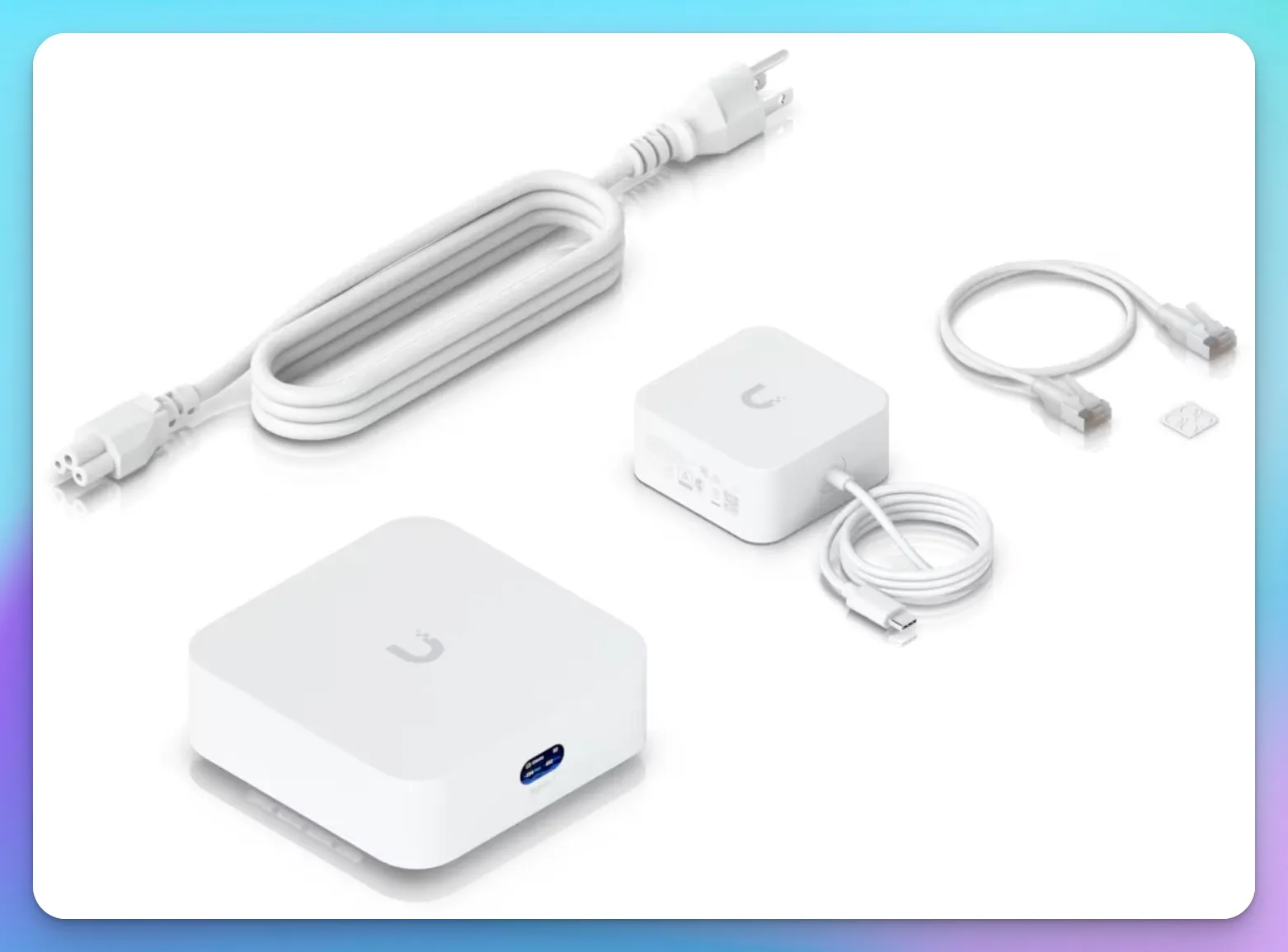
Core Specifications
| Component | Specification |
|---|---|
| Price | $199 (Ubiquiti Store, July 2026) |
| Dimensions | 117 × 117 × 42.5 mm (4.6" × 4.6" × 1.7") |
| Weight | 443 g (1 lb) |
| WiFi | WiFi 7 (802.11be), 6-stream, tri-band (BE10700 class) |
| Wireless Speed | Up to 10.7 Gbps aggregated (5.7 Gbps @ 6GHz, 4.3 Gbps @ 5GHz, 688 Mbps @ 2.4GHz) |
| Coverage | Up to 160 m² / 1,750 sq ft (Ubiquiti vendor estimate — real-world coverage varies with environment) |
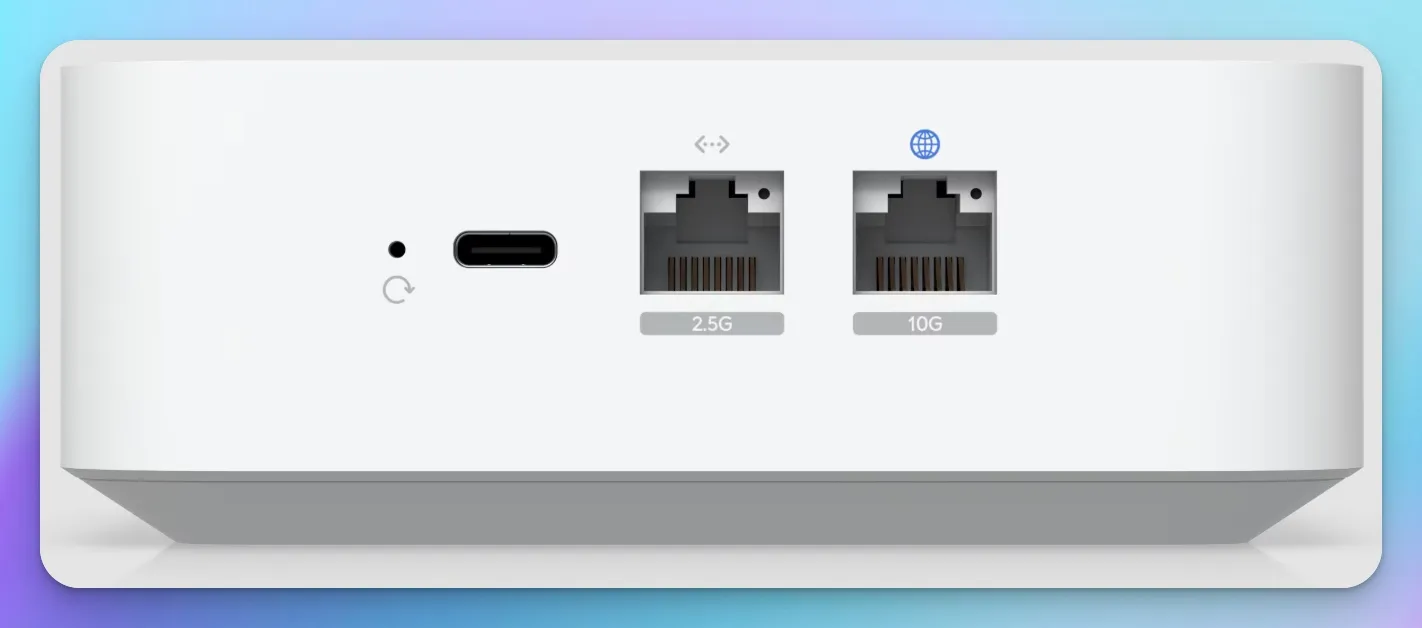
| WAN Port | 1× 10GBASE-T RJ45 (10 Gbps) |
| LAN Port | 1× 2.5 GbE RJ45 (2.5 Gbps) |
| Component | Specification |
|---|---|
| Power | USB-C (5V DC, 5A / 25W adapter included) |
| Max Power Draw | 22W peak (Ubiquiti spec; we have not published measured idle/load figures) |
| Processor | Quad-core ARM Cortex-A53 @ 1.5 GHz |
| Memory | 3 GB RAM |
| Capacity | 300+ clients, 30+ UniFi devices |
| VPN | Site-to-site: Site Magic, IPsec, OpenVPN; Client/Server: WireGuard, L2TP; Remote access: Teleport (WiFiman) |
| Management | UniFi Network application only |
Power Warning: The 5V/5A Challenge
The UX7 requires 5V at 5A (25W), which is a non-standard USB-C PD profile. Most power banks jump to 9V or 15V for high wattage. If your power bank doesn't support PPS (Programmable Power Supply) or a high-amperage 5V rail, the UX7 may fail to boot or experience power cycling.
For field deployments, either use the included wall adapter or verify your power bank's voltage/amperage profiles before relying on battery operation.
What the 10 GbE WAN Port Does — and Does Not — Mean
The UX7 has a 10 GbE WAN connector, but that does not make it a "10G field office." Its only wired LAN port is 2.5 GbE, IDS/IPS throughput is rated at 2.3 Gbps, VPN performance is not officially published (and is likely well below 2.3 Gbps), and the 10.7 Gbps WiFi figure is an aggregate theoretical total across three radios — not a single-client result. The 10 GbE WAN port provides headroom for fast ISP uplinks and future-proofing, but real-world field throughput is bounded by the 2.5 GbE LAN port, IDS/IPS processing, and VPN overhead.
What Makes It Travel-Friendly
Compact for a Cloud Gateway: At 443 grams and 117 mm square, the UX7 is larger and heavier than consumer travel routers like the GL.iNet Beryl 7 (205 g) or Slate 7 (295 g), but it is compact for a full Cloud Gateway with IDS/IPS and tri-band WiFi 7. It fits in a laptop bag alongside a power bank and cables.
USB-C power: The included adapter is 5V/5A (25W). Battery operation is possible but has not been independently tested — we recommend using the included wall adapter for reliable operation and testing any power bank thoroughly before depending on it in the field. See the power warning below.
Fanless design: Silent operation means you can run the UX7 in conference rooms, hotel rooms, or quiet office spaces without generating noise complaints.
No external antennas: The internal antenna design means nothing to break or lose during transport. The compact square form factor is laptop-bag friendly.
Limitations to Understand
Single ethernet port: The UX7 has one WAN and one LAN port. If you need to connect multiple wired devices, you'll need a separate switch (we address this in the equipment recommendations).
No PoE output: Unlike the Cloud Gateway Fiber or Dream Router 7, the UX7 cannot power devices via Power over Ethernet. All connected equipment needs independent power.
Network app only: The UX7 runs only the UniFi Network application. It cannot host Protect (cameras), Talk (phones), or Access (door locks). This is a gateway-only device, which is appropriate for travel use.
WiFi coverage limits: Ubiquiti rates the UX7 at 160 m² / 1,750 sq ft, but real-world coverage varies with walls, interference and client hardware. It is best suited for single-room deployments or small temporary offices where everyone works within WiFi range.
Complete Equipment Setup: Two Configurations
Two kits cover most field deployments: a basic $210 setup for one to three people, and a $310 professional setup that adds wired ports. Accessory prices are approximate and change often.
Configuration 1: Basic Travel Router (about $210 total)
Scenario: Single user or small team (2-3 people) working from client sites with available ethernet and power outlets.
Equipment:
- UniFi Express 7 - $199
- Included USB-C power adapter
- 6-foot ethernet cable (for WAN connection) - ~$10
About battery operation: The UX7 requires 5V at 5A (25W) — an unusual USB-C profile. Most power banks (including popular 30W models like the Anker 20K) deliver only 5V/3A at the 5V rail and reach higher wattages by stepping up to 9V or 15V, which the UX7 will not accept. Use the included wall adapter unless you have tested and confirmed a specific power bank can supply 5V/5A continuously. We have not yet identified and tested a verified-compatible power bank to recommend.
What you get: Portable gateway with gateway-level security, WiFi 7 connectivity for multiple devices, and wall-powered operation.
Setup time: 10-15 minutes including initial UniFi console configuration.
Configuration 2: Professional Field Setup (about $310 total)
Scenario: Field service teams, project offices, or situations requiring multiple wired connections.
Equipment:
- UniFi Express 7 - $199
- UniFi Flex Mini 2.5G Switch - $49 (5-port 2.5 GbE switch)
- USB-C power cables (2×) - about $24
- Cat6 ethernet cables (3-foot and 6-foot) - ~$15 (Cat6 is sufficient for short 2.5 GbE runs; Cat6A is unnecessary at these lengths)
- Small carrying case - ~$15
What you get: Expanded wired connectivity (4 additional device ports — the fifth port on the Flex Mini serves as the uplink to the UX7), 2.5G throughput to connected devices, and organized transport solution. Both the UX7 and switch require wall power or verified-compatible USB-C power sources.
Setup time: 15-20 minutes including switch adoption into UniFi console.
Configuration Comparison at a Glance
| Configuration | Cost | Best For | Users |
|---|---|---|---|
| Basic | ~$210 | Client sites with ethernet | 2-3 |
| Professional | ~$310 | Multi-device deployments | 5-10 |
Step-by-Step Setup Guide
Setting up a UX7 as a travel router takes about 15 minutes: adopt it in the UniFi app, connect the WAN port to ethernet, then enable Site Magic SD-WAN back to headquarters.
This walkthrough assumes you're starting with a brand-new UniFi Express 7. It covers the basic setup and the Site Magic configuration for site-to-site VPN connectivity.
Prerequisites
Before you begin:
- Active UniFi account (free to create at ui.com)
- UniFi Network mobile app installed (iOS or Android)
- A compatible UniFi Cloud Gateway or Independent Gateway at headquarters (for Site Magic configuration — switches and access points alone are not sufficient)
- Internet connection for initial setup
Initial Configuration
Step 1: Power and Connect the UX7
Connect the included USB-C power adapter to the UX7 and plug into a power outlet. (Battery operation is possible with a power bank verified to supply 5V/5A, but we recommend the wall adapter for initial setup and production use.)
The front display will illuminate, showing "UniFi" and initialization messages. Wait approximately 60-90 seconds for the device to boot completely. You'll see the WiFi icon appear when ready.
Step 2: Configure Using UniFi Mobile App
The recommended setup method uses the UniFi Network mobile app with Bluetooth discovery:
- Download the UniFi Network app from the App Store (iOS) or Google Play (Android)
- Open the app and sign in to your UniFi account (or create one)
- The app will automatically discover the UX7 via Bluetooth
- Follow the on-screen setup wizard to:
- Name your site (e.g., "Field Team - Miami")
- Configure your WiFi SSID and password
- Set your timezone
- The setup wizard completes and the device reboots (~30 seconds)
Alternative: Connect a laptop to the UX7's LAN port and navigate to http://192.168.1.1 in a web browser to access the setup wizard directly.
Official Documentation
For detailed setup instructions, see Ubiquiti's official UniFi Express 7 Installation Guide.
Connecting to External Internet
Step 3: Connect WAN Port
For travel router operation, you need a wired ethernet connection. The most reliable scenario we've tested is connecting to an unrestricted ethernet jack at a client or supplier site—particularly when their guest WiFi blocks VPN traffic.
Ethernet Availability
Hotel and Airbnb ethernet availability varies significantly. Some locations offer easy plug-and-play access, while others may require working with the venue or have no ethernet available at all. Test before relying on this setup for critical work.
Connect an ethernet cable from your internet source to the UX7's WAN port (marked with a globe icon on the device label).
The UX7 automatically detects the connection and acquires an IP address via DHCP. You'll see the WAN status change to "Connected" on the front display.
Captive Portal Workaround
Some hotel ethernet ports require web login (captive portal). Captive portals typically authenticate a MAC address, not just the physical port. If the UX7 can't authenticate directly, connect a laptop first, complete the portal login, then configure MAC cloning on the UX7's WAN interface to match the laptop's MAC address (available under WAN settings in the UniFi console). Always check the venue's acceptable-use policy — some venues prohibit MAC cloning or router connections.
Step 4: Verify Internet Connectivity
Open the UniFi Network mobile app:
- Tap the site name (top of screen)
- Select "Settings" → "System"
- Check the WAN status shows connected with an IP address
- Verify DNS resolution is working
Test by opening a web browser on a connected device and navigating to any website.
Enabling Site Magic SD-WAN for Site-to-Site Connectivity
Site Magic is what turns the UX7 from a portable router into a remote branch of your network. Modern UniFi Cloud Gateways use Site Magic SD-WAN, managed from the cloud-based UniFi Site Manager.
HQ Network Requirement
Site Magic requires at least one site — normally headquarters — to have a publicly routable IP address. If HQ sits behind double NAT or carrier-grade NAT (CGNAT), tunnel setup can fail. The UX7 itself can sit behind NAT, which is what makes the travel use case work, but one end must be reachable. Our Site Magic setup guide covers subnet planning and the zone-based firewall rules this depends on.
Site Magic, IPsec/OpenVPN, WireGuard or Teleport?
The UX7 supports several VPN options, each suited to a different field scenario:
- Site Magic SD-WAN — best for recurring deployments where you want the UX7's entire field LAN connected back to a UniFi headquarters with automatic tunnel management and subnet routing.
- IPsec or OpenVPN site-to-site — native site-to-site modes for connecting to non-UniFi endpoints, such as a cloud VPN or a third-party concentrator.
- WireGuard client — connects the UX7 to an external WireGuard endpoint (e.g., a self-hosted server or VPN provider). Routing the field LAN through it requires configuring policy-based routing; WireGuard is not listed as a native site-to-site mode on UniFi gateways.
- Teleport — a remote-access VPN that connects individual devices running the WiFiman app back to a UniFi network. It does not route the UX7's field LAN as a whole. Use it for giving a single remote user access, not for connecting an entire field site.
Step 5: Access UniFi Site Manager
Site-to-site connectivity is managed through UniFi Site Manager, not local gateway settings:
- Log into unifi.ui.com with your UniFi account
- Navigate to the SD-WAN tab in Site Manager
- You'll see all UniFi sites associated with your account
Step 6: Configure SD-WAN Topology
- In the SD-WAN dashboard, choose a topology: Mesh (all sites connect to each other, limited to 20 sites) or Hub-and-Spoke (branch sites connect through a central hub, supports up to 1,000 locations per Ubiquiti)
- For hub-and-spoke, select your headquarters gateway as the hub
- Add the travel router site (your UX7) as a spoke or mesh member
- Select which networks/subnets should be accessible between sites
- Site Magic establishes encrypted tunnels automatically
Both sites must share the same UI Account owner. Wait 30-60 seconds for the tunnel to establish. You'll see the connection status change to "Connected" in the SD-WAN dashboard.
Site Magic Setup Guide
For detailed setup instructions, see Ubiquiti's official Site Magic SD-WAN Guide.
Step 7: Verify Site-to-Site Connectivity
From a device connected to the UX7's WiFi:
- Ping an internal server at headquarters (e.g., file server, internal web app)
- Access an internal website or application
- Map a network drive to a headquarters file share
- Confirm you can reach resources that should only be available on the corporate network
If connections fail, check:
- Firewall rules at headquarters allow traffic from the remote subnet
- DNS configuration resolves internal hostnames correctly
- Both sites show "Connected" status in Site Magic settings
Adding a Portable Switch
If you need additional wired ports, integrate a UniFi Flex Mini switch:
Step 8: Connect and Power the Switch
- Connect an ethernet cable from the UX7's LAN port to any port on the Flex Mini
- Power the Flex Mini using its included USB-C adapter (or power bank if operating on battery)
The switch's LED indicators will blink as it initializes, then show solid or pulsing lights indicating activity.
Step 9: Adopt the Switch into UniFi
The Flex Mini automatically appears in your UniFi console when connected:
- Open the UniFi Network app
- Navigate to Devices (bottom menu)
- Look for "USW-Flex-2.5G-5" with status "Pending Adoption"
- Tap the device and select "Adopt"
- Wait 60-90 seconds for adoption to complete
The switch is now managed by the UX7 and appears alongside it in your device list.
Step 10: Configure Switch Ports
By default, all ports operate as standard LAN ports on your network. If you need VLANs, port isolation, or other advanced features:
- Select the switch in the devices list
- Tap Settings → Ports
- Configure each port as needed (default settings work for most travel scenarios)
Battery Operation (Optional — Unverified)
The UX7's USB-C input requires 5V at 5A (25W), which is an unusual USB-C profile. Most power banks and PD chargers cannot supply this — a "30W" rating typically means the bank outputs 30W at 9V or higher, not at 5V. We have not tested or verified a specific power bank that reliably powers the UX7. Until we publish measured results with named hardware and recorded runtime, use the included wall adapter for production deployments.
Real-World Use Cases and Applications
Three deployment patterns account for most UX7 field use: dispatched service teams, remote workers with wired access, and trade show booths.
Field Service Teams
Scenario: HVAC, electrical, or IT service companies dispatching technicians to client sites for multi-day installations or maintenance projects.
Configuration: Basic travel router setup (~$210) per truck or team.
Workflow:
- Technician arrives at client site
- Requests access to an ethernet jack (particularly useful when guest WiFi blocks VPN)
- Powers on UX7 and connects WAN port to ethernet
- Team tablets and laptops connect to UX7's secure WiFi
- Access headquarters systems for work orders, inventory, documentation
Benefits:
- NAT separation between your devices and the client network — though traffic still traverses their infrastructure, so always obtain authorization from the client's IT team
- Secure access to company systems without relying on technician smartphones as hotspots
- Centralized visibility — dispatch can see which teams are connected and troubleshoot connectivity issues remotely
- Consistent network configuration across all field teams
Remote Workers with Ethernet Access
Scenario: Professionals working from locations where wired ethernet is available and reliable.
Note: This use case depends heavily on venue ethernet availability, which varies significantly. Test before relying on this for critical work.
Configuration: Basic travel router setup (~$210).
When it works well:
- Corporate housing or extended-stay accommodations with ethernet
- Coworking spaces with wired connections
- Rental properties with network jacks
Benefits:
- Consistent network environment where ethernet is available
- Enhanced security — headquarters-bound traffic is encrypted through Site Magic (public internet traffic routes normally unless you configure full-tunnel policy-based routing)
- Multiple devices connect through one secure gateway
Trade Shows and Corporate Events
Scenario: Companies exhibiting at trade shows, conferences, or corporate events requiring reliable, secure connectivity for demonstrations or sales activities.
Configuration: Professional field setup (~$310) with switch for multiple devices.
Workflow:
- Booth setup includes positioning UX7 in back-of-house area
- Connect to venue ethernet (required — the UX7 needs a wired WAN uplink; add UniFi LTE Backup or an external cellular bridge as failover)
- Flex Mini switch provides wired connections to demo stations, tablets, payment terminals
- Guest WiFi network (separate SSID) allows attendees to connect without accessing company resources
- Site Magic ensures sales team can access CRM, order systems, and other internal tools
Benefits:
- Segregated networks—attendees on guest WiFi cannot access company systems
- Professional presentation—no reliance on venue WiFi that often struggles under heavy load
- Backup connectivity — UniFi LTE Backup or an external cellular bridge provides failover if venue internet fails (the UX7 does not support USB tethering directly)
- Real-time monitoring—IT team at headquarters can monitor booth network performance remotely
Comparison: UniFi Express 7 vs Traditional Travel Routers
Choose the UX7 for authorized wired-uplink field offices needing IDS/IPS and site-to-site VPN. Choose the UTR or a GL.iNet router for hotel WiFi, WISP scenarios and personal travel.
UniFi Express 7 vs UniFi Travel Router (UTR)
This is the comparison most buyers land on in 2026: why spend $199 on the UX7 when the official UTR is $79? Our six-month UniFi Travel Router review covers the UTR side in detail.
| Feature | UniFi Express 7 | UniFi Travel Router (UTR) |
|---|---|---|
| Price | $199 | $79 |
| WiFi Class | WiFi 7 Tri-Band (6GHz) | WiFi 5 (AC) |
| Max Wireless Speed | 5.7 Gbps (6GHz band) | Independent tests: low hundreds of Mbps |
| WAN Port | 10G RJ45 | 1G RJ45 |
| LAN Port | 2.5G RJ45 | 1G RJ45 |
| WiFi Uplink (WISP) | No | Supported |
| USB Tethering | No | Yes (iOS/Android) |
| IDS/IPS | 2.3 Gbps throughput | None |
| Captive Portal | Workaround needed | Handled in the UniFi app |
| Power Draw | 22W peak | 5W max |
| Weight | 443 g | 89 g |
| Best For | Field office / Site-to-Site | Casual traveler |
Verdict: Buy the UTR for the hotel room — it connects over WiFi uplink, handles captive portals through the app, and runs on 5W. Buy the UX7 for an authorized field deployment where you have a wired ethernet jack and need IDS/IPS, Site Magic connectivity, and 10 GbE WAN headroom.
Six-Way Comparison: UX7 vs Alternatives
| Feature | UniFi Express 7 | GL.iNet Slate 7 | GL.iNet Slate 7 Pro | GL.iNet Beryl 7 | ASUS RT-BE58 Go | UniFi Travel Router |
|---|---|---|---|---|---|---|
| Price | $199 | $169.99 | $239.99 | $129.99 | $159.99 MSRP | $79 |
| WiFi | WiFi 7 Tri-Band (6GHz) | WiFi 7 Dual-Band | WiFi 7 Tri-Band (6GHz) | WiFi 7 Dual-Band | WiFi 7 Dual-Band | WiFi 5 (AC) |
| WAN Port | 10G RJ45 | 2.5G RJ45 | 2.5G RJ45 | 2.5G RJ45 | 2.5G RJ45 | 1G RJ45 |
| LAN Port | 2.5G RJ45 | 2.5G RJ45 | 2.5G RJ45 | 2.5G RJ45 | 1G RJ45 | 1G RJ45 |
| IDS/IPS | 2.3 Gbps | No | DPI | No | AiProtection | No |
| VPN Throughput | Not published | WG ~490 Mbps | WG ~1,100 Mbps | WG ~1,100 Mbps | Not published | Not published |
| WISP / WiFi Uplink | No | Yes | Yes | Yes | Yes | Yes |
| USB Tethering | No | Yes (USB 3.0) | Yes (USB 3.0) | Yes (USB 3.0) | Yes (USB-A) | Yes (iOS/Android) |
| Centralized Mgmt | UniFi console | GoodCloud | GoodCloud | GoodCloud | ASUS Router app/web UI | UniFi (limited) |
| Weight | 443 g | 295 g | 328 g | 205 g | 232 g | 89 g |
| Best For | Field office / Site-to-Site with UniFi | Power user / Hotel | Advanced user needing 6GHz + DPI | Budget WiFi 7 travel | Travel with USB tethering + WISP | Casual traveler |
Choose UX7 if: You need IDS/IPS, 6GHz band, 10G WAN, Site Magic SD-WAN, or integration with existing UniFi infrastructure — and you have a wired uplink.
Choose Slate 7 Pro if: You want tri-band WiFi 7 with 6GHz, DPI, fast WireGuard (up to 1,100 Mbps claimed), WISP mode and OpenWrt flexibility without the UniFi ecosystem requirement.
Choose Slate 7 if: You want a touchscreen interface, OpenWrt customization, WISP mode and dual 2.5G ports at a mid-range price. Note: the Slate 7 is dual-band WiFi 7 — it has no 6 GHz band despite the WiFi 7 label.
Choose Beryl 7 if: You want the fastest claimed VPN speeds in a budget travel router (WireGuard up to 1,100 Mbps) with dual 2.5G ports and USB-C PD power.
Choose ASUS RT-BE58 Go if: You want WiFi 7, WISP mode, built-in USB tethering, AiProtection security and don't need OpenWrt or UniFi integration.
Choose UTR if: You're a casual traveler who needs captive portal support, WiFi uplink and basic connectivity at the lowest cost.
UX7 Gateway-Level VPN vs Per-Device VPN Clients
Some teams install VPN clients on individual devices instead of routing through a gateway. Note that consumer travel routers like the Slate 7 and Beryl 7 also run VPN clients at the router level (OpenVPN and WireGuard), so this comparison applies specifically to per-device VPN client setups, not to consumer routers with gateway-level VPN:
| Approach | UX7 with Site Magic / IPsec / OpenVPN | Per-device VPN clients |
|---|---|---|
| Setup | One-time gateway configuration | VPN client on every device |
| User Experience | Transparent — users connect to WiFi | Users must remember to enable VPN |
| Device Coverage | All WiFi/LAN devices routed through VPN after configuring routing policies | Only devices with VPN client installed |
| VPN Performance | CPU-bound on UX7 (no dedicated offload) | Varies by device CPU |
| Management | Centralized UniFi console | Individual device configuration |
| Security Policy | Enforced at gateway level (requires configuring firewall and routing rules) | Dependent on user compliance |
Consumer travel routers running WireGuard at the router level offer a similar gateway-level approach at lower cost, though without IDS/IPS or the UniFi management ecosystem.
Limitations and When NOT to Use This Setup
Skip the UX7 if you have no wired uplink, no compatible UniFi Cloud Gateway at headquarters, or need more than one LAN port without adding a switch.
The UX7 is a capable portable gateway, but it is not the right answer in every scenario.
Situations Where Consumer Travel Routers Are Better
Solo travelers with minimal security requirements: If you're an individual traveler who just needs to connect multiple devices to hotel WiFi and don't require VPN connectivity, a $50 GL.iNet device is more cost-effective.
Budget-constrained deployments: Consumer travel routers start at $30-40. If you need to equip 20 field technicians with basic connectivity and don't require enterprise features, the cost difference becomes substantial.
OpenWrt customization requirements: Advanced users who want to install custom packages, run specialized services, or have complete low-level control prefer OpenWrt-based devices. The UX7 runs UniFi OS, which is more restricted.
Technical Limitations of UX7 as Travel Router
Limited wired connectivity: With only one LAN port, you need an external switch if multiple wired devices must connect. This adds cost and complexity versus routers with 4-5 built-in ports.
No built-in battery: Unlike some travel routers, the UX7 requires external power. Battery operation requires an uncommon 5V/5A-compatible source, and we have not yet verified a specific power bank. Plan for wall power at the deployment site.
WiFi coverage constraints: Ubiquiti rates the UX7 at up to 1,750 sq ft (vendor estimate; real-world results vary). Larger temporary offices may require a second unit configured as a mesh extender, doubling the cost.
No PoE output: If you need to power devices via Power over Ethernet (VoIP phones or access points, for example), the UX7 cannot do this. The Dream Router 7 or Cloud Gateway Fiber are the alternatives, at the cost of size and power draw.
Requires UniFi ecosystem buy-in: To leverage Site Magic and centralized management, your main office needs a compatible UniFi Cloud Gateway or Independent Gateway — switches and access points alone are not sufficient. If you're evaluating from scratch, this represents a larger ecosystem commitment.
Operational Considerations
Power requirements: At 22W peak draw and a 5V/5A power profile, the UX7 consumes more power than basic travel routers (typically 5-12W) and requires an unusual USB-C profile that most power banks and chargers do not support. Plan for wall power at the deployment site.
Heat generation: The UX7 remains cool under normal load, but in confined spaces or hot environments (like a vehicle dashboard in summer), it can become warm to the touch. Ensure adequate ventilation.
Setup complexity: Initial configuration requires a UniFi account, mobile app, and basic understanding of network concepts. This is more involved than plug-and-play consumer devices designed for non-technical users.
Firmware updates: UniFi firmware updates can be automated, scheduled, or triggered manually — auto-update is configurable, not unconditional. For critical deployments, test updates in a controlled environment before rolling out to field devices.
Frequently Asked Questions
Can I connect the UX7 to hotel WiFi instead of ethernet?
The UX7 is designed around a wired ethernet WAN connection and does not support WiFi-uplink (WISP) mode or USB tethering. If ethernet isn't available, you can add a WiFi bridge device that converts hotel WiFi to ethernet, use an external cellular bridge with an ethernet output, or use UniFi LTE Backup as a cellular uplink. For WiFi-uplink use, the UniFi Travel Router or a GL.iNet router is the better-suited device.
Does the UX7 support Teleport or WireGuard as well as Site Magic?
Yes. Site Magic, IPsec and OpenVPN connect sites natively on the UX7. WireGuard is supported as a VPN client and server — it can connect the UX7 to an external VPN endpoint, but routing the field LAN through it requires policy-based routing. Teleport is a remote-access VPN for individual WiFiman client devices — it does not route the entire field network.
Does the UX7 work internationally?
The power adapter is universal (100-240V AC). Site Magic VPN functions wherever internet access is available, but some countries restrict or prohibit VPN use (e.g., China, UAE, Russia). The UX7's 6 GHz radio may not be permitted in all regions — check local wireless regulations before traveling.
What happens if the VPN disconnects?
Site Magic automatically reconnects when internet connectivity is restored. Your field team experiences brief downtime before access resumes.
Can I use the UX7 as my main office router when not traveling?
Yes. Connect it to your primary internet and add a UniFi switch for more ports. The UX7 works as a full gateway, serving dual purposes—portable for field work and functional as your primary router.
How many UX7 units can I manage?
UniFi Site Manager can manage hundreds of sites under one account, and hub-and-spoke SD-WAN supports up to 1,000 locations. However, Site Magic Mesh topology is currently limited to 20 sites. For larger deployments, use hub-and-spoke with a capable gateway as the hub. All devices appear under your single account with centralized visibility and policy management.
Do I need a separate UniFi account for each deployment?
No. All UX7 units deploy under your primary account and appear as separate sites in the console. This centralized approach lets you see all deployments and apply consistent security policies.
What about firmware updates in the field?
UniFi firmware updates can be automated, scheduled for low-usage periods, or triggered manually through the console or mobile app. Auto-update behavior is configurable per site — it is not enabled unconditionally. For critical field deployments, test updates in a controlled environment before rolling them out.
Getting Started: Next Steps
Start with one UX7 and a Flex Mini 2.5G, test Site Magic against your headquarters gateway, then replicate the kit per team once it holds up in the field.
If your team already runs UniFi infrastructure at the main office and has authorized access to wired ethernet at field sites, the UX7 is a natural extension — same console, same security stack, same management. If you need WiFi-uplink capability, USB tethering, or OpenWrt flexibility, the GL.iNet Beryl 7 ($129.99), Slate 7 ($169.99), Slate 7 Pro ($239.99), or ASUS RT-BE58 Go (~$159.99) may be a better fit.
Recommended Starting Configuration
For most organizations evaluating this approach, start with the UX7 ($199) and a Flex Mini 2.5G ($49) plus cables — about $280 total. This provides enough capability to evaluate the solution in real-world conditions while remaining portable enough for single-person deployment. After confirming it meets your requirements, replicate the setup for additional teams or locations.
Where to Purchase
- UniFi Express 7: Ubiquiti Store - $199 as of July 2026
- Flex Mini 2.5G: Ubiquiti Store - $49 as of July 2026
Key Takeaways
- $199 for portable gateway security — 2.3 Gbps IDS/IPS, Layer 7 firewall, content filtering, WPA3
- Site Magic, IPsec or OpenVPN for site-to-site — connects the entire field LAN to HQ without per-device clients; WireGuard available as client/server; Teleport is for individual WiFiman remote access only
- 10 GbE WAN, 2.5 GbE LAN — single WAN port, no WISP mode, no USB tethering
- USB-C powered at 5V/5A — an unusual profile; use the included wall adapter unless you have a verified-compatible power bank
- Site Magic needs a public IP at HQ — CGNAT at headquarters will block tunnel setup; Mesh limited to 20 sites, hub-and-spoke supports up to 1,000 locations
- Not a hotel WiFi router — choose the UTR ($79), GL.iNet Beryl 7 ($129.99) or Slate 7 ($169.99) for WiFi-uplink scenarios
Need help designing a portable network solution for your field teams? Our team provides network planning and deployment services for businesses throughout South Florida and remote consultation for national deployments. Contact us to discuss your specific requirements.
Related Resources
- UniFi Gateway Comparison: UDR7 vs UX7 vs UCG Fiber - Complete comparison of UniFi's latest WiFi 7 gateways
- UniFi Travel Router Review - Six-month field verdict on the $79 UTR
- UniFi Site Magic Setup Guide - Subnet planning, firewall rules, and tunnel troubleshooting
- Business VPN for Mobile Teams - Security considerations for remote work
- Multi-Location Business Networking Guide - Strategies for connecting distributed offices
- UniFi Business Network Guide - Getting started with UniFi infrastructure
- Cloud-Managed Networks Guide - Benefits of centralized network management
Related Articles
More from UniFi Networks
UniFi Protect vs. Reolink vs. TP-Link: Which Camera System Is Best for Your Business?
UniFi Protect, Reolink, and TP-Link (Tapo vs. VIGI) compared for small business use — current 2026 lineups, real 8-camera pricing, and iFeelTech's multi-year UniFi fleet reliability data.
19 min read
UniFi Dream Machine Beast Review 2026: Hands-On SMB Verdict
A hands-on UniFi Dream Machine Beast review from an SMB integrator: official specs, real deployment notes, 100W power draw, the no-PoE catch, and who the $1,499 gateway is actually for.
13 min read

We Ran 538 Ubiquiti Devices for 4 Years. Here's What Actually Failed.
Real fleet data: 538 UniFi devices tracked over 4 years. 0.74% replacement rate, 99.99% core uptime, and five incident post-mortems from commercial sites.
15 min read