

CAD Workstation Buying Guide for Architecture Firms: High-End Business Workstations ($2,000-$8,000)
Compare Dell Pro (Precision) 5860 vs HP Z Series workstations for architecture firms. Expert 2026 buying guide with configurations, pricing, and performance analysis for AutoCAD and Revit workflows.

Modern architectural workflows require high single-core CPU frequency for modeling and substantial GPU VRAM (8GB+) for real-time visualization. When working with complex building information modeling (BIM) software like Autodesk Revit, AutoCAD, or advanced 3D visualization tools, your workstation directly influences productivity, design capability, and project delivery efficiency.
We've found that appropriate workstation investments improve a practice's capabilities and competitive position. Whether you're a growing firm handling residential projects or an established practice tackling large commercial developments, choosing between Dell's Pro workstations and HP's Z Series requires understanding your specific workflow demands and long-term growth plans.
Quick Reference: Workstation Categories by Firm Size
| Workstation Class | Price Range | Best For | Key Benefits |
|---|---|---|---|
| Entry Professional | $2,000-$4,000 | Small firms, 2D-focused work | Cost-effective, expandable |
| Mid-Range Professional | $4,000-$6,000 | Medium firms, mixed 2D/3D | Balanced performance, proven value |
| High-End Professional | $6,000-$8,000+ | Large firms, complex BIM work | Maximum performance, future-proof |
What Are the Hardware Requirements for Architecture in 2026?
Modern architectural workflows require high single-core CPU frequency for modeling and substantial GPU VRAM (8GB+) for real-time visualization. Unlike multi-threaded rendering engines, AutoCAD and Revit are frequency-bound applications, meaning a faster 8-core processor (3.0GHz+) outperforms a slower 32-core chip. However, the rise of real-time rendering tools like Enscape and Twinmotion has shifted the bottleneck to the Graphics Processing Unit (GPU).
Key Requirements:
- Processor (CPU): Prioritize clock speed. Look for Intel Xeon W-2400 series or Core i9 with base speeds above 3.0 GHz.
- Graphics (GPU): Avoid entry-level cards for BIM. Revit 2025/2026 requires minimum 8GB VRAM for stable 3D performance.
- Memory (RAM): 32GB is the new standard; 64GB is required for complex BIM 360/ACC models.
- Operating System: Windows 11 Pro is mandatory (Windows 10 support ended October 2025).
Official Software Requirements (Verified from Autodesk)
AutoCAD 2025:
- Minimum Processor: 2.5-2.9 GHz minimum with 8 logical cores
- Recommended Processor: 3+ GHz base frequency, 4+ GHz turbo
- Memory: 8GB minimum, 16GB recommended
- Graphics: DirectX 11 capable graphics card with 4GB+ VRAM
Revit 2026 (Expected April 2026):
- Processor: Intel i-Series, Xeon, AMD Ryzen 3.0 GHz or higher
- Memory: 32GB minimum, 64GB recommended for BIM 360/ACC cloud models
- Graphics: DirectX 12 capable graphics card with 8GB+ VRAM (4GB is insufficient)
- Storage: Fast NVMe SSD required for cloud model caching
- Network: 10GbE recommended for BIM 360 Desktop Connector cache performance
Memory Requirements by Project Complexity
Memory needs scale with actual project sizes and cloud collaboration requirements:
- Small Projects (under 300MB): 16GB DDR5 ECC handles daily work comfortably
- Medium Projects (300-600MB): 32GB DDR5 ECC provides smooth performance with multitasking
- Large Projects (600MB-1GB): 64GB DDR5 ECC optimal for complex models and rendering
- Complex Projects (over 1GB): 128GB+ DDR5 ECC for city-scale and infrastructure work
- BIM 360/ACC Cloud Models: Add 50% more RAM than file size suggests due to cloud caching requirements
Should You Buy GeForce or Professional Graphics (RTX/Quadro)?
Professional cards (NVIDIA RTX A-Series/Ada) are strictly required for certified driver support in Revit and reliable ECC memory, whereas GeForce cards offer better raw value for visualization-only machines.
For a primary BIM workstation, stick to professional cards (formerly Quadro). Autodesk and Adobe certify these drivers to prevent viewport errors and crashes.
Recommended Professional Cards (2026):
- Best Value Pro Card: NVIDIA RTX 2000 Ada Generation (16GB) – ideal for Revit/Enscape balance.
- Entry Level: NVIDIA RTX A1000 (8GB). The 4GB RTX A400 is only suitable for basic AutoCAD work.
- High Performance: NVIDIA RTX 4000 Ada (20GB) – The sweet spot for VR and heavy rendering.
Important GPU Consideration
The NVIDIA RTX A400 (4GB) is not suitable for BIM workstations. This 50W card is designed for basic 2D displays and lacks the VRAM needed for complex BIM or real-time rendering. Applications like Enscape and Twinmotion require significantly more graphics memory to function properly. For high-performance configurations ($5,000+), consider the NVIDIA RTX 4000 Ada Generation (20GB) or at least the RTX A4000 (16GB).
Consumer Graphics Considerations:
- Significantly lower cost for comparable raw performance
- Excellent for visualization-only workstations (not primary BIM stations)
- May lack driver optimizations for professional software
- Suitable for dedicated rendering nodes
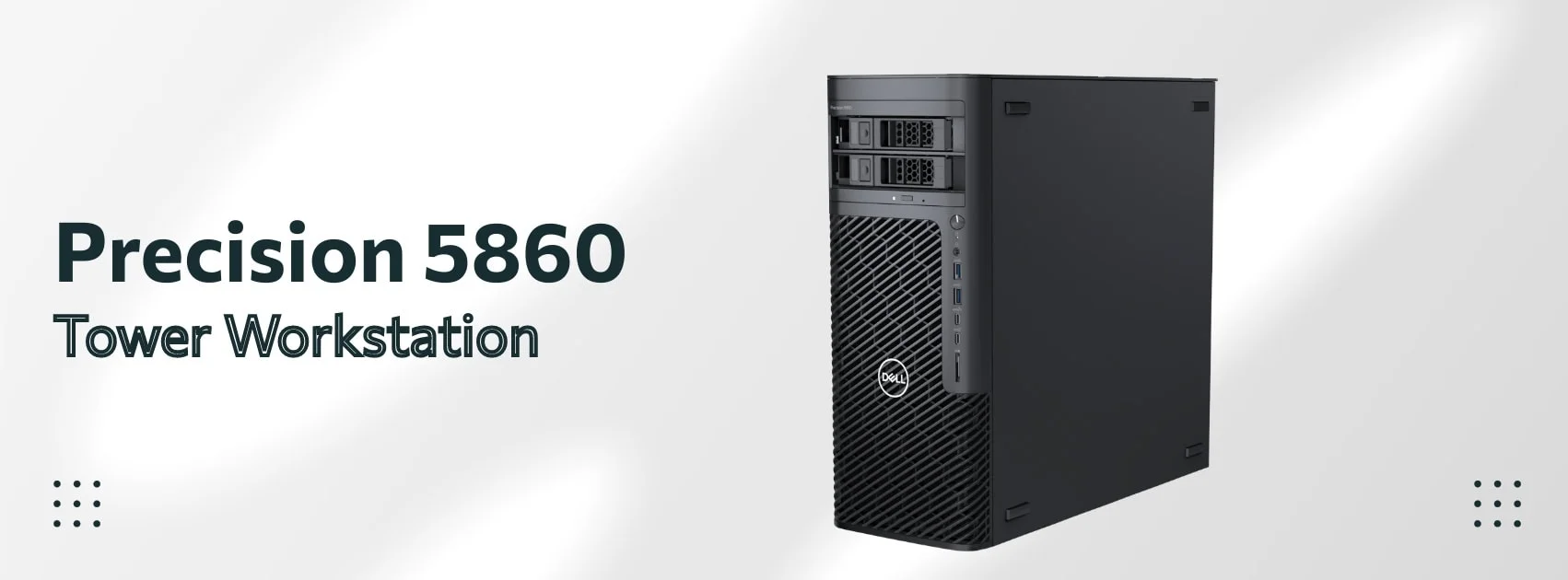
Is the Dell Precision 5860 Still the Best Choice?
The Dell Precision 5860 (now transitioning to the Dell Pro family) remains the industry standard for expandable mid-tower performance, supporting the latest Sapphire Rapids Xeon processors.
Note: In 2026, Dell is streamlining its branding under the "Dell Pro" umbrella. While the "Precision" name remains for high-end SKUs, you may see this listed as the "Dell Pro Workstation" in some catalogs. This follows Dell's January 2025 branding shakeup, which was partially rolled back in early 2026.
Pricing and Configurations
Entry Configuration (2D Documentation) - ~$2,800
- Intel Xeon W3-2423 (6-core, up to 4.2 GHz boost)
- 16GB DDR5 ECC memory
- NVIDIA RTX A1000 (8GB GDDR6) - Minimum for basic 3D work
- Windows 11 Pro for Workstations
- 512GB NVMe SSD
Mid-Range Configuration (BIM Production) - ~$4,200
- Intel Xeon W5-2455X (12-core, up to 4.6 GHz boost)
- 32GB DDR5 ECC memory
- NVIDIA RTX 2000 Ada (16GB GDDR6) - Ideal for Revit/Enscape
- Windows 11 Pro for Workstations
- 1TB NVMe SSD
Do not buy the RTX A400 for 3D work.
High-Performance Configuration (Viz & Heavy BIM) - ~$6,500
- Intel Xeon W7-2475X (24-core, up to 4.8 GHz boost)
- 64GB DDR5 ECC memory
- NVIDIA RTX 4000 Ada (20GB GDDR6) - Professional-grade for VR/rendering
- Windows 11 Pro for Workstations
- 2TB NVMe SSD
Note: Some older configurations included the RTX A400 in high-end builds. For optimal performance with modern BIM workflows, we recommend at least an RTX 2000 Ada generation card in production workstations.
Why the Precision 5860 Stands Out
The Precision 5860's redesigned mid-tower chassis addresses real-world architecture firm needs through thoughtful engineering choices. The system supports up to 24-core Xeon processors and can accommodate up to 2TB of DDR5 ECC memory, providing substantial headroom for future growth without requiring a complete system replacement.
Key Technical Advantages
- Dual Graphics Support: Up to two 300W professional graphics cards
- Storage Flexibility: External access bays supporting up to 56TB total capacity
- Network Performance: Both 1GbE and 10GbE Ethernet connections (critical for BIM 360/ACC)
- Memory Scalability: Eight DIMM slots supporting up to 2TB DDR5 ECC
- Serviceability: Tool-less access to all major components
- AI Readiness: NPU (Neural Processing Unit) support in latest configurations for local AI tasks
Why 10GbE Matters for BIM 360/ACC Cloud Workflows
The inclusion of 10GbE networking has become increasingly important for 2026 architectural workflows. Revit now caches cloud models locally through the BIM 360 Desktop Connector. Without fast local SSDs and fast LAN speeds, you may experience extended sync times that impact productivity.
Network Requirements for Cloud BIM:
- 10GbE Ethernet: Recommended for Desktop Connector cache performance with large models (500MB+)
- Fast Local NVMe SSD: Cache drive should keep pace with network speeds
- Minimum 1GbE: Acceptable for small teams with models under 300MB
For firms considering a comprehensive network infrastructure, understanding proper network security protocols becomes essential when implementing high-speed workstation connectivity. If you're planning a broader technology upgrade, our business hardware refresh planning guide can help you coordinate workstation purchases with other infrastructure improvements.
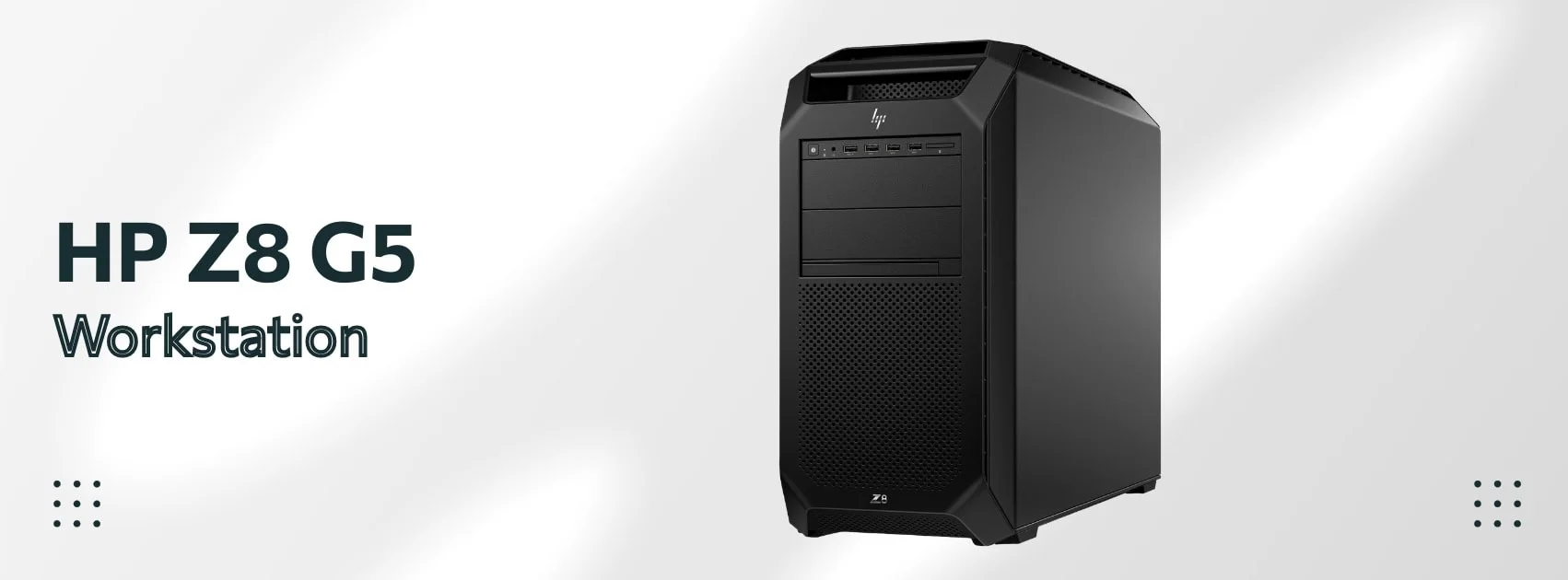
HP Z Series Workstations: The Established Choice
HP's Z Series has maintained its professional market position through consistent performance, reliability, and attention to the details that matter in daily use. The current generation offers three performance tiers that align well with firm requirements.
HP Z4 G5: The Balanced Performer
The HP Z4 G5 has earned recognition as HP's best-selling workstation by effectively balancing performance, expandability, and cost. Current generation systems support up to 24-core Intel Xeon W-series processors and up to 512GB of DDR5 ECC memory, providing substantial capability for most architectural workflows.
Notable Z4 G5 Features (2026 Models)
- Thermal Management: Smart fan control with 20+ temperature sensors
- Expandability: Tool-less chassis design with five PCIe slots
- Graphics Support: Dual high-end professional graphics cards
- Quiet Operation: Advanced acoustic engineering for office environments
- Front Access: Hot-swappable NVMe storage bays with external access
- AI PC Features: NPU integration for local AI tasks (even if architectural software doesn't fully utilize them yet, clients want "AI-ready" hardware)
HP Z6 G5: Enhanced Performance
The Z6 G5 significantly enhances capability for firms handling more complex projects or requiring additional expandability. Supporting up to 36-core Intel Xeon W-3400 series processors and up to 1TB of DDR5 ECC memory, it targets practices working with large-scale projects or advanced visualization requirements.
The Z6 G5's enhanced PCIe expandability allows for up to three professional graphics cards, making it suitable for firms that need both design capability and substantial rendering power in a single system. This configuration works particularly well for practices that handle both architectural design and visualization services.
HP Z8 G5: Maximum Capability
At the top of HP's range, the Z8 G5 provides dual-socket Intel Xeon Scalable processors, up to 2TB of DDR5 ECC memory, and support for up to four professional graphics cards. This level of capability typically serves large firms working on complex infrastructure projects, practices specializing in advanced simulation and analysis, or offices providing workstation virtualization services.
Memory and Storage Strategy for Architecture Firms
Memory configuration deserves careful consideration because it directly impacts daily workflow efficiency and determines how projects scale over time. Most architecture firms find that 32GB of DDR5 ECC memory is the minimum for comfortable operation with modern software and typical project complexity.
Storage Performance and Architecture Workflows
Storage strategy requires balancing performance, capacity, and cost while considering the collaborative nature of architectural practice. Fast NVMe SSD storage for the operating system, applications, and active project files ensures responsive operation during the frequent file operations that characterize CAD and BIM work.
Recommended Storage Configuration
- Primary Drive: 1TB NVMe SSD for OS, applications, and current projects
- Secondary Storage: 2-4TB SSD or hybrid storage for archives and assets
- Network Integration: High-speed connection to firm's central file storage
- Backup Strategy: Local backup capability for critical work-in-progress files
The choice between NVMe and SATA SSDs for secondary storage often comes down to budget considerations and access patterns. Frequently accessed asset libraries and recent project archives benefit from NVMe performance, while long-term storage and infrequently accessed files can utilize more cost-effective SATA SSDs. For firms embracing collaborative workflows, cloud computing solutions can complement local workstation storage by providing secure, accessible project sharing capabilities.
Regardless of your storage configuration, implementing a robust backup strategy is essential. Our guide to business backup solutions covers comprehensive data protection options for architectural firms.
Power Protection: Professional workstations require reliable power protection. Consider a quality UPS system to protect against power fluctuations and ensure you don't lose work during brief outages.
Software Optimization in Practice
Windows 11 Pro Required for 2026
Windows 10 support ended in October 2025. All new workstations should run Windows 11 Pro to stay compliant with Microsoft security updates and Autodesk software certification. Windows 12 is expected in late 2026, but Windows 11 will remain supported through at least 2028.
AutoCAD 2025 optimization centers on processor clock speed and memory capacity, with graphics requirements varying significantly based on the complexity of 3D work within the practice. According to Autodesk's official system requirements, firms primarily working in 2D with occasional 3D modeling can utilize less expensive professional graphics cards, while practices doing extensive 3D visualization benefit from higher-end options with substantial graphics memory.
Revit 2026 (expected April 2026) will likely demand more VRAM due to enhanced real-time rendering capabilities. The software benefits from both high single-core performance for interactive operations and adequate memory for handling large, complex models without performance degradation. While 4GB VRAM meets minimum requirements for 2025, modern BIM workflows benefit from 8GB or more. For firms managing multiple software licenses and collaborative workflows, understanding the benefits of cloud-based software management can streamline both CAD software deployment and project collaboration.
Performance Scaling by Project Type
Different architectural project types place varying demands on workstation resources:
Residential Projects typically require moderate system resources, with an emphasis on 2D drafting capability and basic 3D visualization. Entry-level professional workstations effectively handle these workflows.
Commercial Projects demand balanced performance across 2D documentation, 3D modeling, and coordination with consultants. Mid-range workstations provide the optimal price-performance ratio for most commercial work.
Infrastructure Projects require maximum system capability for handling large-scale models, point cloud integration, and complex simulation. High-end workstations become necessary for efficient project delivery.
For firms also evaluating general office computer needs alongside workstation purchases, our business computer specifications guide provides complementary guidance for non-CAD staff systems.
Budget Planning and Return on Investment
The investment in professional workstations extends far beyond immediate technical capabilities. For architecture firms, workstation performance directly impacts project delivery schedules, client presentation quality, and the ability to take on increasingly complex and profitable projects.
Three-Year Cost Analysis
Entry-Level Investment ($2,000-$4,000)
- Suitable for small firms or those primarily doing 2D work
- Handles basic 3D modeling and standard visualization
- May require component upgrades within 2-3 years for growing practices
- Provides a solid foundation for establishing digital workflows
Mid-Range Investment ($4,000-$6,000)
- Handles most architectural workflows effectively with room for growth
- Excellent performance for both 2D documentation and 3D design
- Typically provides 3-4 years of optimal performance
- Best value proposition for most growing firms
High-End Investment ($6,000-$8,000+)
- Maximum performance for demanding workflows and complex projects
- Better positioned for software updates and increasing project complexity
- Provides 4-5 years of top-tier performance
- Supports competitive advantage in complex project pursuits
Z8 Fury G5 | Z by HP
Productivity Impact and ROI Calculation
Productivity improvements from appropriate workstation specifications compound over time in ways that directly impact profitability. Faster file operations, responsive model navigation, and reduced waiting time for view generation and plotting can reduce overall project delivery time by 10% to 20%.
For a typical architecture firm billing $150 per hour for design services, a workstation that saves two hours per week per user generates $15,600 in additional billable capacity annually. This calculation doesn't include the less tangible but equally important benefits of improved staff satisfaction, enhanced client presentations, and the ability to pursue more complex and profitable projects.
If you need assistance evaluating your firm's specific workstation requirements or coordinating a multi-user deployment, our IT support services can help assess your current infrastructure and recommend optimal configurations for your workflow.
Implementation Strategy for Professional Success
Successful workstation implementation requires careful planning and phased execution that considers both technical requirements and business operations. Most firms benefit from starting with a thorough assessment of current performance bottlenecks, user requirements, and workflow inefficiencies that technology improvements can address.
Phased Implementation Approach
Phase 1: Assessment and Planning (Week 1)
- Evaluate current workstation performance and identify bottlenecks
- Survey staff about workflow challenges and technology needs
- Assess network infrastructure and storage requirements
- Determine budget constraints and explore financing options
Phase 2: Pilot Deployment (Weeks 2-4)
- Deploy one or two new workstations to key users
- Monitor performance improvements and gather user feedback
- Test integration with existing network infrastructure and software
- Document configuration settings and establish support procedures
Phase 3: Full Implementation (Months 2-3)
- Roll out additional workstations based on priority and budget
- Provide training on new capabilities and workflow optimizations
- Establish maintenance schedules and upgrade planning
- Measure productivity improvements and ROI realization
Vendor Selection: Dell vs HP Considerations
Both Dell and HP bring significant strengths to the professional workstation market, with the choice often depending on specific firm requirements and preferences rather than clear technical superiority.
Dell Precision Advantages
- Transparent, verified pricing with clear configuration options
- Extensive customization capabilities for specific workflow requirements
- Strong business support programs and comprehensive warranty options
- Excellent expandability and serviceability for growing firms
HP Z Series Advantages
- Long-established reputation and proven reliability in professional environments
- Superior thermal management and acoustic engineering
- Comprehensive ISV certification program across professional applications
- Wide range of models addressing different performance requirements
Making the Final Decision
The choice between specific workstation models depends on current needs, growth trajectory, and budget constraints. Firms should resist both over-specifying systems beyond realistic requirements and under-specifying systems that will quickly become performance bottlenecks.
Dell Pro (Precision) 5860 offers transparent pricing starting around $2,800 (with proper GPU) and proven expandability, making it suitable for firms that prefer to start with solid specifications and upgrade components as needs evolve. The verified configurations provide a clear foundation for budget planning.
HP Z Series workstations combine extensive industry experience with engineering refinement. They appeal to firms that prioritize proven reliability, quiet operation, and comprehensive software certification. The range of models from Z4 through Z8 allows firms to match their investment closely to their performance requirements.
Bottom Line
Key Considerations for 2026:
- Graphics: Minimum 8GB VRAM for entry-level BIM work, 16GB+ for production workstations, 20GB for high-end visualization. The RTX A400 (4GB) is suitable only for basic 2D AutoCAD.
- Operating System: Windows 11 Pro is required (Windows 10 support ended October 2025).
- Network Infrastructure: 10GbE Ethernet is recommended for BIM 360/ACC cloud workflows with models over 500MB.
Appropriate workstation selection enhances design capability, improves project delivery efficiency, and supports competitive positioning. Whether designing residential projects or commercial developments, having reliable, responsive technology enables firms to focus on design excellence without technical limitations.
This guide reflects verified manufacturer specifications and official software requirements as of January 2026. Configurations and pricing may vary by region and change over time. Always confirm current specifications and pricing directly with manufacturers or authorized resellers before making purchase decisions.
Affiliate Disclosure: This article contains affiliate links. If you make a purchase through these links, we may earn a small commission at no extra cost to you. As an Amazon Associate, iFeelTech earns from qualifying purchases.
Related Articles
More from Business Hardware

Reolink vs Lorex for a Small Office: Choosing a PoE Camera System
Compare current Reolink and Lorex PoE camera systems for an office: recording, app workflow, storage, compatibility and business purchasing checks.
12 min read
APC vs CyberPower UPS for a Small Office: How to Choose
APC or CyberPower for your office? Compare suitable UPS models by load, battery-backed outlets, runtime, replacement batteries and monitoring.
9 min read

Refurbished Business Laptops: Recommended Models and Buying Checklist (2026)
Recommended refurbished ThinkPad, Dell and EliteBook models, plus the seller, battery, warranty and total-cost checks to make before you buy for your business.
17 min read