

What to Do When Your IT Person Quits
When your IT person quits, here's the step-by-step response: revoke access, audit systems, evaluate IT coverage, and document everything for next time.


Your IT person just put in their two weeks — or left without much notice. You may not have a full picture of what they managed, what credentials they held, or how well your network is documented. Here's what to do, in order, starting today.
Stop and take a breath — this is fixable
A significant share of small businesses rely on a single IT person — a full-time employee, a part-timer, or a contractor who became the de facto everything-tech person over time. When that person leaves, the business doesn't collapse. What it does is expose how much critical knowledge was sitting in one person's head.
The risks here are real but manageable if you move in the right order. The order matters because some problems compound if you wait — an open account is riskier on day five than day one — while others can wait until you've done the urgent work first.
Think of this in two phases. The first is a 24–48 hour sprint to lock down access and establish what you're actually dealing with. The second is a slower, calmer process to figure out what kind of IT support your business actually needs going forward. By the time you've done both, you'll have a cleaner, better-documented IT environment than you probably had before.
We handle this call from clients several times a year. Every time, the business makes it through. The ones who do it smoothest are the ones who resist the urge to panic and instead work the list.
What Immediate Security Actions Are Needed When an IT Person Quits?
Revoke all administrative access across email, cloud platforms, and network hardware. Systematic access revocation prevents gaps from persisting after someone leaves.
Access revocation — do this today
Work through these systems in order. Don't skip any because you assume they didn't have access — verify each one and mark it done, assuming access exists until you personally rotate the credentials.
| System | What to Do | Why It Matters |
|---|---|---|
| Company email account | Suspend or disable the account — don't just change the password | Active accounts can still forward or auto-reply even after a password change |
| Shared password manager | Remove them from all vaults (1Password, Bitwarden, etc.), then rotate all shared credentials | Rotating shared credentials is standard practice after any personnel change |
| Microsoft 365 or Google Workspace | Block sign-in immediately; wipe enrolled mobile devices | M365 admin center lets you block access in seconds; Google Workspace Admin Console → Users → Suspend |
| VPN access | Revoke their VPN credentials and remove any client certificates | Open remote access credentials are easy to overlook and difficult to audit after someone leaves |
| Wi-Fi passwords | Change the main network password and any guest passwords | If they had physical office access, they knew these |
| Router and firewall admin | Change admin passwords for your router, firewall, and any managed switches | These are rarely logged and easy to overlook |
| Domain registrar | Check GoDaddy, Namecheap, Cloudflare, or wherever your domain lives — verify who has admin access and update contacts | Domain admin access should always be held by a company account to maintain full control |
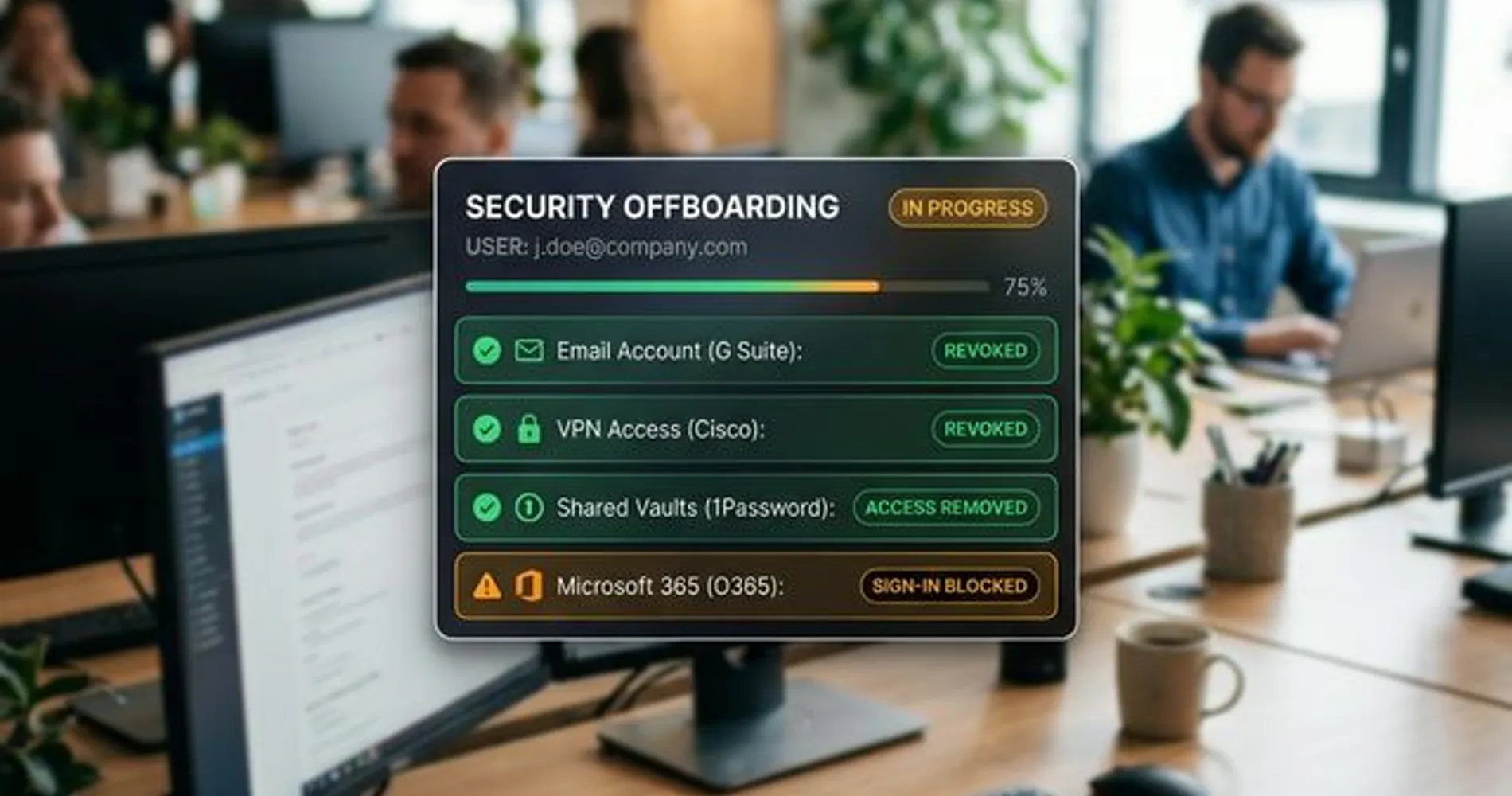
Assume access until you've verified otherwise
This is not an accusation — it's a security posture. Most former employees have no interest in accessing your systems. The risk isn't from malice; it's from doors that were left open by accident. Work through the list above with the assumption that every system is still accessible until you've changed the credentials yourself.
Shared accounts to audit
Beyond individual access, look for accounts that were set up in their name or tied to their personal email. This is often the messiest part of the cleanup.
- Email admin (Microsoft 365 or Google Workspace) — confirm the admin account is not their personal email address
- Domain registrar — the registrant contact and billing email should be a company address, not their personal one
- DNS provider — if they managed DNS separately (Cloudflare is common), confirm you have login access
- SSL/TLS certificates — find out which certificates they renewed by hand and where validation emails go; our SSL certificate renewal checklist walks through the inventory
- Website hosting and CMS — WordPress, Squarespace, Wix, or whatever you're using; verify you have admin credentials
- Cloud backup and storage — Dropbox Business, OneDrive, Backblaze, or similar; check that the admin account is accessible
- Security cameras and physical access systems — if you have door fobs or badge access, deactivate their credentials in the physical access control system
- Apple Business Manager and MDM platforms — If your company manages iPhones, iPads, or Macs through Apple Business Manager, Jamf, or Microsoft Intune, verify that the admin account is registered to a company address — not their personal Apple ID or personal email. An MDM admin account tied to a personal account can leave enrolled devices unmanageable or locked if access is lost. These accounts are often overlooked entirely because they're not part of the Microsoft 365 or Google Workspace offboarding flow.
A critical step most checklists miss: multi-factor authentication. Changing a password is not enough if the former IT person also registered their personal authenticator app as the MFA method for critical accounts. Google Authenticator, Authy, and Microsoft Authenticator are tied to the individual device — not to the account's email address — so a password reset does not remove them. For Microsoft 365, go to Azure Active Directory → Users → select the account → Authentication Methods and review which devices are registered. For your domain registrar and any other admin account using MFA, check the security settings and remove any methods you can't confirm are company-controlled. This is the step most businesses miss, and it means a password reset alone doesn't fully complete the credential handover.
A note for regulated industries. If your business operates under HIPAA (healthcare), FINRA or SOX (finance), or a similar compliance framework, there's one step to take before you delete any account or wipe any device: export and preserve the access logs first. Under HIPAA, audit logs documenting who accessed or modified protected health information must be retained for a minimum of six years. Deleting an account before exporting its activity history could impair your ability to respond to a compliance audit. Pull activity logs from your email admin panel and cloud platforms before removing anything.
For the full access revocation checklist, including less-obvious systems like monitoring tools and line-of-business software, see our deeper guide on handling former employee access and security.
How to Build an IT System Inventory After Your Admin Leaves
Audit physical hardware, software subscriptions, network configurations, and backup schedules to identify every undocumented system they managed.
Once access is locked down, most small businesses hit the same wall: no documentation exists. Everything was in one person's head. That's fixable. Here's how to build a working inventory quickly.
Hardware. What physical equipment exists in the office? Walk the space and list: router, switches, network access points, NAS drives or servers, printers, cameras, any access control hardware. For each, note the make, model, and where the admin login lives (or doesn't).
Software and subscriptions. Pull the company credit card statement for the last three months. Every SaaS charge is a system someone was managing. Look for: Microsoft 365 or Google Workspace, any security or antivirus tools, backup software, line-of-business applications (accounting, project management, CRM), domain and hosting fees, and cloud storage. You'll find a few surprises.
Accounts and logins. What accounts exist, and what email address was used to create them? This is a critical audit area. If any business account was created with the IT person's personal email address — not a company address — you may be locked out of it until you contact the provider's support team.
Network configuration. Is there a firewall with custom rules? VLANs separating departments or devices? Static IP assignments for servers or printers? Log into your router's admin panel and take screenshots of whatever you can see, even if you don't fully understand it. This becomes valuable documentation later.
Local admin accounts. If your network includes physical servers or key workstations, check for local admin profiles that exist outside your cloud directory. These are accounts created directly on the machine — not synced from Microsoft 365 or Active Directory — and they're easy to forget about entirely. On Windows, go to Computer Management → Local Users and Groups to review what local accounts exist alongside the domain-synced ones. Look specifically for a generic "Administrator" account with a password the former IT person set, or any named account you don't recognize. Update the passwords on any you find, and disable any that serve no ongoing purpose.
Backup and recovery. Is anything being backed up? If so, where, and how recently? If you have a backup system — even a basic one — confirm it's actually running and that the last backup completed successfully. A backup that hasn't run in six months is a false sense of security.
A one-page spreadsheet with four columns — System, Who Manages It, Login/Account, Status — is enough to start. You don't need IT inventory software right now. You need visibility. If you want a structured template for this, our small business IT policy and documentation templates have a working version you can adapt in under an hour.
If the departure is a planned one — an outgoing contractor or MSP rather than a resignation you found out about this morning — our small-business IT handover checklist covers the same inventory in more depth, with a free spreadsheet template and a way to verify that each account genuinely works before the provider leaves.
Not sure what you're actually dealing with?
If this inventory process surfaces more questions than answers — unknown devices on the network, active accounts you can't identify, or systems you don't recognize — our Business Security Score tool can help you map your exposure in about 5 to 7 minutes.
Should You Hire an IT Employee or Outsource to an MSP?
Choose your IT support model based on company size, daily support ticket volume, and whether your industry has compliance requirements.
Once the security work is done and you have a picture of what your IT environment actually looks like, you're ready for the bigger question: what kind of IT support does this business actually need? The answer comes down to three factors: the complexity of what your former IT person was managing, how often IT issues come up, and what you can realistically budget.
When hiring a replacement makes sense:
- You have 20 or more employees and IT issues are a daily or near-daily reality
- You have on-premise servers, specialized networking equipment, or data subject to compliance requirements (healthcare, legal, or financial firms)
- The IT role was defined in your org chart, came with a salary, and consumed someone's full attention — meaning the scope was genuinely full-time
When outsourcing to a Managed Service Provider (MSP) makes more sense:
- You have 5–25 employees and your IT needs are reactive rather than proactive — things break and someone fixes them, but you're not running a 24/7 operation that requires a technician on-site daily
- You want predictable monthly costs instead of a salary, payroll taxes, and benefits
- You want a team behind your IT rather than a single person — so that when your IT person goes on vacation (or quits again), you're not back in this situation
When a lighter-touch approach is enough:
- Fewer than 10 employees, mostly cloud-based tools — Google Workspace or Microsoft 365, no local servers, no specialized hardware
- IT needs are infrequent: a slow laptop, a printer that won't connect, a new employee who needs accounts set up
- A part-time IT consultant or a pay-as-you-go break/fix arrangement may cover everything you actually need
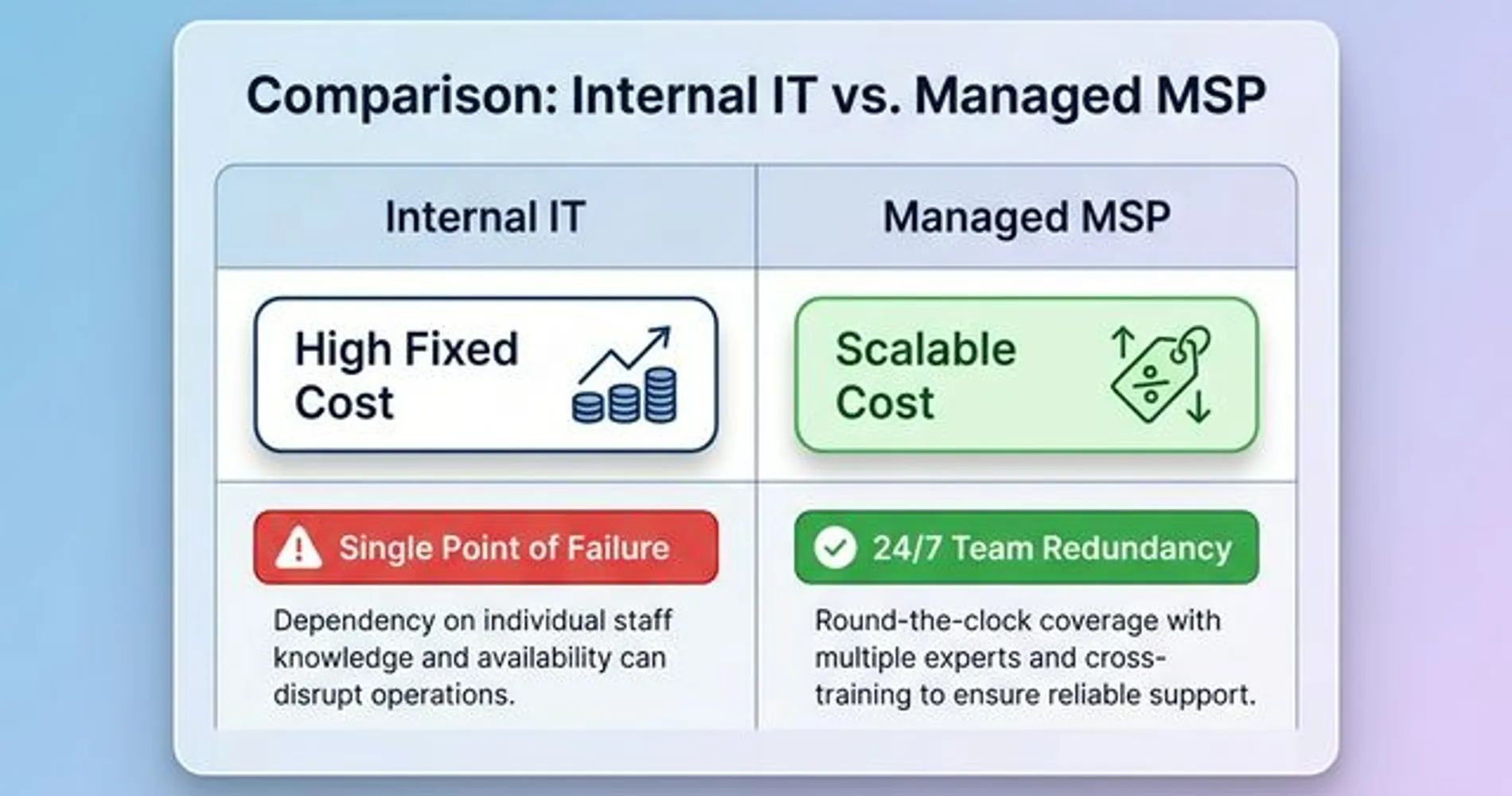
What does it actually cost? A 2026 comparison
For a 15-employee business, here's how the three models compare:
| Support Model | Typical Annual Cost | What You Get |
|---|---|---|
| Internal IT employee | $175,000–$235,000/yr | On-site, full organizational context; median salary $169,510 (Latest BLS Data) + ~35% benefits |
| Managed Service Provider | $18,000–$31,500/yr | $100–$175/user/month; team coverage and proactive monitoring |
| Part-time / break-fix consultant | $3,600–$15,000/yr | Reactive only; no proactive monitoring or guaranteed response time |
The MSP model typically costs one-eighth to one-tenth the equivalent of an internal hire at this size — and provides team redundancy that a single employee never can.
Be honest about your actual needs
The MSP model has real advantages for small businesses — but it's not right for everyone, and an MSP contract is not a guarantee that your problems disappear. A five-person law firm mostly using Microsoft 365 and Dropbox probably doesn't need a $1,500/month managed services retainer. A 22-person medical practice with an on-premise server, HIPAA requirements, and daily support tickets almost certainly does. Size your support to match the actual complexity of your environment.
For the full breakdown of when it's time to stop handling IT yourself and bring in professional help, see our guide on when to stop DIY IT.
What to look for when you bring someone new in
Whether you're hiring a new IT employee or evaluating an MSP, the questions you ask upfront determine whether you end up in a better position than before — or whether you're just replacing one undocumented setup with another.
If you're hiring a new IT employee
Ask for documentation samples. Not portfolio work — ask them how they document systems they manage. Do they maintain a runbook? Do they use a configuration management tool? If they look at you blankly, that's useful information. You want someone who treats documentation as part of the job, not an afterthought.
Clarify tool familiarity. Microsoft 365 administration is a different skill set from Google Workspace. Your line-of-business software (legal case management, medical billing, point-of-sale) may have specific integration requirements. Don't assume general IT competence translates to familiarity with your specific stack.
Expect a security audit in week one. Any competent new IT hire should want to do a walkthrough of your environment early — not to criticize what came before, but because they can't support what they don't understand. That assessment is how they'll find the Shadow IT you missed in your inventory.
If you're evaluating an MSP
A network audit should be part of onboarding. Ask every MSP you evaluate: "What does your onboarding process look like?" The right answer includes an initial assessment of your environment before they start billing for monthly management. If they want to skip this and just hand you a contract, keep looking.
Read the scope of work carefully. MSP contracts commonly exclude things that clients assume are covered: end-user training, hardware procurement, vendor escalations for third-party software. Before signing, go through the included/excluded services line by line.
Ask about response time SLAs. What's the response time for a server that's down versus a workstation that won't print? These should be defined commitments, not general assurances. "We respond fast" is not an SLA. "Critical issues: 4-hour response, routine tickets: 1 business day" is.
Ask for references from similar businesses. An MSP that primarily serves 100-person corporate clients may not be the right fit for a 12-person professional services firm. Ask specifically for references from clients of similar size and in a similar industry.
For a complete checklist of what to audit when you bring new IT support on board — including the security gaps a new provider should surface in their initial assessment — see our mid-year security audit checklist for small businesses.
Red flag: no initial assessment
If an MSP or IT contractor isn't interested in doing an initial walkthrough of your environment before taking over management, that's a meaningful red flag. Either they're going to manage your systems blindly and bill you for it, or their onboarding process is so templated that they're not actually looking at what you have. The ones worth working with want to know what they're signing up for.
One thing to do now that future-proofs everything
The reason this situation feels more disruptive than it needs to be is straightforward: it's not the departure that creates the problem. It's the absence of documentation.
Whoever manages your IT next — a new employee, an MSP, or a part-time consultant — make sure the critical information doesn't live only in their head. That's the single change that prevents you from being here again in two years.
A minimal IT runbook doesn't need to be elaborate. This is a working document, not a technical specification:
| Item | What to Document | Where to Store |
|---|---|---|
| Network diagram | A simple diagram showing your router, switches, access points, and any servers — even hand-drawn is fine | Company password manager, shared with ownership |
| Hardware inventory | Make, model, management URL, and admin credentials for every network device | Company password manager |
| Software and subscriptions | All SaaS tools, license counts, renewal dates, and the account email used to manage them | Company password manager or shared spreadsheet |
| Backup schedule | What's being backed up, where it goes, how often, and who verifies that it ran | Written into a monthly check-in calendar |
| ISP account info | Your internet provider's account number, the tech support line, and your contract terms | Company password manager |
| Who to call | List of vendors with contact info: ISP, domain registrar, hardware support contacts | Shared document accessible to ownership |
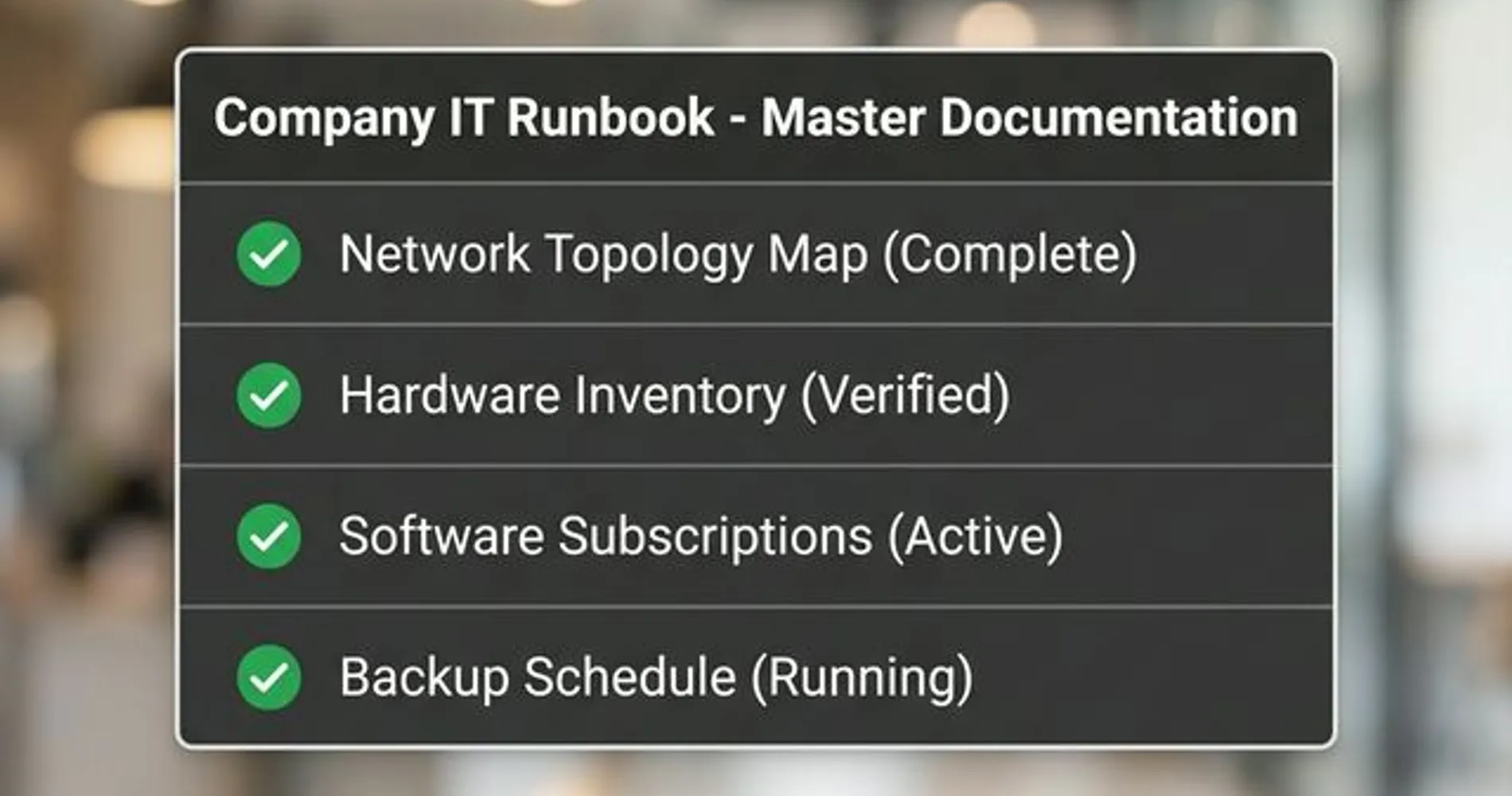
Store all of this in a shared business password manager — not in the IT person's personal vault. 1Password Teams, Bitwarden for Business, or a similar shared vault means that the credentials and documentation belong to the company, not to the individual who set them up.
Losing your IT person is genuinely disruptive. But it's also one of those rare moments where the disruption forces a conversation the business probably should have had anyway. The documentation habit you build now — shared credentials, a one-page runbook, a clear picture of what runs your business — is exactly what separates a business that handles future transitions smoothly from one that finds itself back in the same reactive position.
Work through the list, get the documentation in place, and the next IT transition your business faces will be a planned handoff instead of an unplanned scramble.
Related Resources
- Former Employee Access Security: The Complete Offboarding Checklist — A deeper dive into access revocation across every system type, including cloud, SaaS, and physical access.
- Small-Business IT Handover Checklist — The planned-transition companion to this article: a free spreadsheet template and the access, recovery and restore tests that prove a handover is actually complete.
- Best TeamViewer Alternatives for Small Business — When your IT person leaves, you may realize there's no clean way for a new vendor to support your machines remotely. This guide covers the options.
- Small Business IT Policy Templates — Downloadable templates for IT inventory, acceptable use policies, and offboarding checklists.
- When to Stop DIY IT: A Decision Guide for Small Businesses — How to accurately assess your IT complexity and decide whether to hire, outsource, or stay self-managed.
- Mid-Year Security Audit Checklist for Small Businesses — The security assessment your new IT person (or MSP) should run when they start.
- Best Business Password Managers for 2026 — Shared vault solutions so credentials belong to the business, not to individuals.
Frequently Asked Questions
Related Articles
More from IT Guides

Managed IT Services Pricing: Per-User Costs and What to Budget in 2026
Budget $125 to $250 per user for managed IT using our South Florida estimates. Compare pricing models, exclusions, setup costs and quotes in this 2026 guide.
12 min read
Small Office IT Checklist: Your Annual 12-Stop Walk-Through
A small office IT checklist with 12 stops, from UPS battery and power strips to Wi-Fi and backups. Rate each one and print your own fix list.
14 min read

The Tech Stack Teardown: Audit Your Business Software for Cost and Security (2026)
Most 'simplify your stack' advice tells you what to buy. This is the opposite — a 4-lens software audit that cuts cost and attack surface in one pass, with a free worksheet.
19 min read