

MacBook Air M4 Long-Term Review (2026): Is It Still Worth Buying After the M5?
After 11 months of daily IT consulting use, here's what the MacBook Air M4 actually delivers — battery health data, real-world performance, M4 vs M5 upgrade analysis, and whether it's still worth buying in 2026.

March 2026 Status Update
The M5 MacBook Air was announced March 3, 2026 and releases March 11, 2026 at $1,099 with 512GB base storage and Wi-Fi 7. Apple has repositioned the M4 as its official entry-level MacBook Air at $999; retailers are offering M4 configurations from $749–$1,299. This review reflects 11 months of daily professional use on the M4 and covers what current M4 owners and prospective buyers actually need to know: long-term reliability, the real M4 vs M5 upgrade calculus, and whether the M4 holds up as a multi-year machine.
Eleven months of daily IT consulting work on the MacBook Air M4 — client calls, development environments, remote network management, documentation, and back-to-back travel days — gives me a different perspective than a two-week review. I know what holds up and what doesn't.
The short version: the M4 is a genuinely durable machine. Battery health sits at 92% after 11 months of daily charging cycles. The chassis shows no wear after regular carry across client sites. macOS Sequoia and Apple Intelligence both run smoothly on the base 16GB configuration. This is the kind of data that matters when you're deciding whether to buy one now, keep the one you have, or upgrade to the M5.
After 20 years in IT and switching from a Surface laptop to this machine, here's an honest long-term assessment — what the M4 actually delivers over time, where it falls short, and whether the M5 upgrade makes sense for current owners.
Affiliate Disclosure: This article contains affiliate links. If you make a purchase through these links, we may earn a small commission at no extra cost to you.
In This Review
- Quick Verdict — At-a-glance assessment and current pricing
- M4 vs M5: The Upgrade Decision — Whether current M4 owners should upgrade
- What the M5 Changed — Spec-by-spec comparison
- M4 vs MacBook Neo — Budget comparison with the new $599 MacBook Neo
- Performance — Real-world speed, AI capabilities, and thermal behavior
- Battery Life — Real-world endurance and battery health data
- Long-Term Reliability — 11-month chassis, battery, and software support data
- Display Support — Dual monitor setup with lid open
- Pricing & Configuration — Current pricing and which config to buy
- Final Verdict — Who should buy M4 vs M5 in 2026

MacBook Air M4 (13-inch, 16GB)
A well-balanced ultraportable for most users. Silent operation, reliable performance, and 11-13 hour battery life in a 2.7-lb chassis. 92% battery health after 11 months of daily professional use.
- 16GB unified memory standard
- Dual external displays (lid open)
- 11–13 hr real-world battery
- Silent fanless operation
*Price at time of publishing
Quick Verdict
| Category | Assessment |
|---|---|
| Current Street Price | $749–$1,299 (varies by configuration) |
| Performance vs. M3 | ~30% faster CPU; dual monitors with lid open |
| Real-World Battery | 11–13 hours under business workloads |
| Long-Term Battery Health | 92% after 11 months of daily use |
| Best For | Professionals, students, and travelers who need reliable all-day performance |
| M4 vs M5 | M4 at $749–$999 for value; M5 at $1,099 for 512GB base storage and Wi-Fi 7 |
Current M4 Pricing (March 2026)
- 13" 16GB/256GB: $749–$899 (Apple MSRP: $999)
- 13" 16GB/512GB: $999 (Apple MSRP: $1,199)
- 15" 16GB/256GB: $999 (Apple MSRP: $1,199)
- 15" 16GB/512GB: $1,099 (Apple MSRP: $1,399)
- 15" 24GB/512GB: $1,299 (Apple MSRP: $1,599)
M4 vs M5: The Upgrade Decision
The M5 MacBook Air was announced March 3, 2026 and releases March 11, 2026 at $1,099 with 512GB base storage and Wi-Fi 7. The M4 is now Apple's official entry-level model at $999, with retailers offering various M4 configurations from $749–$1,299. Here's how to think about the decision depending on where you're starting from.
If you already own an M4 — skip the M5 unless:
- You regularly run out of the 256GB base storage and want to avoid cloud/external workarounds
- You work in high-density Wi-Fi environments where Wi-Fi 7's multi-link operation would be noticeable
- You do sustained video editing or 3D work where the M5's Neural Accelerators (~50% faster GPU) matter
- You're buying for resale value and want the latest silicon
For the vast majority of M4 owners doing business workloads — web, email, Slack, Zoom, development — the M5 chip difference is not perceptible in daily use. The chassis, display, ports, and battery life are identical.
If you're buying new in 2026:
- Under $900: M4 at current pricing is the best value entry to Apple Silicon with 16GB RAM
- $1,099: M5 is the better long-term buy — doubled storage and Wi-Fi 7 for $100 more
- $1,199+: Consider the 15-inch M4 or M5 for the larger display at comparable pricing
Amazon Pricing Note
Amazon sometimes defaults to the bundle view that includes AppleCare+, which can show prices above $1,100. Make sure to check the "Laptop Only" option to see the standalone device price.
M4 vs. M3: What Changed and Is the Upgrade Worth It?
The M4 MacBook Air launched in March 2025 with three practical improvements over the M3 generation:
- 16GB RAM standard — The M3 shipped with 8GB as the base, which was increasingly inadequate for modern multitasking. The M4 doubles this at no extra cost.
- Dual external displays with lid open — The M3 required clamshell mode for dual monitors. The M4 runs two external screens alongside the built-in display simultaneously.
- $100 price reduction — The 13-inch came in at $999 (down from $1,099 for M3), with a new Sky Blue color and an upgraded 12MP Center Stage webcam.
| Feature | M3 Air | M4 Air |
|---|---|---|
| Base RAM | 8GB (16GB upgrade +$200) | 16GB standard |
| Dual Monitor Mode | Lid closed (clamshell only) | Lid open — all three screens simultaneously |
| Webcam | 1080p FaceTime HD | 12MP Center Stage |
| Street Price (March 2026) | $650–$700 (renewed/refurbished) | $749–$899 (new) |
The $150–$200 premium for a new M4 over a renewed M3 is justified if you need 16GB RAM or open-lid dual display support. If neither applies to your workflow, a refurbished M3 remains a reasonable budget option.
What the M5 Actually Changed (and What It Didn't)
Apple announced the M5 MacBook Air on March 3, 2026. Understanding what changed — and what didn't — is the most useful thing an M4 owner can know.
What's Identical Between M4 and M5
The physical machine is unchanged. Both share:
- Same 13.6-inch or 15.3-inch Liquid Retina display (500 nits, P3 color)
- Same two Thunderbolt 4 ports and MagSafe 3
- Same chassis design introduced with the M2 generation
- Same 18-hour rated battery life
- Same 16GB base RAM configuration
If you own an M4, you already have everything on this list.
What Actually Changed with the M5
| Feature | M4 Air | M5 Air |
|---|---|---|
| Base Storage | 256GB | 512GB (doubled, 2x faster SSD) |
| Starting Price | $999 | $1,099 ($100 increase) |
| Connectivity | Wi-Fi 6E, Bluetooth 5.3 | Wi-Fi 7, Bluetooth 6 (N1 chip) |
| AI Performance | Baseline | Up to 4x faster AI vs M4 |
| GPU | 8-core (base) / 10-core (upgraded) | 10-core with Neural Accelerators (~50% faster graphics) |
The storage doubling is the most practical change for most users. Apple also doubled the SSD read/write speeds on the M5 — the M4's base 256GB SSD was a known bottleneck for heavy file transfers, and the M5 addresses this directly. The Wi-Fi 7 upgrade matters in high-density environments (dense offices, conference venues). The AI and GPU improvements are meaningful for creative workloads but not perceptible in typical business use.
For creative professionals: The M5's Neural Accelerators deliver approximately 50% faster graphics performance — relevant for video editing, 3D rendering, or heavy image processing.
For typical business workloads: Web browsing, office applications, video calls, and development work run equally well on both chips. An M4 owner doing these tasks has no functional reason to upgrade.
M4 vs. MacBook Neo: Budget Laptop Comparison
Apple announced the MacBook Neo on March 4, 2026, starting at $599 with an A18 Pro chip. For budget-conscious buyers, this creates a three-way decision: M4, M5, or the Neo.
| Feature | MacBook Neo | MacBook Air M4 |
|---|---|---|
| Starting Price | $599 (256GB) | $749–$899 (256GB) |
| Processor | A18 Pro (6-core CPU, 5-core GPU) | M4 (10-core CPU, 8-core GPU) |
| Base RAM | 8GB | 16GB |
| Camera | 1080p FaceTime HD | 12MP Center Stage |
| Display | 13" Liquid Retina (2408×1506) | 13.6" Liquid Retina (2560×1664) |
| Ports | 2 USB-C (1× USB 3, 1× USB 2) | 2 Thunderbolt 4, MagSafe 3 |
| External Displays | 1 display | 2 displays (lid open) |
| Battery Life | Up to 16 hours | Up to 18 hours |
| Touch ID | Optional ($699 model) | Standard |
Who Should Choose the MacBook Neo
One important architectural note: the A18 Pro is fundamentally an iPhone chip — the same processor in the iPhone 16 Pro — adapted for a Mac form factor. The M4, by contrast, is built specifically for laptop and desktop architecture with higher sustained performance, a faster memory bus (120GB/s vs the A18 Pro's mobile-class bandwidth), and full macOS optimization. For light tasks the difference is not dramatic, but under sustained workloads the M4's architecture has a clear advantage.
Students on tight budgets — At $599 ($499 with education pricing), the Neo is the most affordable entry to macOS. The 8GB RAM and A18 Pro chip handle web browsing, note-taking, and office applications adequately.
Single-task users — If you primarily use one application at a time (web browser, word processor, email), the Neo's 8GB RAM is sufficient.
Users who don't need external monitors — The Neo supports only one external display, limiting desk setup flexibility.
Who Should Choose the M4
Multitaskers and professionals — The M4's 16GB RAM provides comfortable headroom for running multiple applications simultaneously. The performance difference is meaningful for development work, virtual machines, or heavy multitasking.
Dual monitor users — The M4 supports two external displays with the lid open, making it viable for desk setups without buying a separate desktop.
Users who need fast data transfer — The Neo's two USB-C ports are limited to USB 3 and USB 2 speeds respectively. A USB 2.0 port in 2026 tops out at 480Mb/s — adequate for charging and basic peripherals, but impractical for external storage or docks. The M4's Thunderbolt 4 ports run at up to 40Gb/s, roughly 80x faster.
Value assessment: The $150–$300 premium for the M4 over the Neo is justified if you need 16GB RAM, dual display support, or fast Thunderbolt connectivity. For basic computing needs, the Neo offers solid value at $599.
M4 Chip Performance and Specifications
The base M4 MacBook Air features a 10-core CPU, 8-core GPU, 16-core Neural Engine, and 16GB of unified memory.
The chip is built on Apple's second-generation 3nm process, using four performance cores and six efficiency cores. This configuration balances performance under load with battery efficiency during lighter tasks.
Real-World Performance
In CPU benchmarks like Cinebench R24, the M4 scores approximately 30% higher than the M3. In daily use, the performance advantage shows up in specific scenarios:
Multitasking under load: Running a Docker environment while on a Zoom call with VS Code indexing a large repository no longer causes system stutter. The M4 Air remains silent and responsive throughout.
Context switching: Moving between terminal sessions with different client profiles, accessing remote dashboards, and editing documentation simultaneously happens without noticeable lag.
Comparison to previous systems: Coming from a Surface laptop, the most noticeable difference is the absence of fan noise and thermal throttling during typical workloads. The M4 maintains consistent performance rather than slowing down under sustained use.
What About AI Tasks?
The M4's Neural Engine significantly outperforms the M3 in AI benchmarks. Configurations with 32GB of RAM can run large models locally — including 32B parameter models like DeepSeek-R1 via heavy quantization — though at that scale, token generation is noticeably slow. For lighter AI tasks and Apple Intelligence features, the standard 16GB configuration delivers responsive performance with Writing Tools completing in 1-3 seconds and Image Playground generating results in 15-30 seconds.
Thermals and Sustained Performance
Fanless Design Trade-off
Because the MacBook Air has no fan, it manages heat passively. Under sustained heavy loads — extended 4K video rendering, for example — the chip will throttle slightly to stay within its thermal budget. For typical professional workloads, this is rarely a factor. I've never noticed it during a normal workday.
How Many External Monitors Does the M4 MacBook Air Support?
The M4 MacBook Air supports two external displays up to 6K resolution at 60Hz simultaneously while the laptop lid remains open. This gives you a three-screen workspace from a machine that weighs 2.7 pounds, a significant improvement over the M3 which required clamshell mode for dual monitors.
I ran this setup in my office for several months before adding a Mac Mini M4 as a dedicated desktop. The MacBook's built-in display handled Slack and email; two external monitors covered code and documentation. The setup handled sustained consulting work without any stability issues.
For the connection, the most straightforward approach is running USB-C cables from each Thunderbolt 4 port directly to your monitors. If you need more ports or want a single-cable desk connection, a Thunderbolt dock handles it cleanly.
Port Placement Note
Both Thunderbolt 4 ports are on the left side of the MacBook Air. If you prefer routing cables to the right, a dock is the practical solution. The CalDigit TS4 is the one I use — 18 ports over a single Thunderbolt cable.
Our guide to Dell business monitors covers pairing options. The Dell 27" 4K USB-C monitor (S2725QC) is a reliable single-cable option that delivers 4K video and 65W of charging in one connection.
Apple Intelligence Performance
The M4 runs Apple Intelligence locally using the Neural Engine. Writing tools, Image Playground, and Genmoji all process on-device, which provides a privacy advantage over cloud-dependent AI systems.
Performance Benchmarks
Here are typical processing times from regular use:
- Writing Tools: 1-3 seconds for text refinement
- System-wide proofreading: 2-5 seconds for typical documents
- Image Playground: 15-30 seconds per image (after initial model download)
The Writing Tools' ability to summarize documents and refine drafts is the most practical feature for daily work. Apple has added optional ChatGPT integration within Siri and Writing Tools, which can be disabled in settings if you prefer not to use it.
Is 16GB RAM Enough for Apple Intelligence?
For typical professional use, yes. Apple Intelligence features run primarily on the Neural Engine rather than general RAM. Apple has consistently optimized macOS to run well on base configurations.
The consideration isn't whether 16GB can handle AI features — it can. The question is whether 16GB provides enough headroom for your own applications when AI processes run concurrently. For general business use (web browsing, office applications, video calls), 16GB is adequate. If you regularly run VMs or multiple creative applications simultaneously, 24GB provides more comfortable headroom.
For business security and privacy considerations when deploying Apple hardware, see our small business cybersecurity guide.
Display and Input Quality
The Liquid Retina display on the 13-inch runs at 2560×1664 at 224 pixels per inch, with 500 nits of brightness and P3 wide color. True Tone adjusts white balance based on ambient lighting automatically. The display is sharp and comfortable for extended use.
Where Windows competitors lead: both the Dell XPS 14 (2026) and Surface Laptop 7 offer OLED panels with higher refresh rates. If display quality is a priority over everything else, it's worth considering.
The keyboard and trackpad are among the best available on any laptop. The Magic Keyboard has comfortable key travel with Touch ID in the power button, and the Force Touch trackpad is large and precise.
On finish durability: The Midnight colorway (deep dark blue-black) looks sharp but is a fingerprint magnet — noticeably more so than the Silver or Starlight options. After nearly a year of daily carry in a backpack and across client sites, the chassis itself shows no marks or wear, but Midnight requires a quick wipe-down to keep looking clean. If you're particular about that, Silver or Starlight are the lower-maintenance choices. Sky Blue holds up similarly to Starlight.
Battery Life: Apple's Numbers vs. Reality
Apple rates the 13-inch MacBook Air M4 at up to 18 hours of video playback and 15 hours of wireless web browsing.
Those figures are measured under light-use conditions. In a typical business workload — Chrome with multiple tabs, Slack, Zoom calls, and VS Code running simultaneously — expect closer to 11–13 hours of active screen time. That's still enough to cover a full workday without a charger at most locations.
I've never needed to carry a charger for a standard office day. For all-day travel with back-to-back video calls, it gets closer to the edge — but I haven't had the machine die mid-meeting.
The 13-inch houses a 53.8Wh battery; the 15-inch uses a 66.5Wh unit, which extends endurance by roughly 20% under comparable conditions.
Battery health currently reads at 92% maximum capacity — consistent with typical Apple Silicon degradation patterns, and well ahead of the 1,000-cycle threshold where Apple rates capacity dropping below 80%.
Long-Term Reliability
This is the section most reviews skip because they're written after two weeks. Here's what the data looks like after a full year of daily carry across client sites, airports, co-working spaces, and a home office.
Battery Health After 11 Months
Battery health: 92% maximum capacity after approximately 300–350 charge cycles. Apple's rated cycle count is 1,000 before capacity drops below 80%. At the current degradation rate, the M4's battery should remain above 80% through 2028–2029 — well into the machine's useful life.
For comparison, my previous Surface laptop was at 78% health after 18 months of similar use. The M4's degradation curve is noticeably flatter.
Chassis and Build Durability
The M4 has been carried daily in a laptop bag alongside cables, chargers, and client equipment. After nearly a year:
- No scratches, dents, or finish wear on the aluminum chassis
- Hinge remains firm with no wobble
- Keyboard keys show no shine or wear on high-frequency keys (A, S, E, space)
- Trackpad surface unchanged — no texture degradation
The one caveat: Midnight colorway accumulates fingerprints visibly and requires regular wipe-downs. Silver, Starlight, and Sky Blue are lower-maintenance choices for daily carry.
Software Support Lifespan
Apple typically supports Mac hardware for 6–7 years of macOS major updates. Based on that pattern:
- M4 MacBook Air (2025) → expected macOS support through approximately 2031
- As of March 2026, the M4 runs macOS Sequoia with full Apple Intelligence support
- All current Apple Intelligence features (Writing Tools, Image Playground, Genmoji, ChatGPT integration) work on the base 16GB M4 configuration
This is a meaningful consideration for business buyers: a machine purchased today at $749–$999 should receive security patches and OS updates for at least five more years, which is competitive with enterprise Windows hardware support windows.
Practical Lifespan Estimate
Based on observed performance and Apple's historical support patterns, the M4 MacBook Air is a reasonable 5–6 year machine for typical professional workloads. For IT fleet planning, this aligns with a 4-year replacement cycle with comfortable headroom.
Connectivity and Ports
The MacBook Air M4 includes:
- Two Thunderbolt 4 ports (USB 4, DisplayPort, charging capable)
- One MagSafe 3 port for dedicated charging
- One 3.5mm headphone jack with high-impedance headphone support
- Wi-Fi 6E and Bluetooth 5.3
MagSafe as a dedicated charging port means both Thunderbolt ports stay free for peripherals even while plugged in. The M5 includes Wi-Fi 7, which offers higher throughput and better performance in congested environments. For most current use cases, Wi-Fi 6E is sufficient.
How the M4 Compares to Windows Ultraportables
Windows ultraportables have narrowed the gap in 2026. Intel's Core Ultra Series 3, Qualcomm's Snapdragon X Elite, and AMD's Ryzen AI 300 series all deliver competitive performance and, in some cases, matching battery life.
Where the M4 leads: Single-threaded performance, macOS software optimization, and the unified memory architecture, which eliminates the CPU-GPU bandwidth bottleneck that affects traditional designs.
Where Windows competitors lead: OLED displays with high refresh rates. The Dell XPS 14 (2026) and Surface Laptop 7 both offer superior display technology at comparable prices. The Samsung Galaxy Book5 Pro is worth a look if you're comparing ARM-based Windows options for battery and AI performance.
For most professional tasks, both platforms are capable. The decision usually comes down to software ecosystem preference. For a broader comparison, see our best business laptops guide.
How Much Does the M4 MacBook Air Cost?
The 13-inch M4 MacBook Air has an MSRP of $999. Following the M5 launch in March 2026, street prices on M4 configurations have dropped to $749–$1,299 depending on model and retailer.
| Model | Apple MSRP | Education Price | Current Street Price |
|---|---|---|---|
| 13-inch M4 16GB/256GB | $999 | $899 | $749–$899 |
| 13-inch M4 16GB/512GB | $1,199 | $1,099 | $999 |
| 15-inch M4 16GB/256GB | $1,199 | $1,099 | $999 |
| 15-inch M4 16GB/512GB | $1,399 | $1,299 | $1,099 |
| 15-inch M4 24GB/512GB | $1,599 | $1,499 | $1,299 |
Upgrade pricing from Apple:
- Memory: 24GB (+$200) or 32GB (+$400)
- Storage: 512GB (+$200), 1TB (+$400), or 2TB (+$800)
Memory and storage cannot be upgraded after purchase — it's worth getting the configuration right at checkout.
Configuration Guidance
- Most users: 16GB RAM / 256GB SSD — handles daily business tasks, web, video calls, and light development
- Content creators: 24GB RAM / 512GB SSD — for Lightroom, Premiere, or heavy multitasking
- Local AI or VMs: 32GB RAM — only essential if running ML workloads locally
The 15-inch Option
If you want more screen space without connecting external monitors, the 15-inch model is worth the extra $200:
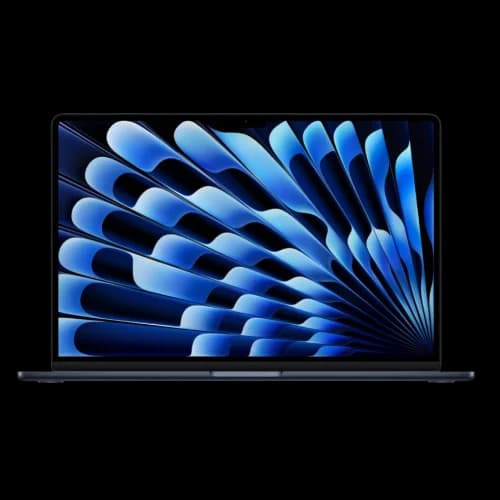
MacBook Air M4 (15-inch, 16GB)
$999–$1,299The same M4 performance in a larger 15.3-inch chassis. Bigger display, longer battery, slightly heavier at 3.3 lbs. Good value at current pricing.
MacBook Air 15" vs MacBook Pro 14": Which Should You Buy?
The upgraded 15-inch MacBook Air M4 at $1,299 (24GB/512GB) is priced close to the 14-inch MacBook Pro M4, which regularly sells for $1,399–$1,499 with 16GB/512GB. At that price gap, it's worth comparing them directly.
Choose the 15-inch Air if: You prioritize screen size over display quality, prefer the lighter 3.3-lb weight for travel, and don't need the Pro's XDR display or third Thunderbolt port.
Choose the 14-inch Pro if: You value the 120Hz mini-LED display (1000 nits vs 500 nits), need three Thunderbolt ports, or want the Pro's active cooling for sustained workloads. The Pro's display is noticeably better for color-critical work.
For most business users doing web-based work, video calls, and document editing, the Air's larger screen at 15.3 inches provides more practical workspace than the Pro's better display technology.
Pros and Cons
What Works Well
- 16GB RAM as a baseline is a meaningful, overdue improvement
- Open-lid dual-display support changes the desk setup for professionals
- Real-world battery of 11–13 hours covers a full workday reliably
- Completely silent operation — no fan noise under any workload
- Excellent keyboard and trackpad; Touch ID is fast and reliable
- Build quality is consistent and durable after daily use for nearly a year
Where It Falls Short
- Both Thunderbolt 4 ports are on the left side — a dock is needed for flexible cable routing
- 60Hz display refresh rate lags behind Windows competitors at this price range
- No OLED option; display quality trails the XPS 14 and Surface Laptop 7
- Storage and memory upgrade pricing from Apple is significantly above market rates
- No SD card slot or HDMI — everything routes through Thunderbolt or the headphone jack
Recommended Accessories
Multi-Monitor and Docking
- CalDigit TS4 Thunderbolt 4 Dock — 18 ports over a single Thunderbolt cable; solves the left-side port issue and is the dock I use daily
- Dell 27" 4K USB-C Monitor (S2725QC) — single-cable connection with 65W charging passthrough; works cleanly with the M4's Thunderbolt ports
- USB-C Cable 10ft — USB 3.2 Gen 2 for extended desk or shelf reach
Security
- 1Password — password management that works natively across macOS, iOS, and Windows; useful in mixed-device environments
- Malwarebytes for Business — additional security layer for business-deployed Macs
For complete IT setup guidance, our contact page covers consulting services for Miami-area businesses.
Final Verdict
2026 Verdict: M4 vs M5 — Who Should Buy What
The MacBook Air M4 is well-built, reliable hardware that performs consistently under professional use. After 11 months of daily use, it remains a capable machine with no meaningful degradation. Here's how to approach the decision in 2026:
Buy M4 ($749–$999) — Best choice if you're budget-conscious, don't need 512GB base storage, and Wi-Fi 6E is sufficient for your environment. The hardware is proven and will receive macOS updates through ~2031.
Buy M5 ($1,099) — Better long-term buy if you want 512GB base storage without paying for an upgrade, need Wi-Fi 7, or prefer the latest silicon for maximum resale value.
Already own M4 — don't upgrade — Unless you've genuinely hit storage limits or need Wi-Fi 7, the M5 offers no meaningful performance improvement for standard business workloads.
Upgrading from Intel or M1 — Either M4 or M5 represents a substantial improvement. Choose based on budget; both will serve you well for 5+ years.
Upgrading from M3 — M4 is worthwhile if you need 16GB base RAM or open-lid dual display support. The M5 adds storage and Wi-Fi 7 for $100 more.
Who the M4 Is Right For in 2026
Students and mobile professionals — The 11-13 hour real-world battery life covers a full day without a charger. The 2.7-lb weight makes it practical for daily commuting and travel.
IT consultants and remote workers — Handles development environments, remote desktop sessions, and video calls simultaneously. The fanless design means silent operation in shared workspaces.
Budget-conscious Mac buyers — At $749–$899 for the 13-inch model, this is the most affordable entry to Apple Silicon with 16GB RAM standard.
Content creators with desktop setups — Works well as a portable complement to a Mac Studio or Mac Mini. Dual external display support (lid open) makes it viable for desk use without a separate desktop.
Windows users exploring macOS — The M4 at current pricing reduces the financial risk of switching ecosystems. Performance is strong enough to handle typical Windows workflows in macOS equivalents.
Business users in South Florida — Our team provides IT setup and deployment assistance for companies standardizing on Apple hardware.
Related Articles
More from Business Hardware
Surface Laptop 6 for Business Review: The Reliable Legacy Choice (2026)
Is the Surface Laptop 6 for Business still worth buying in 2026? Comprehensive review covering Intel Core Ultra Series 1 performance, fleet compatibility, and how it compares to the newer Surface Laptop 7.
13 min read

Synology DS925+ Review: Is This 4-Bay NAS Still Worth It in 2026?
Synology DS925+ review for small business. Full specs, real-world performance, RAID 5/6 analysis, honest UGREEN DXP4800 comparison, and whether the aging hardware is still worth $639.99 in 2026.
24 min read
Synology DS725+ Review: Is the 2-Bay NAS Right for Your Small Business?
Synology DS725+ review. Compare specs, pricing, and real-world performance against DS925+ and 2-bay competitors. Best for startups and small teams.
20 min read