
The 2026 New Construction Network Guide: Wi-Fi 7, Cat6a, and 10G Infrastructure
Building a new home in 2026? Don't use outdated cabling. Learn why Cat6a is the new standard, how to plan for Wi-Fi 7, and why you need a 10G network closet. Read the guide.

Key Takeaway
Building a new home in 2026 benefits from 10-gigabit-capable cabling from the start. This guide covers Cat6a cabling, Wi-Fi 7 access points, smart home network segregation, and multi-gigabit UniFi solutions to create a high-density network ready for multi-gig ISP connections.
With multi-gigabit fiber plans becoming more common and smart homes integrating hundreds of IoT devices, your network infrastructure is as critical as electrical and plumbing. This guide provides actionable insights for building a 10G-ready network in new construction, from Cat6a structured cabling to Wi-Fi 7 deployment and smart home protocol segregation.
Affiliate Disclosure: This article contains affiliate links. If you make a purchase through these links, we may earn a small commission at no extra cost to you. As an Amazon Associate, iFeelTech earns from qualifying purchases.
Quick Reference: Key Points
| Key Point | Details | Why It Matters |
|---|---|---|
| Use Cat6a as Baseline | Cat6a supports 10 Gbps (10GBASE-T) up to 328 feet (100m). Cat6 supports 10 Gbps only to about 180 feet (55m), and 5 Gbps to the full 100m. | Cat6a is a sound baseline for new construction: the cable costs somewhat more, but it is far cheaper to install now than to replace later. |
| Fiber Optics for Longer Distances | Use fiber optic cables for runs over 300 feet to prevent signal degradation. | Fiber ensures high-speed, uninterrupted data transmission for large homes or external buildings. |
| Install Wi-Fi 7 Access Points | Wi-Fi 7 adds MLO (Multi-Link Operation), 320 MHz channels in 6GHz and higher link rates (up to 46 Gbps theoretical). | Handles high-density device environments; real-world speeds depend on the client device. |
| IoT Planning | Matter devices can run over Wi-Fi or Thread; Thread needs a Thread border router (usually a smart-home hub or speaker). Use VLANs to segregate IoT devices. | Keeps smart bulbs, sensors, and IoT devices separate from your main network. |
| Plan a Network Closet with Cooling | Centralize routers, switches, and patch panels with dedicated ventilation. | Closets with PoE switches and other always-on gear can get warm—ventilation protects equipment. |
| Future-Proof with Flex Tubing | Install flex tubing during construction for easy cable upgrades later. | Flex tubing allows you to upgrade cables as technology evolves, saving time and money. |
| Multi-Gig Switches Help | Use switches with 2.5GbE ports and 10G SFP+ uplinks (for example, UniFi Pro Max 24 PoE: 8×2.5GbE, 16×GbE, 2×10G SFP+) for ISP connections of 2Gbps+. | Standard 1GbE switches bottleneck multi-gig fiber connections. |
| Check PoE Budget for Outdoor Devices | UniFi U7 Outdoor draws up to 19 W and runs on PoE+ (802.3at, 30 W); some high-power devices need PoE++ (802.3bt, 60 W or 90 W). | Match each device's power spec to the switch port, and size the total PoE budget. |
The Foundation: Planning Your Home Network
When building a new home, setting up your network infrastructure early can save time and prevent costly adjustments later. A well-planned network will support everything from 8K streaming to AI-powered smart home systems, providing low-latency, high-density connectivity.
Key Components of a Home Network
Modern home networks require four core elements: routers, multi-gigabit switches, Wi-Fi 7 access points, and Cat6a structured cabling. Routers manage the connection to your ISP (multi-gig fiber plans of 2-5 Gbps are available in some areas), while switches with 2.5GbE ports and 10G uplinks distribute this bandwidth across devices. Access points extend Wi-Fi coverage, and Cat6a cabling supports 10 Gbps connections to stationary devices like TVs, gaming consoles, NAS storage, and security cameras.
These components work together to create a system that supports hundreds of devices without compromising speed or introducing latency. Proper planning ensures your network handles current multi-gig demands and allows for future expansion.
The Role of UniFi's 7-Series and AI-Driven Ecosystem
UniFi offers a range of products designed to simplify home network management. Their current generation includes Wi-Fi 7 access points (U7 Pro Max, U7 Pro Wall, U7 Outdoor), multi-gigabit switches (Pro Max series with 2.5GbE ports and 10G SFP+ uplinks), and AI-driven controllers that optimize network performance in real-time. This is particularly valuable for larger homes managing hundreds of devices across indoor and outdoor spaces.
UniFi's ecosystem offers an integrated solution, allowing users to monitor network performance, troubleshoot issues, manage IoT segregation, and control access points—all from a single platform with AI-powered insights.
UniFi 7 Innovations: U7 Pro Max, U7 Pro Wall, U7 Outdoor
Understanding Cabling Options: Why Cat6a and Fiber Optics?
Cabling remains the backbone of a high-performance home network, even as Wi-Fi 7 advances. Choosing the right cables during construction determines whether your network can handle 10 Gbps backhaul, multi-gig ISP connections, and future technologies without costly retrofits.
The Importance of Structured Cabling
Structured cabling provides unmatched reliability, speed, and security for devices demanding consistent 10 Gbps performance. These include desktop computers, home security systems, NAS storage, entertainment centers, and smart energy management systems (Span panels, Tesla Powerwalls).
By planning Cat6a cabling during construction, you ensure all key areas—living rooms, home offices, outdoor camera locations, and energy management zones—are equipped with 10G infrastructure that won't require upgrades.
Why Cat6a Is the New Baseline for 2026
While Cat6 was the standard for years, 2026 calls for Cat6a in new construction. Here's why this matters:
Cat6a is specified for 10 Gbps (10GBASE-T) over the full 328-foot (100m) channel, whereas Cat6 supports 10 Gbps only to approximately 180 feet (~55 meters), and only when crosstalk conditions allow. Beyond that distance, Cat6 still carries 5 Gbps (5GBASE-T, IEEE 802.3bz) to 100 meters, so a longer Cat6 run limits you to 5 Gbps rather than 10.
For homes with cameras 250 feet away, garage network drops, or outdoor access points, Cat6 cannot carry 10 Gbps over those distances. The cable cost difference during construction is modest compared with the labor of pulling cable twice, so Cat6a is a sensible choice if you want 10 Gbps headroom.
Cat6a also has stricter crosstalk specifications than Cat6 (it is rated to 500 MHz), which is what allows 10 Gbps over 100 meters; for runs near heavy electrical equipment, ask your installer whether shielded cable is warranted. Installing Cat6a throughout your home means every drop can handle 10 Gbps up to 100 meters.
When to Use Fiber Optic for Long Cable Runs
Copper Ethernet is limited to 328 feet (100 meters) per channel, so fiber optic cable is the option for longer runs. Fiber can carry data over much greater distances than copper without that limit. This makes fiber ideal for large homes or properties requiring longer distances between network devices, such as from the house to an external building or garage.
Fiber vs Cat6a
While fiber optic cables are more expensive to install, they are the practical choice for runs beyond 328 feet, making them a worthy investment for large properties or external buildings.
Future-Proofing with Wi-Fi 7
Wi-Fi 7 (802.11be) is the current mainstream Wi-Fi standard for 2026 new construction. Capable clients can reach multi-gigabit link rates, and it handles high-density device environments well.
What Is Wi-Fi 7, and Why Is It Ideal for New Homes?
Wi-Fi 7 brings several critical advancements over previous generations. While theoretical lab speeds reach up to 46 Gbps, actual speeds depend on the client device, channel width and distance; most phones and laptops use two spatial streams, so real-world speeds are well below the theoretical maximum but still sufficient for 8K streaming, cloud gaming, and simultaneous multi-device usage.
The key innovation is Multi-Link Operation (MLO), which allows devices to transmit and receive data across multiple bands (2.4GHz, 5GHz, 6GHz) simultaneously. This lets compatible devices use several bands at once and move traffic between them as conditions change.
The 6GHz band is particularly valuable for high-density environments because it is less congested than 2.4 and 5 GHz and is used only by Wi-Fi 6E/7 devices. Legacy devices stay on 2.4/5GHz bands, leaving 6GHz capacity for newer clients.
Don't Wait for Wi-Fi 8: While Wi-Fi 8 prototypes appeared at CES 2026, IEEE final approval of 802.11bn is currently targeted for 2028, and early draft-based hardware is only starting to appear. Wi-Fi 7 is a practical choice for 2026 builds, and Cat6a cabling should serve Wi-Fi 8 access points when they arrive.
The Role of UniFi Wi-Fi 7 Access Points
UniFi's current generation includes several Wi-Fi 7 access points designed to provide seamless coverage across large or multi-story homes. The U7 Pro Max, U7 Pro Wall, and U7 Outdoor integrate with UniFi's broader ecosystem, allowing you to manage everything from a single interface with AI-powered optimization.
Installing UniFi Wi-Fi 7 access points in key locations throughout your home—living areas, home offices, entertainment spaces—ensures consistent multi-gigabit performance. Their latest models offer real-time monitoring in the UniFi Network application and support for wireless meshing in larger properties.
Positioning Access Points for Maximum Coverage
Strategic placement of access points is essential for avoiding Wi-Fi dead zones. In homes with open floor plans, placing access points in central locations helps ensure strong coverage throughout the space. For more complex layouts or homes with concrete walls (such as home theaters or basements), additional access points or wired solutions may be necessary to maintain a strong signal.
Outdoor areas, such as patios and pools, can also benefit from dedicated access points to extend outdoor entertainment or smart home device coverage.
Building the Heart of the Network: Your Network Closet
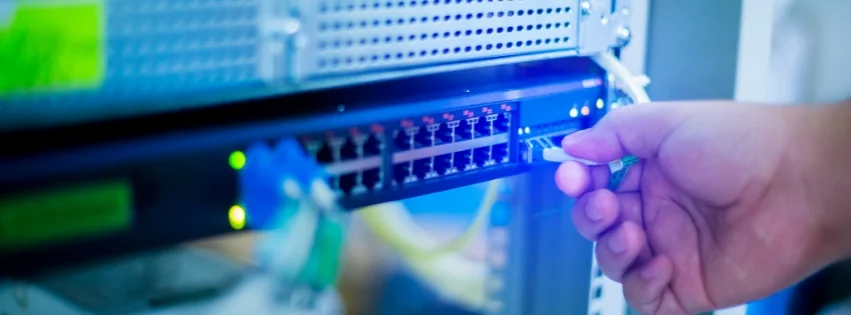
The network closet (IT Room) is central to every well-planned home network. This is where all the essential equipment—routers, multi-gigabit switches, and patch panels—come together. Properly setting up the network closet during construction ensures that your network will be efficient, organized, and thermally managed.
What Is the Network Closet?
The network closet is the hub where all network cables converge. It typically houses:
- The router that connects your home to the ISP (multi-gig fiber where available)
- Multi-gigabit switches (2.5GbE/10GbE) that distribute connectivity across devices
- Patch panels that organize the various Cat6a cables running through your home
- PoE switches (PoE+ and PoE++ 802.3bt) for powering Wi-Fi 7 APs, cameras, and outdoor devices
Locating the network closet in a central or easily accessible area, such as a basement or utility room, ensures that all house parts can be connected efficiently. This space should be planned with enough room to accommodate future expansions, such as additional switches, NAS storage, or smart energy management equipment.
Cooling and Ventilation Requirements
Important consideration: Networking equipment, especially PoE switches under load, produces heat. Without proper airflow, a closed closet can run hot and shorten equipment life.
Plan for dedicated ventilation or passive cooling in your network closet:
- Passive cooling: Ensure adequate airflow with vented doors or wall-mounted exhaust fans
- Active cooling: Consider a small AC unit or dedicated cooling system for closets with high-density equipment
- Rack spacing: Leave 1-2U of space between devices for airflow
- Temperature monitoring: Check the device temperatures reported in the UniFi Network application, or add a separate sensor, to track closet conditions
Wiring the Network Closet: Best Practices
When setting up the network closet, it's important to label and organize cables carefully. Cat6a and fiber optic cables should be routed cleanly to prevent tangling and ensure easy maintenance. Use patch panels to connect the various cables running from different rooms neatly. This allows for quick changes or troubleshooting if an issue arises with a specific connection.
PoE Switch Requirements: Check each device's power draw against the port type. PoE+ (802.3at) provides up to 30 W per port; PoE++ (802.3bt) provides 60 W (Type 3) or 90 W (Type 4) per port and is needed only for high-power devices. For example, the UniFi U7 Outdoor draws up to 19 W and runs on PoE+. UniFi's Pro Max 24 PoE has 400 W of PoE budget, with PoE++ on 16 of its 24 ports and PoE+ on the other 8.
Pro Tip
During construction, cables should be wrapped in plastic or other protective materials to shield them from dust, drywall debris, and damage. This ensures that your network remains fully functional after all the construction work is completed.
Integrating Coax for Flexibility
Even as streaming services grow more popular, some homeowners still prefer to maintain coaxial connections for traditional cable TV. By integrating coaxial cabling alongside Cat6a or fiber optics, you can choose between cable TV and streaming or even switch between the two.
Solving Common Wi-Fi Challenges
Wi-Fi performance can vary significantly depending on your home's structure and each room's layout. Understanding these challenges and planning around them ensures that your entire house remains well-covered, even in difficult areas.
Overcoming Wi-Fi Obstacles: Concrete Walls
Wi-Fi signals often struggle to penetrate homes with concrete-enclosed rooms—such as basements or home theaters. Concrete is a known blocker of wireless signals, which can lead to poor connectivity in specific areas. In such situations, relying on wireless solutions alone might not be sufficient.
The best way to ensure coverage in these areas is to pull Ethernet drops directly into the room and connect a low-profile access point. This allows the Wi-Fi signal to stay strong, even within the thick walls of a concrete-enclosed space. Installing wired access points in difficult rooms allows you to maintain stable internet access without relying solely on wireless connections.
Large, Open Spaces: Wi-Fi Overlap and Coverage
The lack of walls in homes with open floor plans makes it easier for Wi-Fi signals to travel uninterrupted. However, large spaces still need strategic placement of access points to avoid weak spots. For example, placing access points in central areas of large rooms ensures that Wi-Fi signals overlap, creating a continuous network without any gaps in coverage.
Wi-Fi 7 access points, especially when strategically placed, can handle the demands of large spaces more efficiently, ensuring that multiple devices can stay connected with minimal interference.
Why Mesh Networks May Not Be the Best Solution
While mesh networks are marketed as convenient, they may not always provide the best performance in larger homes or homes with specific challenges, such as concrete walls. Mesh systems rely on wireless backhauls to extend coverage, which can result in reduced speeds, particularly in areas farther from the primary router.
In contrast, wired access points connected through Ethernet cables offer faster, more reliable coverage, especially in homes where Wi-Fi signals struggle to penetrate walls or extend across multiple floors. By prioritizing wired access points, homeowners can avoid the performance drop-offs often associated with mesh networks.
Smart Home Integration: Matter, Thread, and IoT Segregation
A 2026 home network should address the "Smart Home" layer that previous generations overlooked. With hundreds of IoT devices—smart bulbs, sensors, door locks, thermostats, and energy management systems—proper protocol support and network segregation are important considerations.
Matter and Thread: The 2026 Smart Home Standard
Matter is the unified smart home protocol that allows devices from different manufacturers (Apple, Google, Amazon, Samsung) to communicate seamlessly. Thread is the low-power mesh networking protocol that Matter uses for device-to-device communication.
Thread devices connect to your network through a Thread border router, which is usually built into a smart-home hub or speaker (for example, an Apple TV, HomePod, Google Nest Hub or Amazon Echo model). We could not find UniFi documentation stating that UniFi's U7 access points act as Thread border routers, so plan on a separate border router. Matter over Wi-Fi works on any well-configured Wi-Fi network. This approach is valuable for new construction because:
- Reduces Wi-Fi congestion: Thread devices use a low-power mesh radio (802.15.4) instead of Wi-Fi, which keeps airtime free for high-bandwidth devices
- Improves reliability: Thread creates a self-healing mesh where devices relay signals to each other, eliminating single points of failure
- Local control: Matter devices are designed to work locally on your network, which can make automations more responsive
Network Segregation for IoT Devices
Even with Matter/Thread devices, consider segregating IoT devices on separate VLANs (Virtual LANs) to help prevent security vulnerabilities. UniFi's controller makes this straightforward:
- IoT VLAN: Isolate smart home devices from your main network
- Guest VLAN: Separate guest Wi-Fi from personal devices
- Security VLAN: Dedicated network for cameras and access control systems
This segregation ensures that a compromised smart bulb can't access your NAS storage or security cameras.
Hardwired Drops for Smart Energy Management
New builds in 2026 often include solar/battery management systems (Span panels, Tesla Powerwalls, Enphase systems). Many of these can use Wi-Fi, but hardwired Ethernet drops give the most reliable monitoring and control where the product supports them. Plan Cat6a runs to:
- Electrical panel locations for Span or similar smart panels
- Battery/inverter locations for Powerwall or home battery systems
- EV charger locations for smart charging management
These systems handle critical infrastructure and benefit from hardwired connections for maximum reliability.
Outdoor Wi-Fi and Entertainment
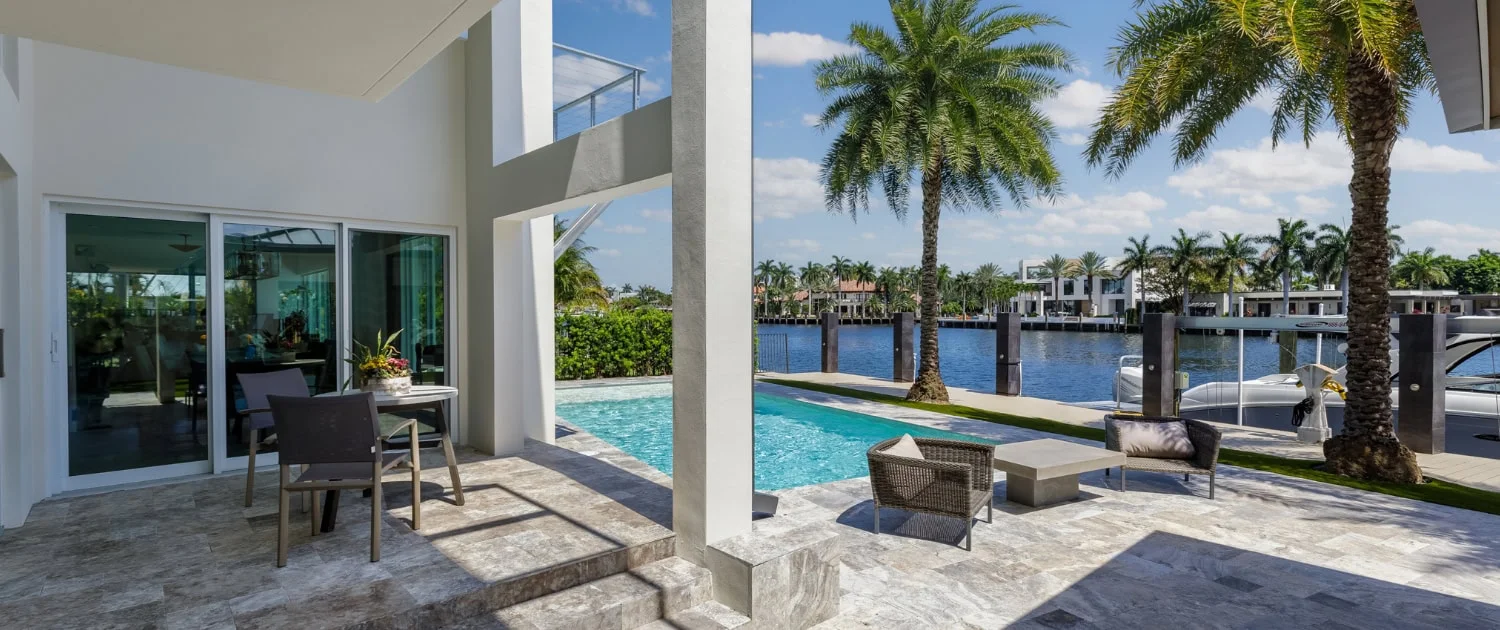
In modern homes, outdoor spaces are often just as connected as indoor ones. Whether you're streaming music by the pool, controlling smart lighting on the patio, or simply checking emails while relaxing outside, strong Wi-Fi coverage is essential for seamless outdoor entertainment and functionality.
Planning for Outdoor Wi-Fi Coverage
Extending Wi-Fi coverage outdoors requires thoughtful planning, especially in homes with large backyards, patios, or pool areas. Unlike indoor spaces, outdoor environments face weather exposure, longer cable runs, and higher power requirements for modern equipment.
Installing dedicated outdoor Wi-Fi 7 access points helps ensure reliable outdoor coverage. UniFi's U7 Outdoor is rated IPX6 for weather exposure. Its datasheet lists 2.4 GHz and 5 GHz operation. Positioning these access points near high-use areas—patios, pools, outdoor entertainment zones—helps maintain consistent coverage.
PoE Requirements: The UniFi U7 Outdoor draws up to 19 W and operates on PoE+ (802.3at, up to 30 W per port). Some high-power outdoor devices need PoE++ (802.3bt), which provides 60 W or 90 W per port. Check the power spec for each device and plan switch ports or PoE injectors to match.
Integrating Outdoor Wi-Fi with Your Indoor Network
Seamless connectivity between indoor and outdoor spaces is key. By integrating outdoor access points into the broader home network with Cat6a backhaul, homeowners can move freely between indoor and outdoor areas without experiencing signal drops or speed degradation.
Placing a UniFi U7 Outdoor access point near the pool or garden allows smart devices—Sonos speakers, outdoor TVs, security cameras, smart irrigation systems—to remain connected without lag. This integrated setup is especially beneficial for those who entertain outdoors or rely on smart home automation for outdoor security, lighting, and climate control.
Cable Run Planning: Outdoor access points often require longer cable runs (150-250 feet from the network closet). At these distances Cat6 can still carry 2.5 or 5 Gbps, which is ample for a single access point; Cat6a is worth choosing if you want 10 Gbps capability over the full 328 feet.
Future-Proofing Tips for Your Home Network
Building a network that can handle current demands is important, but planning for future upgrades is just as crucial. With technology rapidly evolving, a few thoughtful design choices during construction can save you from needing major upgrades later.
Running Tubes (Conduits) for Future Cabling
One of the best ways to future-proof your home network is to install flex tubing from your network closet to key areas like the attic, entertainment zones, and high-traffic rooms. Flex tubing allows you to add or upgrade cables as new technologies emerge easily.
For example, if you decide to install additional security cameras or upgrade from Cat6a to fiber optic cables in the future, having pre-installed tubes makes it easy to pull new wires without the need to tear into walls. The upfront cost of installing these tubes is minimal compared to their long-term convenience.
Using Flex Tubing for TVs, Cameras, and Access Points
Flex tubing isn't just for future upgrades; it can also be installed around key devices like TVs, access points, and outdoor cameras. Running tubing between TV locations or around entertainment centers allows you to add additional cables (such as HDMI or Ethernet) as your needs change.
For access points, flex tubing allows for easy upgrades in the future if you decide to switch from Cat6a to fiber or move to Wi-Fi 8 when it becomes available. This setup ensures your home can keep up with future technology without cutting holes in the wall.
Preparing for Future Technologies: Multi-Gig Infrastructure
With some ISPs now offering 2-5 Gbps fiber plans, your network infrastructure should be ready for these speeds. Installing switches with 2.5GbE ports and 10G uplinks (like UniFi's Pro Max series) helps ensure you won't bottleneck your multi-gig connection at the switch level.
Additionally, consider planning for:
- 10G uplink ports on your main switch for future NAS or server connections
- Cat6a to all rooms to support future 10G device adoption
- Adequate PoE budget on switches to handle growing power demands
Incorporating these future-proofing elements helps ensure your network remains capable for years to come.
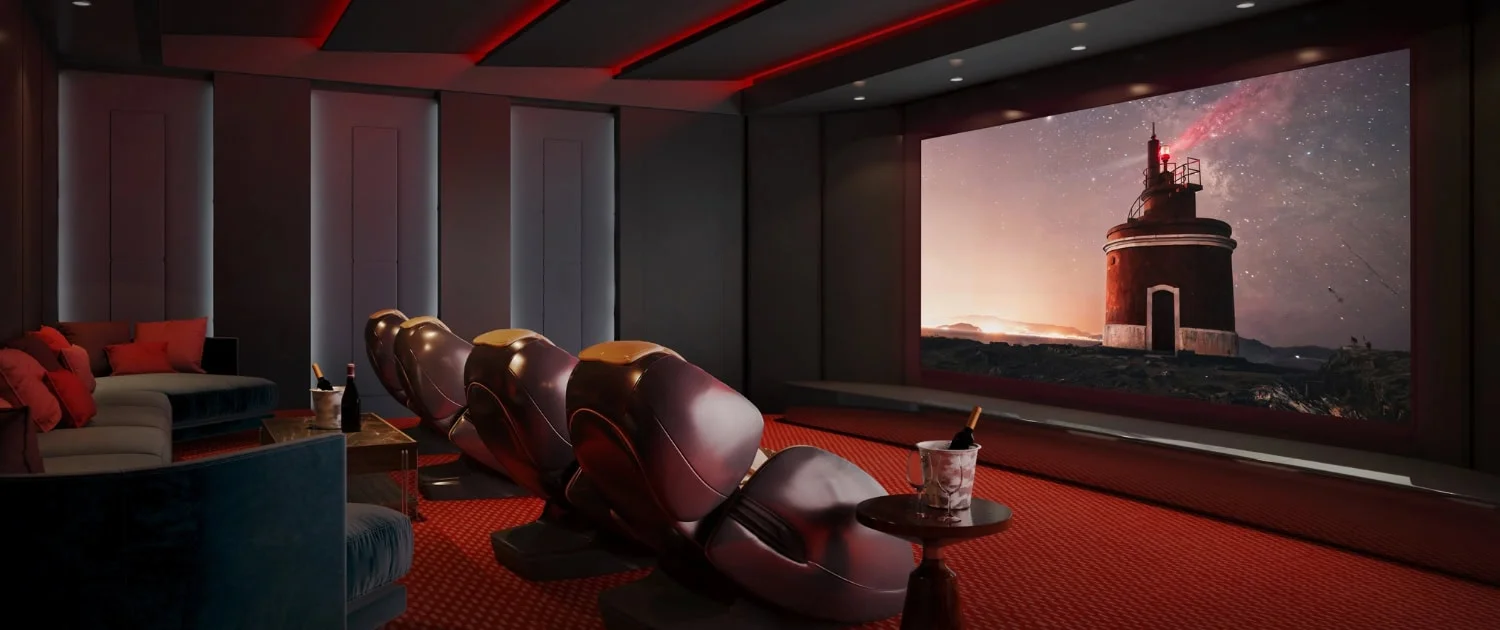
Building the Ideal Home Theater
Integrating home theaters into your home network is key to creating a smooth, connected entertainment experience as they become more popular. However, network planning for home theaters involves unique challenges, especially when dealing with concrete walls or large rooms that require more than basic Wi-Fi coverage.
Wired Solutions for Home Theaters
Home theaters often feature heavy, concrete walls to enhance soundproofing and immersion. While excellent for movie-watching, these walls can significantly block Wi-Fi signals, making maintaining a reliable connection inside the room difficult. To solve this, it's best to install wired solutions.
Pulling Ethernet drops directly into the home theater and connecting them to low-profile access points or wired devices, such as media servers and streaming players, ensures uninterrupted streaming and control. Using Cat6a or fiber optic cables, you can deliver a consistent 10 Gbps connection that supports 8K content streaming, cloud gaming, and smart theater controls.
Streaming and Entertainment
A wired 10 Gbps connection benefits streaming services, gaming consoles, and smart home devices in your theater. A hardwired Cat6a setup helps minimize buffering and provides the bandwidth for multiple 8K streams, Dolby Atmos audio, and gaming consoles to run simultaneously. This is particularly helpful for home theaters, where ultra-high-definition content and immersive audio experiences are standard.
Planning Ahead
When planning your network for a home theater, thinking ahead about future upgrades is helpful. Adding flex tubing near the projector or TV area allows you to easily add or replace cables for new technologies, ensuring that your theater remains at the forefront of home entertainment.
Managing and Monitoring Your Home Network with UniFi
Once your home network is installed, managing and monitoring it efficiently is key to maintaining optimal performance. UniFi IT Solutions provides an AI-driven platform allowing homeowners to easily oversee their network, ensuring everything from Wi-Fi strength to IoT segregation runs smoothly.
Centralized Management with UniFi Network Controller
UniFi's Network Controller is an intuitive tool that lets you manage all aspects of your network from a single dashboard. Whether you're monitoring the performance of your Wi-Fi 7 access points, adjusting VLAN settings for IoT segregation, or troubleshooting issues with devices, UniFi's platform gives you centralized control with AI-powered insights.
This central management system is especially valuable for larger homes with multiple access points, hundreds of IoT devices, cameras, and smart energy systems. It allows you to configure security settings, manage bandwidth allocation, set up guest networks, and monitor device status—all from your smartphone or computer.
Setting Up Alerts for Network Health
With UniFi, you can configure real-time alerts to monitor your network's health. If an access point goes offline, bandwidth usage spikes unexpectedly, or a PoE++ device draws excessive power, you'll receive notifications allowing you to address issues before they become significant problems.
This level of visibility helps prevent disruptions in your home network, making it easier to maintain consistent, low-latency connectivity throughout the house. Additionally, UniFi's tools include regular firmware updates to ensure your equipment remains secure and performs at its best.
Conclusion
Building a 10-gigabit network for your new home in 2026 is an investment in convenience, connectivity, and long-term value. By selecting Cat6a cabling as your baseline, planning your network closet with proper cooling, and incorporating Wi-Fi 7 access points, you create a network that handles multi-gig ISP connections, high-density IoT environments, and future technologies.
Key considerations for 2026:
- Cat6a is recommended—Cat6 supports 10 Gbps only to about 180 feet (5 Gbps to 328 feet)
- Multi-gig switches (2.5GbE ports with 10G uplinks) help support modern ISP connections
- Adequate PoE budget (PoE+ or PoE++ as each device requires) for Wi-Fi 7 outdoor APs and cameras
- IoT VLANs and a Thread border router help keep smart home devices segregated and responsive
- Proper ventilation helps protect equipment in the network closet
- UPS backup power protects network equipment during outages
This infrastructure helps position your home for the next decade of technological advancement.
Need Help?
If you have any questions or need help designing your home network, feel free to contact us. We'll be happy to assist you with planning your new construction network.
Related Articles
More from Network Infrastructure
Essential Network Cabling Checklist for 2026 (Free PDF)
Complete network cabling checklist for business owners. Learn why Cat6A is the 2026 standard, installation best practices, PoE budgets, and future-proofing for Wi-Fi 7. Download our free PDF checklist.
13 min read
Multi-Gig Ubiquiti Home Network Guide: Utilizing AT&T Fiber Over-Provisioning (2026)
Technical case study showing how to build a multi-gigabit home network with UniFi equipment to fully utilize AT&T Fiber's over-provisioned 1.25 Gbps speeds. Covers router selection, Flow Control configuration, and Wi-Fi 7 optimization.
12 min read
Building a Budget-Friendly 2.5 Gbps UniFi Network
Step-by-step guide to building an affordable 2.5 Gbps UniFi network in 2026. Covers three budget tiers, the full current hardware lineup, PoE options, and the Dream Router 7 alternative.
18 min read