
Google Slides Review: Best Free Presentation Software for Business?
A practical review of Google Slides for small business: features, limitations, Gemini AI tools, Workspace pricing, and a head-to-head comparison with PowerPoint.


Most small businesses already have access to Google Slides — it comes with every Google Workspace plan at no extra cost. In our experience setting up Workspace for South Florida businesses, Slides is usually the last app teams adopt. They log in, look at the template library, and go back to PowerPoint.
PowerPoint has two decades of muscle memory behind it. But Google Slides has closed the gap considerably — and in 2026, with Gemini AI built into the product and real-time collaboration that PowerPoint has not fully replicated, it is worth revisiting whether that default still makes sense.
Affiliate Disclosure: This article contains affiliate links. If you make a purchase through these links, we may earn a small commission at no extra cost to you. As an Amazon Associate, iFeelTech earns from qualifying purchases.
What Is Google Slides and How Much Does It Cost?
Google Slides is a browser-based presentation application included at no extra cost with all personal Google accounts and Google Workspace plans.
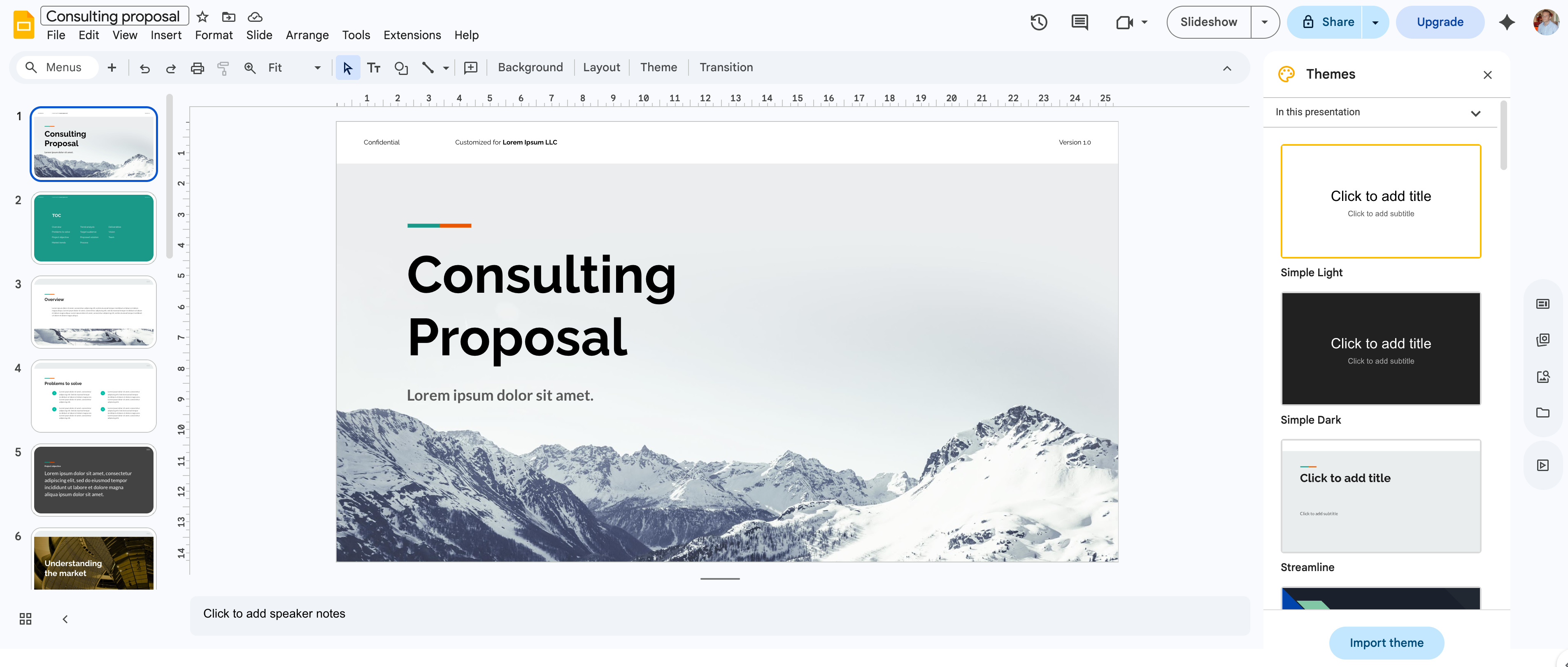
For businesses, Slides requires no separate licensing. It is bundled into every Google Workspace subscription, making it a cost-effective option for organizations already using Gmail and Google Drive.
| Plan | Annual Billing | Monthly Billing | Storage (Pooled) | Gemini in Slides |
|---|---|---|---|---|
| Business Starter | $7/user/mo | $8.40/user/mo | 30 GB/user | ❌ |
| Business Standard | $14/user/mo | $16.80/user/mo | 2 TB/user | ✅ |
| Business Plus | $22/user/mo | $26.40/user/mo | 5 TB/user | ✅ |
| Enterprise | Custom | Custom | 5 TB/user | ✅ |
All plans include the full Slides application, but Gemini AI features inside Slides require Business Standard ($14/user/month) or above. The $7 Starter plan provides the complete Slides app without AI tools. For most small businesses, Business Standard is the tier that unlocks everything Slides can do.
For a full platform-level comparison, see our Google Workspace vs Microsoft 365 comparison.
Key Advantages of Google Slides for Business
Google Slides offers strong real-time collaborative editing, zero-install browser access, generative AI drafting, and cross-device presenting.
Real-Time Collaboration
Multiple users can edit a presentation simultaneously with instant visibility of cursors and changes, eliminating version control issues entirely. Team members can tag colleagues in comments, assign action items directly inside the deck, and restore any previous version from the full revision history.
PowerPoint has improved its web-based co-editing, but the experience still lags when multiple users edit simultaneously. For teams that build presentations collaboratively — sales proposals, client reports, board decks — Slides provides a noticeably smoother workflow.
Zero-Install Access
Google Slides operates entirely within a web browser and requires no local software installation. A contractor can send a proposal deck link, and the client opens it on any device without downloading anything. A medical office running staff training doesn't need shared PowerPoint licenses or software version management.
This removes friction for businesses with mixed device environments, BYOD policies, or teams that include part-time staff and contractors without company-issued machines.
Mobile App and Casting
The Google Slides mobile app (iOS and Android) supports full presentation mode, including casting to external displays via Chromecast and AirPlay. A sales rep can present directly from an iPad or Android tablet in a client's conference room without a laptop. Editing capabilities on mobile are limited compared to the desktop browser experience, but for reviewing and presenting on the go, the mobile app is functional and reliable.
Gemini AI Integration
Google Slides includes Gemini AI features on Business Standard plans and above. The three most relevant capabilities for business use:
- "Help me visualize" generates images directly inside slides from a text prompt — chart concepts, visual metaphors, background images — without leaving the app.
- Slide generation creates new slides from a prompt or existing document, producing a first-draft deck with content, layout suggestions, and basic visuals.
- Speaker notes generation drafts talking points aligned with slide content.
These tools are effective for accelerating first drafts. They are not a replacement for a designer — generated layouts need human editing, and image quality is functional rather than polished. For internal presentations, quick proposals, and team updates, the time savings on initial drafting are consistent. For a deeper look at Gemini across all Workspace apps, see our Google Workspace Gemini features guide.
Template Library and Third-Party Options
Google's built-in template gallery includes templates for business proposals, project status reports, pitch decks, portfolios, and educational presentations. They are clean and functional as a starting point.
The third-party ecosystem extends this significantly. Sites like Slidesgo, SlidesMania, and SlidesCarnival offer thousands of free, professionally designed templates that import directly into Slides at no additional cost.
Limitations of Google Slides for Business
Google Slides lacks default offline capabilities, native video export, advanced animation controls, and deep integration with non-Google data sources.
Offline Mode Requires Configuration
Unlike PowerPoint's desktop app, offline editing in Google Slides is not automatic. Setup is required before you lose connectivity:
- Open Chrome or Microsoft Edge (other browsers are not supported for offline mode).
- Install the Google Docs Offline extension from the Chrome Web Store.
- Go to drive.google.com/drive/settings.
- Check the box for "Create, open, and edit your recent Google Docs, Sheets, and Slides files on this device while offline."
- Wait for your recent files to sync before disconnecting.
Offline Requires Advance Setup
If you skip these steps and your internet drops during a client meeting, you cannot edit your deck. Changes made offline sync automatically when connectivity returns, but Gemini AI features are unavailable offline.
PowerPoint's desktop app works fully without internet by default — no extensions, no pre-configuration, no feature degradation. For teams that regularly present in locations with unreliable connectivity (construction sites, event venues, rural client offices), this gap matters.
Animation and Transition Controls Are Limited
Google Slides provides basic entrance, exit, and emphasis animations with limited timing controls. It cannot replicate PowerPoint's granular motion paths, custom timings, trigger-based sequences, or morph transitions.
For most business presentations — sales decks, internal reports, project proposals — complex animations are unnecessary. For consulting firms presenting to enterprise clients or agencies pitching creative concepts, the limitation is a real constraint.
Font Library Gaps
Google Slides relies exclusively on Google Fonts. Businesses with brand guidelines requiring proprietary typefaces like Proxima Nova, Gotham, or Avenir need workarounds (uploading as images, using similar substitutes) or must use PowerPoint, which supports custom system fonts natively.
The limitation matters most for client-facing presentations where brand consistency is non-negotiable. For internal decks and general business use, Google Fonts covers the need.
Export Format Constraints
Google Slides exports to .pptx, .pdf, .odp, .txt, .jpg, .png, and .svg. It cannot natively export presentations as MP4 video files — a feature built into PowerPoint's "Create a Video" function that businesses use for digital signage, webinar recordings, and pre-recorded client presentations. Converting a Slides deck to video requires downloading as .pptx and using PowerPoint, or using a third-party tool.
Third-Party Data Integration Is Limited
Embedding charts from Google Sheets works well — data stays linked and updates automatically. If your data lives in Excel, Salesforce, or other third-party tools, getting it into Slides requires manual export or third-party connectors. PowerPoint's native integration with the Microsoft ecosystem (Excel, Power BI, SharePoint) is tighter for organizations running their data stack on Microsoft.
Google Slides vs PowerPoint: Which One Should Your Business Use?
For most SMBs already on Google Workspace, Google Slides handles the majority of presentation needs. PowerPoint retains clear advantages in design control, offline reliability, and file format fidelity.
| Feature | Google Slides | PowerPoint |
|---|---|---|
| Price (if on respective suite) | Included with Workspace ($7–22/user/mo) | Included with Microsoft 365 ($6–22/user/mo) |
| Real-time co-editing | Native, reliable, multi-cursor | Improved but still lags with multiple editors |
| Offline editing | Requires Chrome + extension + setup | Full desktop app, works by default |
| Animation controls | Basic entrance/exit/emphasis | Motion paths, morph, custom triggers |
| Font support | Google Fonts only | System fonts + custom installs |
| AI features | Gemini (Business Standard+) | Copilot ($21–30/user/mo add-on) |
| Video export | Not native — requires workaround | Built-in "Create a Video" (MP4) |
| Mobile presenting | iOS/Android app with Chromecast/AirPlay | iOS/Android app with native casting |
| .pptx compatibility | Import/export with occasional formatting loss | Native format |
Collaboration
Winner: Google Slides. Real-time co-editing is native and reliable. Multiple people see each other's cursors, edits appear instantly, and version conflicts are eliminated. PowerPoint's web-based collaboration has improved but still falls short when multiple users edit simultaneously.
Offline Reliability
Winner: PowerPoint. The desktop app works fully without internet, no setup required. Google Slides requires Chrome, an extension, and advance configuration. For on-site presentations with unreliable connectivity, PowerPoint is the safer choice.
File Format Compatibility
Tie, with a caveat. Google Slides imports and exports .pptx files, and most formatting translates correctly. Complex animations, custom fonts, and advanced transitions can break during conversion. In environments with heavy .pptx file interchange — editing and returning decks from external partners — PowerPoint avoids the translation layer entirely.
Cost
Winner: Depends on your existing suite. If you're on Google Workspace, Slides is included at no additional cost. If you're on Microsoft 365, PowerPoint is included. The cost question is about which suite you're on, not the individual presentation app. For businesses evaluating both suites, our Google Workspace vs Microsoft 365 comparison covers the full pricing breakdown.
The Bottom Line on Slides vs PowerPoint
For most SMBs already on Google Workspace, Slides handles 80% of presentation needs. Collaboration is stronger in Slides, zero-install access removes friction, and Gemini AI tools add practical value for first-draft creation. Switch to PowerPoint when the job requires complex animations, precise typography, heavy .pptx file interchange, video export, or reliable offline presenting. Apple Keynote remains the standard for design-centric teams in Apple-heavy environments — but for the typical SMB choosing between Google and Microsoft, the decision comes down to these two.
How Gemini AI Works in Google Slides
Gemini AI in Google Slides generates first-draft presentations, custom images, and speaker notes directly within the application. As of 2026, these features are available on Business Standard and Enterprise plans.
Google Workspace Gemini AI Tutorial
Slide Generation from Prompts
Open the Gemini side panel in Slides and describe what you need ("create a 10-slide quarterly business review deck"). Gemini generates a full slide deck with content, layout, and basic visuals. Content structure is usually logical, and layouts follow standard presentation patterns.
The generated slides require editing before client use — language needs refinement, visuals need adjustment, and flow needs human review. Expect to save 30–45 minutes on initial drafting, not to produce a finished product.
Image Generation with "Help Me Visualize"
The "Help me visualize" feature (Insert > Help me visualize) generates images from text descriptions directly inside slides — custom illustrations, diagrams, charts, and backgrounds without opening a separate design tool.
Image quality is functional for business presentations. It's most useful for internal decks, team updates, and quick proposal visuals where speed matters more than visual refinement.
Speaker Notes Generation
Gemini drafts speaker notes based on slide content, producing aligned talking points for each slide. The output is a reasonable first draft that needs editing for your speaking style, but it ensures talking points match what's on screen.
What Requires a Paid Plan
All Gemini features in Slides require Google Workspace Business Standard ($14/user/month) or above. Free personal accounts and Business Starter accounts do not include Gemini in Slides. For a complete breakdown of what each Workspace plan includes for AI, see our Google Workspace Gemini features guide.
Data Privacy and Security
Google does not use Workspace customer data — including Slides content — to train its public Gemini models. Prompts, responses, and file contents are not reviewed by humans for model training purposes.
Google Workspace applies enterprise-grade encryption in transit and at rest to all Slides files. For organizations with compliance requirements (HIPAA, SOC 2, FERPA), Workspace's data processing agreements and audit logging cover Slides data alongside the rest of the suite. This is a meaningful consideration for businesses storing proprietary client presentations, financial reports, or strategic plans in Slides.
Verdict: Is Google Slides the Right Presentation Tool for Your Business?
Our Rating: 4.2 / 5
Google Slides is a strong presentation tool for most small businesses already on Google Workspace. It is included with your plan, the collaboration features lead the category, and Gemini AI tools reduce the time spent on first-draft creation in 2026. It falls short for design-heavy client presentations, offline-dependent workflows, video export needs, and environments with heavy PowerPoint file interchange.
Use Google Slides if: You're on Google Workspace (any plan), your presentations are internal reports, proposals, team updates, or standard business decks, and your team values real-time collaboration over design polish. For a 10-person professional services firm in South Florida already on Workspace, this is what we'd recommend — use Slides for everything that doesn't specifically require PowerPoint.
Keep PowerPoint for: Design-heavy client presentations where typography and animation precision matter, environments where you regularly receive and edit .pptx files from external partners, workflows that require native MP4 video export, and situations where you present offline without reliable internet access. Many of the businesses we work with use both — Slides handles the collaborative daily work, PowerPoint is reserved for high-stakes deliverables.
If you're setting up Google Workspace for your business, make sure you also back up your Google Workspace data — Google's native tools don't provide the level of backup and recovery that a business needs. And if you're building out your full technology stack, our complete small business software stack guide covers everything from accounting to security for under $250/month.
Need More Design Flexibility?
If your presentations require professional-grade design templates and advanced visual tools beyond what Google Slides offers, Canva is worth evaluating. It offers a large template library, brand kit management, and exports to both Slides and PowerPoint formats. Canva Pro starts at $15/month per user.
Related Resources
- Google Workspace vs Microsoft 365: Complete Business Comparison — Full pricing and feature comparison between the two platforms.
- Excel vs Google Sheets: Which Should Your Business Use? — Detailed comparison if spreadsheets are your main concern.
- Gemini in Google Workspace: What's Included, What Costs Extra, and What Actually Works — Detailed breakdown of Gemini AI features across all Workspace apps.
- Complete Google Workspace Backup Guide — Why native tools aren't enough and how to set up proper backup for your Workspace data.
- Complete Business Software Stack Under $250/Month — The full small business software stack including email, CRM, accounting, and security.
- Google Cloud for Small Business — Understanding where Google Cloud fits alongside Workspace for small business infrastructure.
Frequently Asked Questions
Related Articles
More from Business Software
Excel vs Google Sheets: Which Should Your Business Use?
A practical comparison of Excel and Google Sheets for small businesses in 2026: where Google has caught up, where Excel still leads, and how to decide.
11 min read
Gemini in Google Workspace: Plans, Pricing, Features, and Real-World Limits
Gemini is built into all Google Workspace paid plans. Here's what each tier includes, how the add-ons work, and which AI features hold up in daily use — last checked July 19, 2026.
22 min read

Google Workspace vs Microsoft 365: An IT Pro's Implementation Guide for SMBs
Practical guidance on Google Workspace vs Microsoft 365 based on real-world SMB implementations — when each platform excels and which fits your specific situation.
9 min read