

Excel vs Google Sheets: Which Should Your Business Use?
A practical comparison of Excel and Google Sheets for small businesses in 2026: where Google has caught up, where Excel still leads, and how to decide.

Every week, we set up another South Florida business on Google Workspace — and every week, someone on the team asks some version of the same question: "This is great, but can we keep Excel?"
It is a fair question. Excel has been the default business spreadsheet for 30 years. A lot of people learned it before they learned to drive. The mental model is deep: columns, formulas, pivot tables, the specific way Ctrl+Z works, the exact location of the Format Cells dialog. Switching feels like relearning something you already know.
But here is what we have observed after migrating dozens of businesses to Workspace: most did not actually need what they thought they needed from Excel. They needed a spreadsheet tool for budgets, reporting, and data tracking. Google Sheets provides that functionality. The gap between the two is real, but it is narrower than many businesses expect, and it is concentrated in specific areas. This article identifies where that gap exists, where it does not, and provides a framework for determining which platform suits your business requirements.
Affiliate Disclosure: This article contains affiliate links. If you make a purchase through these links, we may earn a small commission at no extra cost to you. As an Amazon Associate, iFeelTech earns from qualifying purchases.
Is Google Sheets Functionally Equivalent to Excel in 2026?
For standard business use, Google Sheets provides the same core functionality as Excel, with familiar functions such as XLOOKUP; compatibility is not identical for every formula or workbook.
Google has steadily closed the feature gap for everyday operations. Common tasks—such as budgets, project trackers, and client databases—perform equivalently on both platforms. In 2022, Sheets introduced XLOOKUP, LAMBDA functions, and Named Functions, allowing users to build reusable formula libraries natively. Common functions such as FILTER, SORT, and UNIQUE are available in both tools, but syntax, supported options, and array behavior can differ; test your actual workbook. On an eligible subscription, Gemini can generate formulas from plain-language prompts, which is particularly useful for people who aren't formula fluent. The tools overlap substantially for everyday formulas, but their function libraries and behavior are not identical.
| Function Category | Google Sheets | Microsoft Excel | Notes |
|---|---|---|---|
| Lookup | XLOOKUP, VLOOKUP, HLOOKUP, INDEX/MATCH | XLOOKUP, VLOOKUP, HLOOKUP, INDEX/MATCH | Similar purposes; check syntax and optional arguments |
| Custom Functions | LAMBDA, Named Functions | LAMBDA, Named Functions | Reusable formulas; feature details differ |
| Dynamic Arrays | FILTER, SORT, UNIQUE, SEQUENCE | FILTER, SORT, UNIQUE, SEQUENCE | Syntax and array behavior differ |
| Text Functions | TEXTJOIN, CONCATENATE, SPLIT | TEXTJOIN, CONCATENATE, TEXTSPLIT | Mostly equivalent |
| Date/Time | DATE, DATEVALUE, EOMONTH, NETWORKDAYS | DATE, DATEVALUE, EOMONTH, NETWORKDAYS | Check date systems, locale, and options |
| Statistical | AVERAGE, MEDIAN, STDEV, PERCENTILE | AVERAGE, MEDIAN, STDEV, PERCENTILE | Check function variant and input behavior |
| Charts | Common business chart types | Additional charting and formatting options | Compare the exact chart needed |
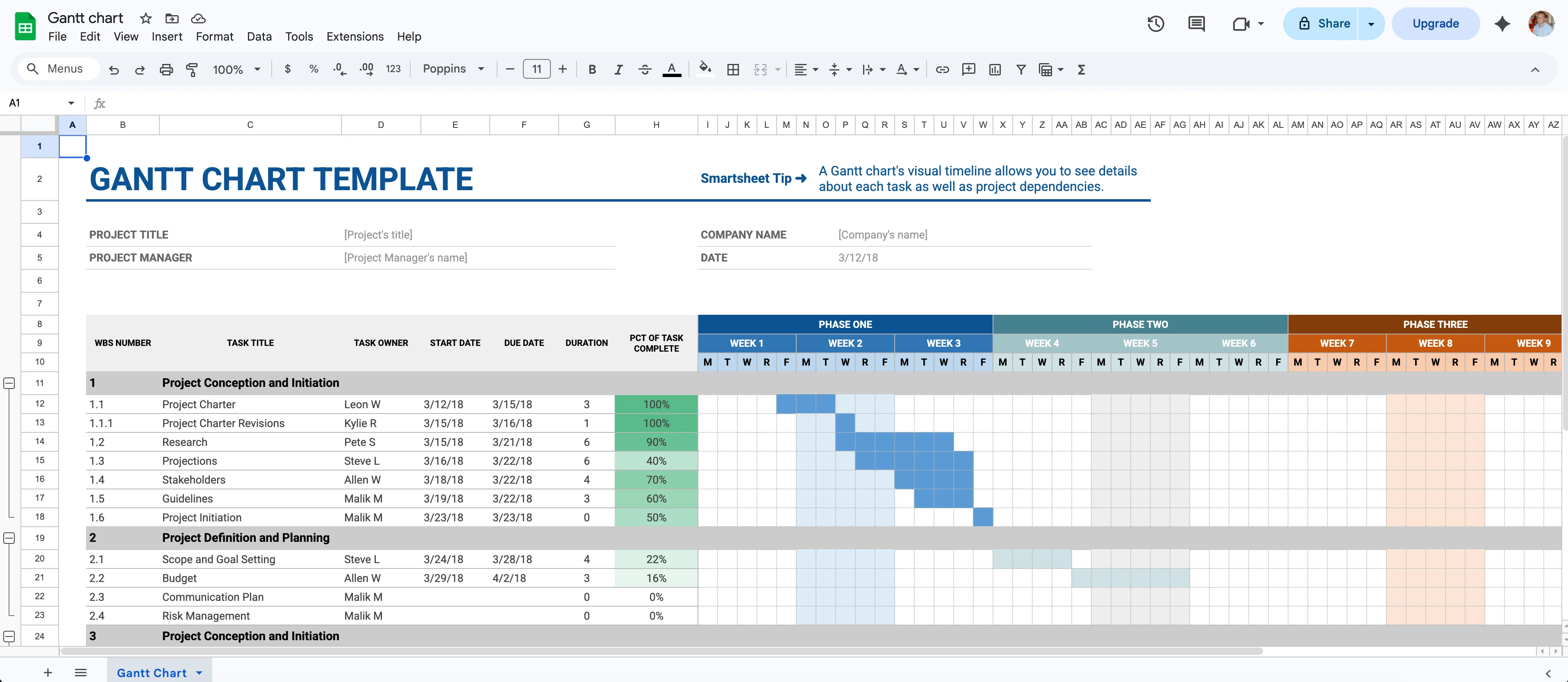
If you are building a monthly budget, a project tracker, a client database, or a sales dashboard, Sheets will do everything Excel would do. This article is part of our Google Workspace app review series — we have also covered Google Slides for presentations.
When Is Excel Better Than Google Sheets?
Excel offers tools such as Power Query, Power Pivot, and VBA that can determine whether an existing workflow can move to Sheets. Availability differs by Excel edition and platform; check the actual feature requirements.
Data Capacity and Performance: Google announced a 20-million-cell limit per spreadsheet on September 10, 2026, replacing 10 million. Scheduled Release rollout began September 28 and may take up to 15 days, so some accounts may still be transitioning on October 3. Google’s announcement and rollout schedule.
Cell count is not a performance guarantee. Formula dependencies, data connections, browser or device resources, and workbook design affect responsiveness. Test the actual workbook instead of declaring every file above 50,000 rows unsuitable for Sheets.
Power Query and Power Pivot: Excel includes built-in Extract, Transform, Load (ETL) tools. Power Query connects multiple data sources for visual transformation, while Power Pivot supports relational data models inside the spreadsheet. Apps Script can automate some data workflows, but it requires rebuilding processes from scratch using a different programming language and API.
Data Visualization and Charting: Excel maintains a significant advantage in chart types, formatting flexibility, and dashboard aesthetics. Excel offers 16 chart categories with extensive customization options, including advanced chart types like waterfall charts, sunburst diagrams, and treemaps. Google Sheets provides basic charting that covers common business needs—bar, line, pie, and scatter plots work well—but lacks the visual polish and granular control that financial analysts and executive dashboard creators require. For businesses presenting data to clients or boards, Excel's visualization engine produces more professional-looking outputs. Organizations already using Google Workspace can supplement Sheets with third-party visualization add-ons, though this adds complexity.
VBA Macros: VBA macros cannot migrate to Google Sheets. Businesses with legacy VBA financial models must rebuild them entirely in Apps Script, which relies on a different programming language and API. This is not a configuration adjustment—it requires dedicated development resources. Microsoft has shipped Python in Excel as a complement to VBA, though no formal VBA deprecation has been announced. Python in Excel is designed for data analysis workflows, not UI automation—it cannot replace VBA macros that interact with Excel's interface.
VBA Migration Requires Development Resources
If your business has built financial models, reporting automations, or data processing pipelines on VBA, migration to Google Sheets requires a full rebuild in Apps Script. Plan for several weeks of development time depending on macro complexity.
Offline Reliability: Excel is a native desktop application providing full offline access. Google Sheets requires advance configuration through a Chrome extension for offline use, which limits certain AI features. For teams working in low-connectivity environments, Excel desktop provides more reliable offline functionality.
System Resource Usage: Google Sheets runs entirely in the browser, which means it relies on Chrome's memory allocation. On workstations with limited RAM (8GB or less), having multiple Sheets tabs open alongside other browser tabs can cause performance degradation. Excel desktop runs as a native application with direct system resource access, typically using memory more efficiently for large spreadsheet operations. This becomes particularly relevant for businesses with aging hardware or users who work with multiple large files simultaneously.
Why Do Businesses Resist Switching to Google Sheets?
The primary resistance to Google Sheets stems from disrupted muscle memory, missing keyboard shortcuts, and .xlsx file formatting fidelity.
Keyboard shortcuts like Ctrl+D (fill down) or Ctrl+Shift+L (filter toggle) work differently between the platforms. Right-click menus appear in different locations. The muscle memory of where to find Conditional Formatting, adjust column width, or create a pivot table must be relearned.
Additionally, businesses that regularly exchange files with external accounting firms face format interoperability issues. While Google Sheets natively opens and edits .xlsx files, complex conditional formatting and advanced chart types may not render with perfect fidelity. Macros do not execute. For accounting firms submitting financial reports or businesses with constant .xlsx interchange, this formatting friction is a legitimate operational concern.
The core question becomes: are you staying on Excel because it has a feature you genuinely use daily, or because switching disrupts established workflows? These are different constraints requiring different solutions.
Microsoft confirms the current Business Standard prices and billing terms.
Should Your Business Use Excel or Google Sheets?
Choose Excel for VBA dependency and large datasets, but switch to Google Sheets for seamless real-time collaboration and basic financial tracking.
Stay on Excel if:
- Your team relies on existing VBA macros or heavy automation
- Your actual workbook needs Excel-specific modeling or performs better in a representative test
- Your workflows require Power Query or Power Pivot
- You require strict .xlsx formatting fidelity for external partners
- You create client-facing dashboards requiring advanced chart customization
Microsoft 365 Business Standard is $14/user/month with Teams on annual billing, or $16.80 on a monthly subscription, as checked October 3, 2026. The no-Teams plan has a different price. For businesses requiring advanced data modeling and professional visualization capabilities, this remains the industry standard.
Switch to Google Sheets if:
- Your primary tasks involve budgets, schedules, and standard reporting
- Real-time, multi-user collaboration without version conflict is a priority
- Your team operates across multiple operating systems and devices
- Basic charts and standard visualizations meet your presentation needs
Google Workspace Business Starter starts at $7/user/month (annual billing) and includes Sheets with no additional cost. For teams prioritizing real-time collaboration over desktop power features, this provides the most cost-effective solution.
Run both:
For businesses on Workspace, Sheets is free and already included. There is no additional Sheets charge within an existing Workspace plan, but Excel desktop access requires an appropriate license; using both may mean paying for both suites. This is what most of our clients end up doing.
If your choice of spreadsheet tool is downstream of your broader productivity suite decision, see our Google Workspace vs Microsoft 365 comparison. For businesses keeping Microsoft 365 for Excel, consider whether Microsoft 365 needs a backup solution. Windows users managing both ecosystems should also read our guide on managing Google Workspace and OneDrive on Windows.
How Do Gemini and Copilot Compare for Spreadsheets?
AI availability depends on the subscription, feature, account, and administrator settings. Having the spreadsheet application does not establish entitlement to every AI tool.
Google Workspace: Business Starter includes Sheets, Gemini in Gmail, and Gemini app access, but it does not include the same in-app Sheets AI features as Business Standard and Plus. Standard starts at $14/user/month with an annual commitment; Plus is $22. Feature limits and eligible capacity add-ons differ. Google's plan comparison is the reference for purchasing decisions.
Microsoft 365: Business Standard with Teams is $14/user/month paid yearly. Microsoft currently lists Copilot Business at a $21/user/month annual base price with an advertised $18 offer subject to terms; qualifying base licensing is also required. Bundles and promotions can change. Copilot Chat access and paid work-data capabilities are different entitlements, so check the exact Excel feature and license rather than assuming all AI is included or all AI requires the same add-on. Microsoft's current pricing and terms, checked October 3, 2026.
Google Sheets AI Functions: Quick Introduction
Review generated formulas and results against known examples before using either tool for financial reporting. See our Workspace Gemini features guide and suite comparison.
How Do Excel and Sheets Compare for Third-Party Integrations?
Google Sheets dominates third-party SaaS automation platforms like Zapier and Make, while Excel leads in Microsoft enterprise ecosystem tools.
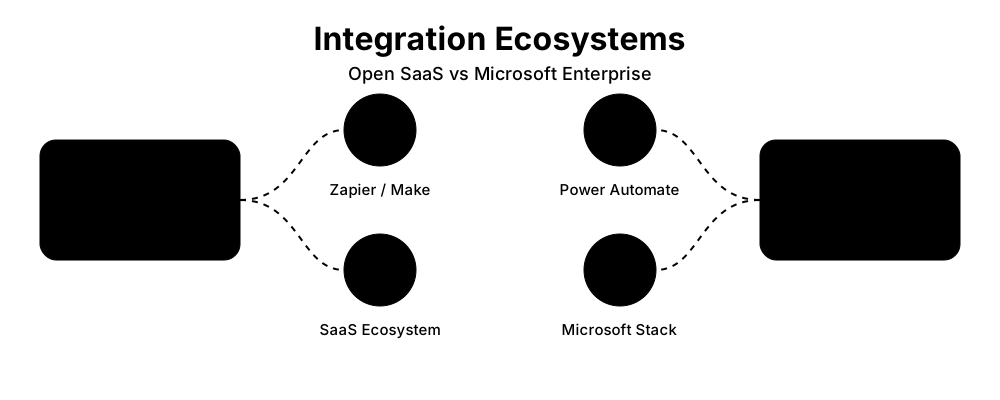
For businesses building automated workflows between their spreadsheet and other cloud applications, Google Sheets has superior native support in no-code automation platforms. Zapier, Make (formerly Integromat), and Workato all offer more robust Google Sheets triggers and actions compared to their Excel equivalents. Common use cases—such as automatically logging form submissions, syncing CRM data, or generating reports from multiple sources—typically execute with fewer authentication steps and more reliable real-time updates in Sheets.
Excel maintains its advantage within the Microsoft enterprise stack. Power Automate (formerly Microsoft Flow) integrates deeply with Excel files stored in OneDrive or SharePoint. Power BI connects directly to Excel workbooks for business intelligence dashboards. For organizations already invested in Azure, Dynamics 365, or Microsoft Teams, Excel provides tighter integration points with less configuration overhead.
The integration ecosystem often determines which tool fits better. Marketing agencies and SaaS-heavy businesses typically benefit from Sheets' broad third-party connector support. Enterprise organizations with established Microsoft infrastructure find Excel's native Power Platform integration more valuable.
Which Platform Offers Better Security and Compliance?
Both vendors offer business security and compliance controls. Vendor attestations do not establish that a particular spreadsheet workflow is compliant; assess the service, contract, account, sharing, retention, and applicable requirements.
Google Sheets offers file-sharing controls. Protected ranges restrict editing; they do not hide confidential cells from other readers. Use separate restricted files when readers must not see certain information.
For either suite, confirm the exact service scope, license, current compliance documentation, contractual terms, and required configuration. Vendor certification or a signed BAA does not by itself make a spreadsheet workflow compliant. Check retention, access control, audit logging, data-loss prevention, and recovery against the actual plan.
Local Excel files need device security, access controls, and a tested recovery process. Files in OneDrive or SharePoint rely on the configured Microsoft 365 controls. Local storage is not automatically an air-gapped environment, and data location alone does not establish compliance.
How Do the Mobile Apps Compare for Field Work?
Both platforms offer functional mobile apps for iOS and Android, but Google Sheets provides a more consistent experience for lightweight data entry on the go.
Google Sheets mobile apps mirror the web interface closely, making them easier for field teams to learn if they already use Sheets on desktop. Test the actual mobile workflow, sharing settings, and connectivity. Offline or poor connections can delay synchronization, and mobile apps do not provide every desktop feature.
Excel mobile apps provide more feature depth but with a steeper learning curve. The mobile interface includes ribbon menus similar to desktop Excel, which can feel cramped on phones. For power users who need pivot tables, advanced conditional formatting, or macro execution on tablets, Excel mobile supports more sophisticated workflows. However, co-authoring on mobile requires files to be stored in OneDrive or SharePoint with specific sharing settings configured.
For mobile-first operations—contractors updating job costs from trucks, retail managers conducting inventory audits on tablets, or field service technicians logging equipment data—Google Sheets typically requires less training and fewer sync troubleshooting steps. For tablet-based work requiring desktop-class features, Excel mobile provides more capability at the cost of complexity.
Verdict
For the majority of small businesses on or considering Google Workspace, Google Sheets provides adequate functionality for standard business operations. In many cases, the Excel preference stems from familiarity rather than technical requirements. Testing Sheets for a few weeks can help determine whether paying for an additional Microsoft 365 seat is necessary.
For businesses with VBA dependencies, large-dataset workflows, or heavy .xlsx interchange with external parties where formatting fidelity is critical, Excel remains the appropriate choice for those specific use cases. Forcing a migration where technical requirements justify Excel creates unnecessary disruption. The cost of running both tools is minimal if you already have Google Workspace.
The gap between Excel and Sheets is real, but it is concentrated. For budgets, schedules, trackers, client databases, and standard reporting — the spreadsheet work that most small businesses do — Sheets handles it comfortably. Real-time collaboration is smoother in Sheets than it is in Excel. The interface is simpler. The pricing is more predictable.
If your question is broader than just the spreadsheet tool — if you are evaluating the full productivity suite — see our Google Workspace vs Microsoft 365 comparison. For readers interested in how Sheets fits into the broader software stack, see our guide to building a complete business software stack under $200/month.
Try Google Workspace free for 14 days. If you need Excel for specific workflows, Microsoft 365 Business Standard is $14/user/month with Teams on annual billing as checked October 3, 2026; the no-Teams plan is priced separately.
Related Resources
- Google Workspace vs Microsoft 365: Complete Business Comparison — Full suite comparison including pricing, AI features, and security.
- Google Workspace Gemini Features Guide — Hands-on breakdown of Gemini AI in Workspace apps.
- Google Slides Review: Best Free Presentation Software for Business? — Another installment in our Workspace app review series.
- Complete Business Software Stack Under $200/Month — How Sheets and Workspace fit into the broader software ecosystem.
- Does Microsoft 365 Need Backup? — For businesses keeping Excel and staying on Microsoft 365.
- Managing Google Workspace and OneDrive on Windows — For Windows users dealing with dual-ecosystem friction.
Frequently Asked Questions
Related Articles
More from Business Software

Gemini in Google Workspace: Plans, Pricing, Features, and Real-World Limits
Gemini is built into all Google Workspace paid plans. Here's what each tier includes, how the add-ons work, and which AI features hold up in daily use — last checked July 19, 2026.
22 min read

Google Workspace vs Microsoft 365: An IT Pro's Implementation Guide for SMBs
Practical guidance on Google Workspace vs Microsoft 365 based on real-world SMB implementations — when each platform excels and which fits your specific situation.
9 min read
Microsoft 365 Price Increase 2026: New Business Pricing and What to Do
Microsoft 365's July 2026 prices are now active. Compare Business Basic, Standard, Premium, and Copilot, then decide whether to renew, right-size, upgrade, or switch.
18 min read