

Passkeys for Small Business: Why Your Password Manager is Still Essential in 2026
Confused about passkeys vs password managers? Learn why 1Password and Proton Pass remain critical for team sharing, legacy sites, and security—even with passkeys.

Affiliate Disclosure: This article contains affiliate links. If you make a purchase through these links, we may earn a small commission at no extra cost to you. As an Amazon Associate, iFeelTech earns from qualifying purchases.
TL;DR — Do You Still Need a Password Manager with Passkeys?
Yes. Here's the quick answer:
-
For team sharing — Passkeys are personal (tied to your device and unlocked with your biometrics or PIN). Sharing a company login still requires a password manager's shared vault.
-
For legacy sites — In 2026, many business tools still don't support passkeys. You need somewhere secure to store those passwords.
-
For cross-platform sync — Apple's iCloud Keychain is built for Apple devices and Google's depends on Android or Chrome. A password manager syncs everywhere.
-
For hardware backup — Add a YubiKey ($58) for your most critical accounts.
Your marketing manager just asked: "Google says I can use passkeys now. Does that mean we can cancel 1Password?"
It's a reasonable question. With Apple, Google, and Microsoft all promoting passkeys as the password-free future, many small business owners are confused about whether their password manager subscription is still necessary.
The short answer: Yes, you still need it. But not for the reasons you might think.
Passkeys are genuinely more secure than passwords—they're phishing-resistant, can't be guessed, and don't require you to remember anything. But they don't replace everything your password manager does. Think of your password manager as a secure wallet that holds all your credentials: passkeys, passwords, credit cards, secure notes, and more.
This guide explains what passkeys actually are, why password managers remain essential for small businesses in 2026, and how to build a practical security stack that uses both.
The "Messy Middle" of 2026: Passkeys Are Here, But Passwords Aren't Gone
Passkeys replace typing passwords: you unlock them with your face, fingerprint, or device PIN. They're phishing-resistant (cryptographically tied to specific websites), unguessable (no password to brute-force), and faster to use than typing.
Major services supporting passkeys now include Google, Microsoft, Apple, GitHub, PayPal, Amazon, many banking apps, and Shopify. However, the transition is far from complete.
FIDO Alliance data from 2025 shows 48% of the world's top 100 websites support passkeys, and business software lags behind. Most small business tools—especially legacy accounting software, industry-specific apps, and internal systems—still rely on traditional passwords.
This is the "messy middle" of the passwordless transition: you need a solution that handles both passkeys and passwords.
Why Your Password Manager is Still Essential
Even in a world where every website supported passkeys (which won't happen for years), password managers would still provide critical value for small businesses. Here's why:
1. Team Sharing: The Problem Passkeys Don't Solve
Passkeys are inherently personal. When you create a passkey, it's tied to your device and account, and unlocked with your face, fingerprint, or PIN. That's great for security, but it creates a problem for business use.
Real scenario: Your marketing team needs shared access to your company's social media accounts. Three people need to log into the same Twitter/X account.
With passwords, this is straightforward: create a strong password, store it in a shared vault, and anyone on the team can access it.
With passkeys alone? Each person would need their own passkey—which means the social media platform would need to support multiple passkeys per account (many don't), and you'd have no centralized way to revoke access when someone leaves the team.
The solution: 1Password supports passkey sharing through shared vaults. You can store a passkey in a team vault, and authorized team members can use it to authenticate—each unlocking it with their own biometrics or PIN. Proton Pass shared vaults cover shared team logins.
| Scenario | Passwords Only | Passkeys Only | Password Manager + Passkeys |
|---|---|---|---|
| Personal account | Works | Best option | Best option |
| Shared team account | Works | Difficult | Works via shared vault |
| Legacy system | Works | Not supported | Works |
| Cross-platform access | Works | Limited | Works everywhere |
2. The Hybrid Reality: Many of Your Tools Don't Support Passkeys
It's 2026, and here's the reality for most small businesses:
- Google Workspace — Supports passkeys ✓
- Microsoft 365 — Supports passkeys ✓
- QuickBooks Online — Supports passkeys through the Intuit Account (confirm for each user)
- Your industry-specific CRM — Password only
- That legacy billing system from 2018 — Password only
- WiFi password for guests — Not even a "login"
You can't go passwordless when many of your tools don't support it. And storing some credentials in your password manager while others live in Apple Keychain or "that spreadsheet Karen maintains" is a security liability.
A password manager gives you one secure location for everything—passkeys for the modern apps, passwords for the legacy ones, and a clear offboarding process when employees leave.
Pro Tip: Disable Browser Password Managers
When employees have Chrome Password Manager and 1Password installed, both fight to save and fill credentials—creating confusion and duplicate prompts. Before rolling out your password manager, use Group Policy or MDM to disable browser built-in password saving.
3. Ecosystem Lock-In: Don't Let Apple or Google Own Your Credentials
When you create a passkey using iCloud Keychain, it syncs beautifully... across your Apple devices. Got a Windows laptop at work? An Android phone for travel? Apple's Windows support is limited, and Android isn't supported.
Google Password Manager reaches further, but it depends on Chrome or Android on every device.
| Storage Location | Apple Devices | Android | Windows | Linux |
|---|---|---|---|---|
| iCloud Keychain | ✓ | ✗ | Limited | ✗ |
| Google Password Manager | ✓ (Chrome only) | ✓ | ✓ (Chrome only) | ✓ (Chrome only) |
| 1Password | ✓ | ✓ | ✓ | ✓ |
| Proton Pass | ✓ | ✓ | ✓ | ✓ |
For a small business with employees using different devices, a third-party password manager provides the cross-platform consistency you need.
4. More Than Passwords: Your Secure Digital Vault
Password managers store more than just login credentials:
- Credit card numbers for business purchases
- Secure notes (software license keys, API keys, recovery codes)
- Bank account details for payroll
- WiFi passwords for office and guest networks
- Identity documents (passport scans for business travel)
Passkeys don't address any of these use cases. Your password manager remains the secure vault for everything sensitive.
1Password vs Proton Pass: Best Password Managers for Passkeys
Both 1Password and Proton Pass fully support passkeys. Here's how they compare for small business use:
1Password: Best for Teams
1Password has been the market leader for years, and their passkey implementation is polished. The key advantage for businesses: seamless team sharing.
| Plan | Price | Best For |
|---|---|---|
| Individual | $3.99/month (billed annually) | Solo use |
| Families | $5.99/month (5 users, billed annually) | Family/tiny team |
| Teams Starter Pack | $24.95/month (billed annually) | Teams up to 10; add up to 10 more seats at $4.99 each |
| Business | $8.99/user/month (billed annually) | Scaling teams, SSO |
| Enterprise | Custom | 100+ employees |
Passkey Features:
- Full passkey creation, storage, and cross-device sync
- Share passkeys via team vaults
- Unlocking 1Password itself with a passkey is in public beta for new Individual accounts only; Teams and Business accounts still use the account password and Secret Key
- Admin controls for passkey policies
Why Choose 1Password:
- Best-in-class user experience
- Excellent browser extension reliability
- Strong SSO integration (Okta, Microsoft Entra)
- Included family account for each team member (increases adoption)
Proton Pass: Best for Privacy (and Budget)
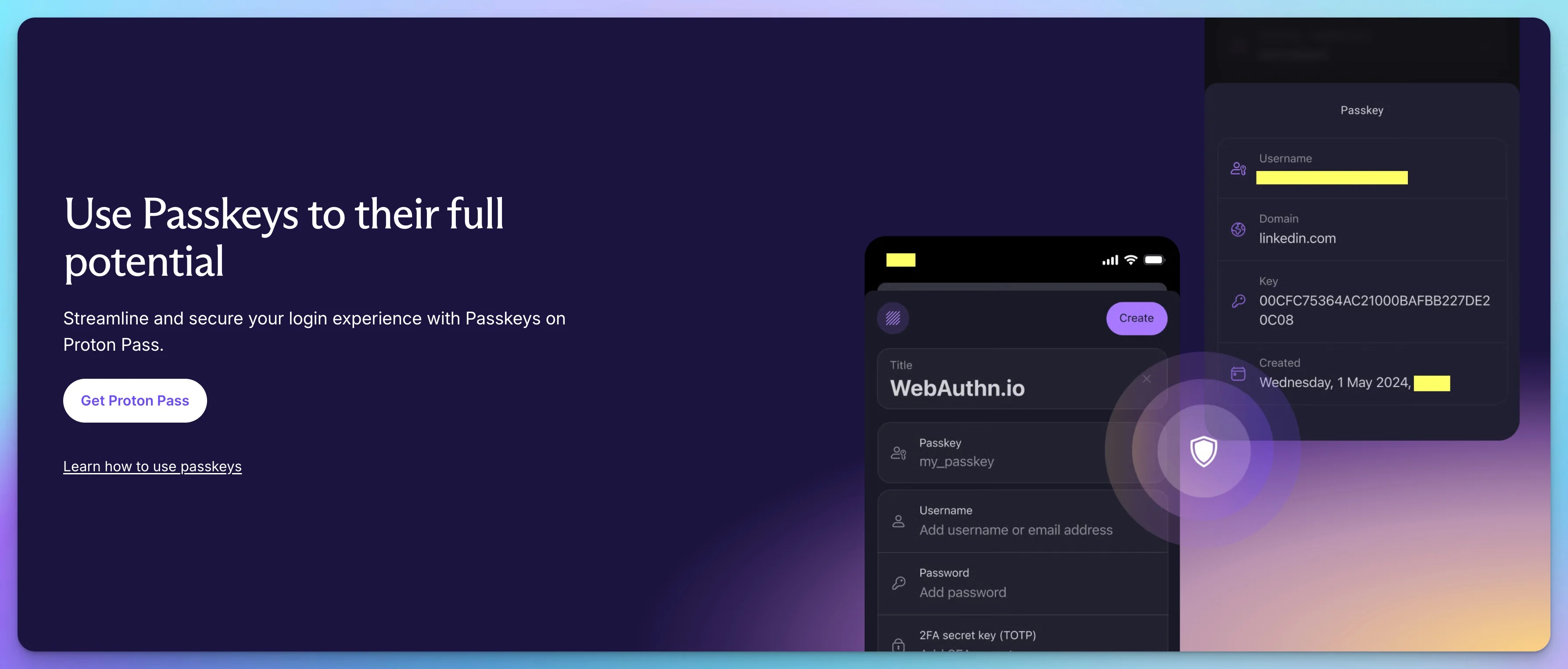
Proton Pass is the newer player, but it's made a strong entrance—especially for privacy-conscious businesses. The standout feature: passkeys are included in the free plan.
| Plan | Price | Best For |
|---|---|---|
| Proton Free | $0/month | Individual, passkeys included |
| Pass Plus | $2.99/month billed annually ($4.99 monthly) | 50 vaults, dark web monitoring |
| Pass Family | $4.99/month billed annually ($6.99 monthly), 6 users | Family sharing |
| Pass Essentials | $1.99/user/month billed annually ($4.99 monthly) | Small teams (3+ users) |
| Pass Professional | $4.49/user/month billed annually ($6.99 monthly) | Teams with SSO needs |
Passkey Features:
- Full passkey support on all plans (including free)
- Open-source, FIDO-compliant implementation
- Cross-platform: iOS, Android, all browsers, desktop apps
- Hide My Email for privacy when creating new accounts
Why Choose Proton Pass:
- Free tier includes passkeys (Bitwarden's free plan does too)
- Swiss privacy law protection (stronger than US)
- Open-source transparency
- Part of Proton ecosystem (Mail, VPN, Drive)
Budget Winner
If you're a solopreneur, Proton Pass Free is hard to beat—it includes passkey storage at no cost. For teams, price is close: Proton Pass Essentials costs about $19.90 per month for 10 users billed annually, and the 1Password Teams Starter Pack is $24.95 per month for up to 10 members. Choose between them on features and admin tooling rather than price.
Quick Comparison
| Feature | 1Password Business | Proton Pass Free | Proton Pass Professional |
|---|---|---|---|
| Price | $8.99/user/month (annual) | $0 | $4.49/user/month (annual) |
| Passkey Support | ✓ Full | ✓ Full | ✓ Full |
| Team Sharing | ✓ Shared vaults | Limited (share a vault with 2 others) | ✓ Shared vaults |
| Cross-Platform | ✓ All | ✓ All | ✓ All |
| SSO Integration | ✓ Okta, Entra, OneLogin | ✗ | ✓ SAML |
| Admin Controls | ✓ Full dashboard | ✗ | ✓ Full dashboard |
| Best For | Teams 5-100 | Individuals, budget | Privacy-focused teams |
When to Add a Hardware Key (YubiKey)
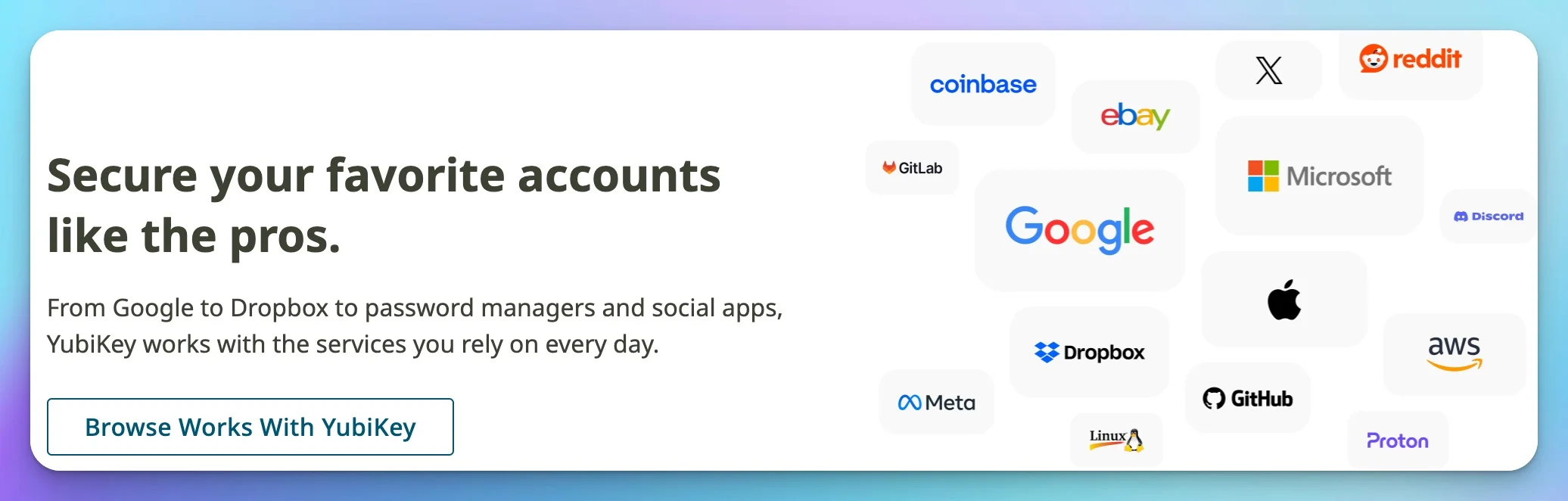
Passkeys stored in a password manager are secure, but they can theoretically be synced, copied, or accessed if someone compromises your password manager account. For your highest-security accounts, consider adding a hardware security key like YubiKey.
Hardware-Bound Passkeys: The Gold Standard
A YubiKey stores passkeys that cannot be extracted. The private key lives in the hardware chip and never leaves the device—not to the cloud, not to your computer, not anywhere.
This provides the strongest possible protection against:
- Remote attacks (even if your computer is compromised)
- Cloud account breaches
- Sophisticated phishing (though passkeys are already phishing-resistant)
Which Accounts Deserve Hardware Keys?
Don't put a YubiKey on every account—that's impractical. Reserve them for:
- Cloud infrastructure — AWS root account, Azure admin, Google Cloud
- Domain registrar — If someone steals your domain, they own your business identity
- Bank accounts — Primary business banking
- Password manager admin — The account that controls all other accounts
- Code repositories — GitHub/GitLab admin accounts
Recommended: YubiKey 5C NFC
For most users, the YubiKey 5C NFC ($58) hits the sweet spot:
- USB-C port (works with modern laptops—USB-A is nearly dead in 2026)
- NFC (tap to authenticate on phones)
- Stores up to 100 passkeys (firmware 5.7 and later)
- Supports FIDO2, WebAuthn, and legacy protocols
| Model | Price | Best For |
|---|---|---|
| YubiKey 5C NFC | $58 | Most users (USB-C + NFC) |
| YubiKey 5 NFC | $58 | USB-A + NFC (legacy ports) |
| YubiKey 5Ci | $85 | iPhone + Mac (Lightning + USB-C) |
Always Buy Two
If your only YubiKey breaks or gets lost, you're locked out of your most critical accounts. Always register two keys—one for daily use, one stored in a secure location (safe, bank deposit box).
Your 2026 Password Security Stack
Based on your team size, here's our recommended approach:
Solo Operator / Freelancer
| Layer | Tool | Cost |
|---|---|---|
| Primary | Proton Pass Free | $0 |
| Hardware (critical accounts) | YubiKey 5C NFC × 2 | $116 one-time |
Setup:
- Create passkeys for every site that supports them
- Store passwords for legacy sites in Proton Pass
- Register YubiKeys for your domain registrar, bank, and cloud accounts
Small Team (5-20 employees)
| Layer | Tool | Cost |
|---|---|---|
| Primary | 1Password Teams Starter Pack | $24.95/month for 10 members (add up to 10 seats at $4.99 each) |
| Admin Hardware | YubiKey 5C NFC × 2 per admin | $116/admin one-time |
Setup:
- Deploy 1Password across all employees
- Create shared vaults for team accounts (social media, shared tools)
- Use managed passkeys: If an employee saves a company passkey to their personal iCloud, you cannot revoke it when they quit. Ensure all passkeys are created inside 1Password so the business owns the credential, not the employee.
- Require YubiKeys for anyone with admin access
- Establish offboarding procedure (revoke access same day)
Growing Business (20-100 employees)
| Layer | Tool | Cost |
|---|---|---|
| Primary | 1Password Business | $8.99/user/month (billed annually) |
| SSO Integration | Connect to Okta/Entra | (existing subscription) |
| Admin Hardware | YubiKey 5C NFC for all admins | $58/key |
Setup:
- Integrate with your identity provider (SSO)
- Automate provisioning/deprovisioning with SCIM
- Enforce MFA policies through admin console
- Require hardware keys for privileged accounts
Taking Action
The passkeys transition is happening, but we're in the messy middle. Here's how to prepare:
Today
- Audit your current setup — Where are credentials stored? Browser, spreadsheet, sticky notes?
- Choose a password manager — 1Password for teams, Proton Pass for individuals/budget
- Start creating passkeys — Enable them for your Google, Microsoft, and GitHub accounts first
This Week
- Import existing passwords — Move everything from browser storage into your password manager
- Set up shared vaults — Create team vaults for shared accounts
- Order backup YubiKeys — At minimum, protect your most critical accounts
This Month
- Roll out to team — Deploy password manager org-wide with training
- Document offboarding — Write the procedure for revoking access when employees leave
- Create passkeys where supported — Gradually migrate high-use accounts to passkeys
Conclusion
Passkeys are a genuine security improvement—they eliminate phishing, password reuse, and the need to remember complex strings. But they don't replace everything your password manager does.
Think of your password manager as the secure wallet for your digital life:
- Passkeys for modern sites that support them
- Passwords for the (many) legacy sites that don't
- Shared vaults for team accounts
- Secure storage for credit cards, notes, and sensitive data
- Cross-platform sync across all your devices
For most small businesses in 2026, the right setup is:
- Primary: 1Password (teams) or Proton Pass (individual/budget)
- Hardware security: YubiKey for admin accounts
- Approach: Create passkeys where available, maintain passwords for the rest
The passwordless future is coming. Your password manager is how you get there securely.
Related Resources
- Best Business Password Managers 2026 — Full comparison guide
- 1Password vs Built-in Managers — Why dedicated tools beat browser storage
- Password Managers for AI Threat Protection — Security in the AI era
- Small Business Network Security Audit Guide — Practical security review framework
Frequently Asked Questions
Related Articles
More from Cybersecurity
Best Password Manager for Business 2026: 1Password vs Bitwarden vs NordPass vs Proton Pass
Tested across real team deployments: 1Password, Bitwarden, NordPass, and Proton Pass compared on admin controls, SSO, pricing, offboarding, and everything IT admins need to know.
39 min read

1Password Business Review 2026: SSO, Admin Controls, Pricing, and Real-World Adoption
1Password Business review after dozens of SMB deployments: 4.5/5. Admin console, SSO, Watchtower, real costs at $8.99/user/month, and when the premium is worth it.
24 min read
Proton Pass vs 1Password for Business: July 2026 Pricing, Security, and Admin Comparison
Proton Pass and 1Password compared for SMB teams: pricing, admin controls, SSO/SCIM, Travel Mode, device trust, support, migration, and business use cases.
18 min read