

Essential Network Cabling Checklist for 2026 (Free PDF)
Complete network cabling checklist for business owners. Learn why Cat6A is the usual choice for new installs, installation best practices, PoE budgets, and future-proofing for Wi-Fi 7. Download our free PDF checklist.

Key Takeaway
Your network cabling is a 10-year infrastructure asset. Don't let it limit your 5-year technology roadmap. This 2026 checklist covers Cat6A standards, Wi-Fi 7 requirements, PoE budgets, and future-proofing strategies.
In 2026, your network cabling is more than just wires—it's the power delivery system and data highway for your entire business. With the adoption of Wi-Fi 7 and AI-driven cloud tools, older cabling is more likely to become the limiting factor.
Physical-layer problems such as damaged, poorly terminated or poor-quality cable are a common cause of network trouble. Poor-quality or outdated cables can create bottlenecks that slow down everything from file transfers to video calls, regardless of how fast your internet connection is.
A proper structured cabling audit is the first step. You need to assess bandwidth needs not just for today, but for the next 10 years. Modern applications demand consistent, high-speed connectivity:
- Video conferencing needs a stable, low-latency connection
- Cloud-based AI tools and cloud services need low-latency data transfer
- Real-time backups benefit from fast, reliable uplinks between switches and storage
- Wi-Fi 7 access points typically run on PoE+ (802.3at), so plan switch ports and power budgets accordingly
By approaching your cabling infrastructure methodically with our interactive network cabling checklist, you protect your technology investment and ensure it remains reliable through multiple hardware refresh cycles.
Affiliate Disclosure: This article contains affiliate links. If you make a purchase through these links, we may earn a small commission at no extra cost to you. As an Amazon Associate, iFeelTech earns from qualifying purchases.
Interactive Network Cabling Checklist
Use this interactive checklist to evaluate your current infrastructure or plan a new installation. Check items as you complete them, and download a personalized PDF report when done:
Planning Your Network Infrastructure
Before installing or upgrading your network cabling, you need to assess both current and future requirements:
Bandwidth Assessment: Calculate your needs based on actual usage. An office with 50 employees using cloud applications, video conferencing, and large file transfers will need significantly more capacity than basic email and web browsing. Use our business internet requirements calculator to estimate your bandwidth needs.
Future Growth: Plan for the next 10 years. Will you add more workstations? Deploy IoT devices? Implement surveillance systems? Each of these requires additional network capacity.
Industry-Specific Requirements:
- Healthcare facilities: HIPAA requires reasonable safeguards for electronic patient data, and network segmentation is a common way to meet them, alongside proper network security measures
- Schools: High-density Wi-Fi for classrooms and student devices
- Retail businesses: Reliable Point of Sale (POS) systems with backup connectivity
- Restaurants and hospitality: POS network separation, labeled cable runs for kitchen and bar equipment, and documented handoff — see the restaurant network blueprint for the full cabling and documentation standard
Which Ethernet cable is best for business in 2026?
Cat6A is the usual choice for new commercial installations: it is specified for 10Gbps (10GBASE-T) over the full 100 meters and is rated to 500 MHz.
Choosing the right cable category is the single most important decision in your infrastructure project. The type of cable you select determines your network's performance ceiling for the next decade.
Ethernet Cable Categories Explained
Cat6A (Recommended for 2026): The baseline for new offices in 2026. It supports 10 Gbps up to 100 meters (328 ft). Cat6A is also the safer choice for higher-power PoE, because larger bundles carrying PoE can run warm (TIA guidance for PoE bundling points to Cat6A or higher). That matters when powering Wi-Fi 7 access points and high-wattage PTZ security cameras. The "A" stands for "Augmented": the category is specified to 500 MHz and includes alien crosstalk (AXT) limits for high-density cable bundles. Cat6A comes in both unshielded (UTP) and shielded versions.
Cat6 (Budget/Legacy Option): Cat6 is specified to 250 MHz and carries 1 Gbps and 2.5/5 Gbps (IEEE 802.3bz) to 100 meters. 10 Gbps works only on shorter runs, up to about 55 meters (180 ft) depending on alien crosstalk (TIA TSB-155), and each link needs to be tested. Use it for workstations or if you are budget-constrained. It is not recommended for new runs where 10 Gbps may be needed, because it has no alien crosstalk specification.
Cat5e (Legacy): Not recommended for new installations. Cat5e carries 1 Gbps and, under IEEE 802.3bz, 2.5 Gbps (2.5GBASE-T) up to 100 meters, but it cannot carry 5 or 10 Gbps. Existing Cat5e is usually fine for 1 Gbps and 2.5 Gbps devices, such as Wi-Fi 7 access points on 2.5GbE ports, and can be replaced as part of planned upgrades.
Cat8 (Not Recommended for Offices): Cat8 supports 25/40 Gbps, but only over channels up to 30 meters, which makes it a data-center technology rather than a general office LAN choice. It also costs more than Cat6A. For anything requiring more than 10 Gbps in an office, fiber optic is usually the better choice.
Fiber Optic (Backbone & Long Runs): Mandatory for connecting server rooms, buildings, or runs over 100 meters. See the fiber types comparison below for specific recommendations.
| Category | Maximum Speed | Bandwidth | Maximum Distance | PoE Support | 2026 Recommendation |
|---|---|---|---|---|---|
| Cat5e | 1 Gbps (2.5 Gbps with 802.3bz) | 100 MHz | 100 meters (328 feet) | Supports PoE, PoE+ and PoE++ | Legacy - not recommended for new installs |
| Cat6 | 1 Gbps (5 Gbps with 802.3bz); 10 Gbps on short runs | 250 MHz | 100 meters (328 feet); about 55 meters (180 feet) for 10 Gbps | Supports PoE, PoE+ and PoE++ | Budget option |
| Cat6A | 10 Gbps | 500 MHz | 100 meters (328 feet) | Recommended for PoE++ bundles | Usual choice for new installs |
| Cat8 | 25/40 Gbps | 2000 MHz | 30 meters (98 feet) | Supports PoE, PoE+ and PoE++ | Not cost-effective for offices |
| Fiber Optic | 100 Gbps+ | N/A | Up to 40 km+ | No (data only) | Backbone & inter-building |
Avoid CCA Cables
Never buy "CCA" (Copper Clad Aluminum) cables found on cheap marketplaces. They do not meet TIA cabling standards, often lack a valid UL listing under the NEC, and have about 55% higher resistance than copper of the same diameter, which causes more heat and less power at the device under PoE loads (Fluke Networks). Always insist on Solid Pure Copper cables from reputable brands like TrueCable or Belden.
Recommended Cat6A Cables:
For bulk cable installations, consider these options:
- UniFi Cat6A CMR Cable - Professional-grade solid copper cable in 1000ft boxes
- Quality alternatives available on Amazon with solid copper construction
Installation Tools:
- Klein Tools Cable Crimper - Professional RJ45 crimping tool
- Klein Tools Cable Tester - Verify cable integrity before certification
- Cat6A RJ45 Connectors (100-pack) - Shielded connectors for Cat6A terminations
For step-by-step termination instructions covering T568A/T568B color codes, AWG matching, and pass-through vs standard connectors, see the RJ45 wiring diagram guide.
Fiber Optic Cable Types
For backbone connections, server room uplinks, or inter-building links, fiber optic cabling is the professional standard:
| Fiber Type | Mode | Core Size | Maximum Speed | Maximum Distance | Best Use Case |
|---|---|---|---|---|---|
| OM3 | Multimode | 50 µm | 10 Gbps (40 Gbps to 100 m) | 300 meters at 10 Gbps | Legacy installations |
| OM4 | Multimode | 50 µm | 40 Gbps (10 Gbps to 400 m) | 150 meters at 40 Gbps (100 meters at 100 Gbps) | Standard for internal 10-40Gbps links |
| OM5 | Multimode | 50 µm | 100 Gbps (SWDM4) | 150 meters at 100 Gbps with SWDM4 optics | Future-proof data centers (supports SWDM) |
| OS2 | Singlemode | 9 µm | 100 Gbps+ | 10 km with standard LR optics; 40 km with ER optics | Long-distance & inter-building |
For most business applications: Use OM4 multimode for connections within a building (server to switch, MDF to IDF), and OS2 singlemode for connections between buildings or campus environments. Reach depends on the optic: the table shows IEEE reach for 10GBASE-SR, 40GBASE-SR4 and 100GBASE-SR4 over OM3/OM4, and 100G SWDM4 over OM5. OM5 is worth considering only if you plan 100Gbps SWDM links, and OM4 remains the practical standard for 2026. For a detailed walkthrough of matching fiber cables with SFP modules on UniFi switches, see our UniFi fiber and SFP guide.
Fiber Optic Cables:
- OM4 Multimode Fiber Cable (75M) - For internal building runs
- OS2 Single-Mode Fiber Cable (300M) - For inter-building connections
- UniFi SFP+ Modules - Compatible transceivers for fiber connections
Simple Guide to Selecting the Correct Ethernet Cable
Do I need Plenum or Riser rated cable?
Use Plenum (CMP) cable for spaces with air circulation (drop ceilings/raised floors) and Riser (CMR) for runs between floors.
The cable jacket determines fire safety and legal compliance:
Plenum (CMP): Has a fire-retardant jacket that emits low smoke. If your office has a drop ceiling where air circulates, the NEC requires plenum-rated (CMP) cable there unless the cable is installed in metal conduit or another approved raceway. Inspectors can fail an installation that uses the wrong cable type. Plenum cable costs more than riser or general-purpose cable and is required in air-handling spaces under the NEC. Learn more in our small business network setup guide.
Riser (CMR): Designed to prevent fire from traveling vertically between floors. Use this for vertical runs in walls or shafts that don't handle air circulation.
Outdoor (CMX): UV-resistant jacket for external runs. Must be rated for temperature extremes in your climate.
Direct Burial: For underground runs without conduit. Requires moisture barrier and rodent protection.
Shielded vs. Unshielded Cables
Shielded (F/UTP or S/FTP): Essential for manufacturing floors, medical facilities, or areas within 12 inches of high-voltage lines. The shielding adds cost and makes termination more difficult, so only use it where electromagnetic interference (EMI) is actually present.
Unshielded (UTP): Sufficient for standard offices if routed with the TIA-569 separation from power lines. Easier to install and terminate. This is what most businesses should use.
What are the rules for network cable installation?
Keep data cable well away from electrical lines (12 inches is a common rule of thumb), avoid sharp 90-degree bends, and label every termination point clearly.
Proper installation ensures optimal performance. Follow these 2026 best practices:
Cable Routing and Physical Installation
Bend Radius: Never bend a cable tighter than 4x its diameter. For Cat6A, this means a minimum bend radius of about 1.5 inches. Kinked cables cause "packet loss," resulting in choppy video calls and slow file transfers.
Service Loops: Leave 1-2 feet of extra cable (a service loop) at both the patch panel and the wall outlet. This allows for future repairs without re-running the entire line. Coil the extra cable neatly and secure it with velcro straps (never zip ties, which can crush cables).
Cable Support: Use J-hooks or cable trays every 4-5 feet. Never let cables rest on ceiling tiles; it violates fire code and degrades the cable over time. Maximum horizontal span without support: 5 feet.
Separation from Power: The NEC (800.133) requires data cable to be separated from power conductors unless a barrier or raceway is used, and ANSI/TIA-569 sets minimum distances to limit interference: 5 inches from unshielded power circuits under 2 kVA, 12 inches for 2-5 kVA, and 24 inches above 5 kVA near open or non-metal pathways (less when the power wiring is in grounded metal conduit). Many installers use 12 inches as a simple rule. If you must cross power lines, do so at a 90-degree angle to minimize interference.
Critical Installation Rule
Never use zip ties on network cables. They create pressure points that damage the internal wire pairs. Use velcro cable wraps or specialized cable management clips only.
Labeling and Documentation
Label both ends of every cable run with:
- Source location (e.g., "Server Room Rack 2, Port 24")
- Destination location (e.g., "Office 301, Wall Jack A")
- Cable type (e.g., "Cat6A Plenum")
- Installation date
Use a label maker with heat-shrink labels that won't fall off. Document everything in a spreadsheet or network management system.
Testing and Certification
Ask your installer about cable certification testing. A "Fluke Test" (or equivalent) proves each cable meets the TIA-568 standard for speed and continuity. While not every installer has Fluke equipment, professional network installation services typically include some form of certification testing. A comprehensive report should show:
- Wire map: Confirms correct pin-to-pin connections
- Length: Verifies runs are under 100 meters
- Insertion loss: Measures signal degradation
- Return loss: Checks for impedance mismatches
- NEXT/FEXT: Tests for crosstalk between wire pairs
Certification adds cost per cable (quote it with your installer) but can prevent costly troubleshooting later. At minimum, request basic continuity and wire map testing for critical runs. Our Ethernet cable tester guide explains what each level of testing proves.
How do I future-proof my network for 2030?
Install Cat6A cabling for all access points, use modular patch panels, and run conduit to hard-to-reach areas for easier upgrades.
Security and longevity go hand-in-hand. Here's how to build a network that lasts:
Physical Security
Physical security is an important component of network protection. Consider these measures:
- Secure network closets: Use key card or biometric access control
- Locked or tamper-evident enclosures: Useful for HIPAA and PCI-DSS environments. HIPAA's facility access controls (45 CFR 164.310) are addressable rather than prescriptive, and PCI DSS Requirement 9 requires restricting physical access to the cardholder data environment
- Port security: Use tamper-evident jack locks in public areas like waiting rooms or conference rooms
- Surveillance: Install security cameras in server rooms and network closets using UniFi camera systems
Physical access to network equipment can compromise security controls, so it's important to restrict access to authorized personnel only.
Wi-Fi 7 & Wi-Fi 8 Requirements
Wi-Fi 7 is the current standard for new enterprise deployments. While consumer marketing emphasizes speed, business-grade equipment prioritizes latency reduction and client capacity.
Wi-Fi 7 (802.11be) - Current Standard:
- Cabling requirement: Current APs use 2.5 GbE or 5 GbE uplinks, which Cat5e and Cat6 carry to 100 meters (IEEE 802.3bz). Cat6A is a sensible choice for new runs that may need 10 Gbps later
- Power requirement: Many enterprise Wi-Fi 7 APs use PoE+ (802.3at, 30W at the switch). For example, the UniFi U7 Pro draws 21W maximum, and the U7 Pro Max draws 25W
- Uses 2.4 GHz, 5 GHz, and 6 GHz bands simultaneously for reduced latency
- Multi-gigabit throughput requires proper backhaul planning
Wi-Fi 8 (802.11bn) - Final approval expected in 2028:
- IEEE's project timeline lists final approval in May 2028
- Early prototype devices were shown at CES 2026
- Power and backhaul requirements for enterprise models have not been published
Infrastructure Recommendation: Install Cat6A cabling now for 10 Gbps capability and better headroom for higher-power PoE loads, even if your current Wi-Fi 7 access points only draw 21-25W on PoE+. This is a 10-year infrastructure investment protecting your 5-year technology roadmap. For a full breakdown of when WiFi 8 managed hardware will actually be available and whether to buy WiFi 7 now, see WiFi 8 Release Date: Buy WiFi 7 Now or Wait?.
Wi-Fi 7 Access Points:
- UniFi U7 Pro - Enterprise Wi-Fi 7 access point (PoE+, 21W maximum)
- UniFi U7 Pro Wall - Wall-mounted Wi-Fi 7 AP for offices
- Browse all UniFi WiFi options
Redundancy and Scalability
Run two cables to every desk, even if you only need one today. The cost of the second cable is pennies; the cost of the labor to add it later is hundreds of dollars.
Use modular patch panels that allow easy expansion without rewiring. Leave 30-40% spare capacity in your cable trays.
Install conduit to hard-to-reach areas. This allows you to pull new cables in the future without opening walls or ceilings.
MDF and IDF Design
For offices larger than 3,000 sq ft, use a proper hierarchical design:
MDF (Main Distribution Frame): Your primary server room with core switches, internet connection, and main patch panels. This is the "brain" of your network. Consider UniFi Cloud Gateways for your main distribution point.
IDF (Intermediate Distribution Frame): Network closets on each floor or wing that connect back to the MDF via fiber optic uplinks. Each IDF serves the endpoints on its floor or wing. Each IDF typically requires a PoE switch to serve local devices.
This design prevents any single cable run from exceeding the 100-meter limit and makes troubleshooting easier.
Cooling Considerations: If you're deploying high PoE budgets (500W+ per switch), your network closets need adequate cooling. PoE generates heat in both the cables and the switches. A poorly ventilated IDF can cause thermal shutdown of equipment or accelerated cable degradation. Budget for:
- Dedicated HVAC or mini-split units where closet heat load exceeds what building air handling can remove
- Temperature monitoring sensors
- Proper ventilation, following the clearance in each switch's installation guide
Regular Maintenance
Inspect your cabling infrastructure annually:
- Check for cable damage, loose connections, or environmental issues
- Verify patch panel labels are still legible
- Test random cable runs to ensure they still meet certification standards
- Update documentation when changes are made
Proactive maintenance prevents emergency downtime.
Cable Removal and NEC Compliance
Important: National Electrical Code (NEC) Article 800.25 requires the accessible portion of abandoned communications cable to be removed. Abandoned cable is defined as cable not terminated at both ends and not identified for future use with a tag. This is a common "gotcha" for businesses renovating office spaces.
Why it matters:
- Abandoned cables add fire load in plenum spaces
- Inspectors can fail a renovation if accessible abandoned cable is left in place
- Proper removal allows you to reclaim valuable cable tray space
- Copper recycling from old cables can offset some removal costs
When upgrading from Cat5e to Cat6A, budget for removing accessible abandoned cable, or tag cable you intend to reuse; local code adoption varies, so confirm with your inspector.
Understanding PoE Budgets
A PoE budget is the total power your switch can deliver to all connected devices. Many businesses buy PoE switches without realizing they can't power all ports simultaneously.
This is a critical planning consideration for 2026:
How PoE Budgets Work
A 48-port PoE++ switch might advertise "90W per port" but only have a total power budget of several hundred watts, for example 740W. This means:
- Maximum per port: 90W (PoE++)
- Total budget: 740W
- Actual capacity: Only 8-10 ports can run at full 90W simultaneously
If you connect 24 Wi-Fi 7 access points each drawing 25W, you need 600W total. Without adequate total power budget, your switch will shut down ports or reduce power delivery, causing devices to malfunction.
Calculating Your PoE Requirements
Step 1: List all PoE devices and their power draw:
- Wi-Fi 7 Access Point: 20-25W (PoE+)
- VoIP Phone: 7-10W (PoE)
- Security Camera (PTZ): 30-60W (PoE+ or PoE++)
- Security Camera (Fixed): 12-18W (PoE+)
- Future PoE++ devices (reserve capacity): 60-90W
Step 2: Add 20% overhead for safety margin
Step 3: Choose a switch with adequate total power budget
Example Calculation
Office with:
- 10 Wi-Fi 7 APs (UniFi U7 Pro) × 25W = 250W
- 30 VoIP phones × 7W = 210W
- 8 security cameras × 15W = 120W
- Total: 580W
- With 20% safety margin: 696W required
You would need:
- A single 48-port PoE+ switch with 740W budget (sufficient with headroom)
- Or a PoE++ switch if planning for future high-power devices
Note: If you plan to add more access points, PTZ cameras, or next-generation PoE++ devices in the next 2-3 years, budget for a switch with 1,000W+ total capacity or plan for stacked switches to avoid premature replacement.
Always verify the total power budget before purchasing PoE switches. This is one of the most common mistakes in network planning.
For professional guidance on switch selection and PoE budget planning, our team can help you calculate your exact requirements and recommend appropriate equipment.
Conclusion: A Reliable Network Starts with the Right Cabling
A well-planned network cabling infrastructure is the foundation of a reliable, secure, and scalable business network. By following this 2026 checklist—from Cat6A cable selection to PoE budgets and Wi-Fi 7 requirements—you can ensure your network is ready to meet current demands and adapt to future growth.
Need Professional Help?
We specialize in network cabling and can help design and install a system that meets 2026 standards and supports your business for the next decade.
Get Your Personalized Checklist
Use the interactive checklist above to track your progress and download a personalized PDF:
This checklist reflects current industry standards as of October 2026. Cable specifications and best practices may evolve as new technologies emerge. We may earn commissions from qualifying purchases through affiliate links, which help support our content at no cost to you.
Related Articles
More from Network Infrastructure
Professional WiFi 7 Network Implementation: Complete Business Guide
Complete guide to professional WiFi 7 network implementation for businesses. Covers infrastructure planning, UniFi equipment selection, cost analysis, and implementation best practices.
16 min read
The 2026 New Construction Network Guide: Wi-Fi 7, Cat6a, and 10G Infrastructure
Building a new home in 2026? Don't use outdated cabling. Learn why Cat6a is the new standard, how to plan for Wi-Fi 7, and why you need a 10G network closet. Read the guide.
18 min read
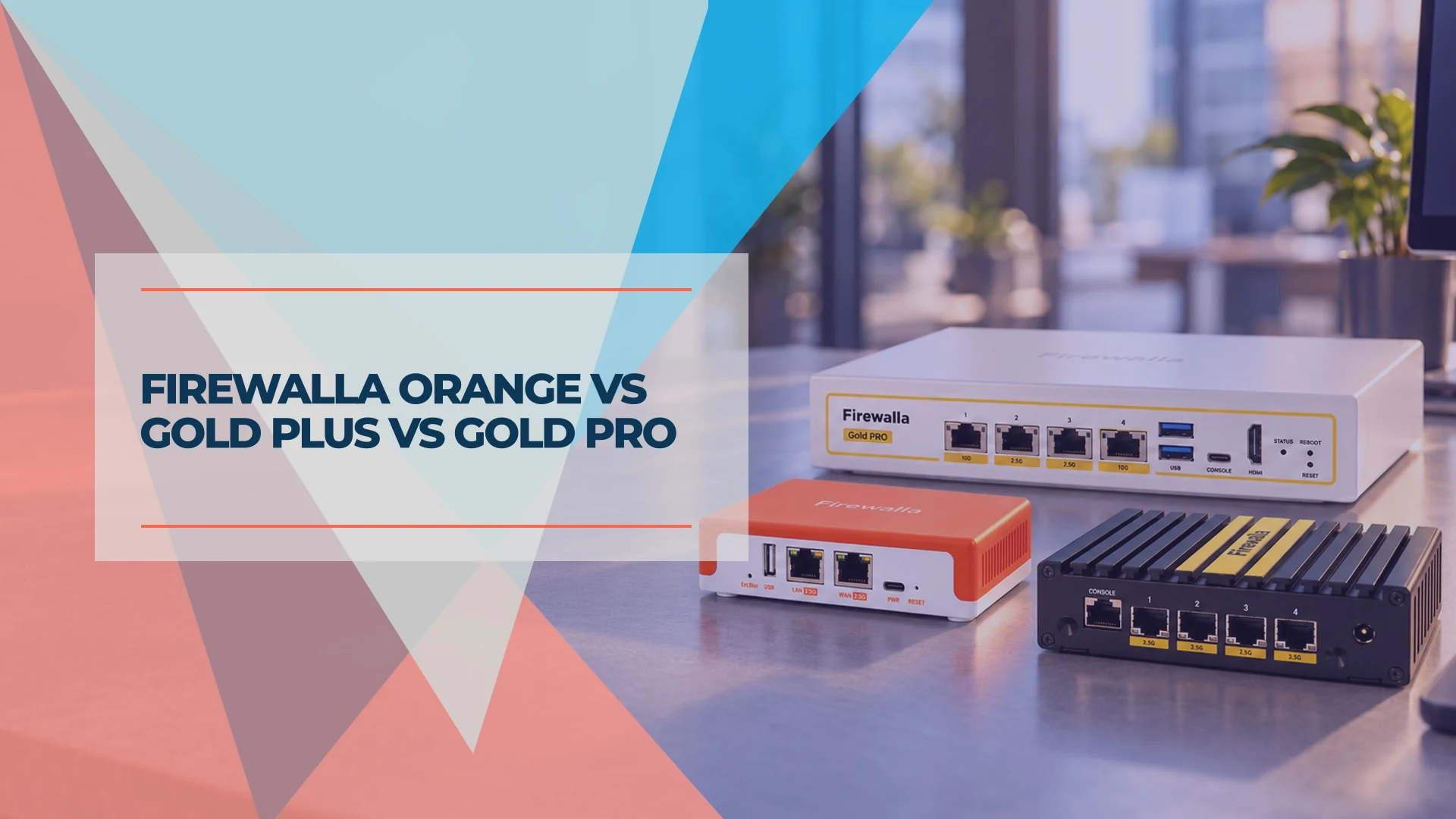
Firewalla Orange vs Gold Plus vs Gold Pro: Which Firewalla Fits Your Office?
Compare Firewalla Orange, Gold Plus and Gold Pro prices, ports, VPN speeds and limits. Choose the right small-office firewall and deployment mode.
11 min read